
Available with the Premium plan.
The Congress feature lets you organize large-scale events: annual conferences, music festivals or training days. Its schedule, made of time blocks over one or more days, groups the workshops your participants choose from. This guide walks you through creating a congress, from its setup to its publication on your website.
In the platform, workshops are called sessions (for example, Session list or Create a session).

In this article
- Convert an event into a congress
- Create the schedule
- Create the workshops
- Create and assign speakers
- Create and assign rates
- Create the congress pages on your website
- Tips and best practices
- Choose between a congress and an activity with sessions
Convert an event into a congress
A congress is always created from an existing event.
- Under Events > Events, create the base event. If needed, see the guide on creating an event.
- Select your event, click the Congress Mode tile, then click Convert.

The conversion is irreversible: the event remains in Congress mode. After the conversion, the same email can no longer be registered more than once. Existing rates, including group rates, are kept.
Once the event is converted, the Schedule tile appears in your event.
Create the schedule
The schedule is made up of time blocks (for example, "Morning of Day 1"). Each block can contain one or more workshops, or none.
- In the Schedule tile, click Create a time block.
- Enter the name, time range and description of the block, then save.

Create the workshops
- Under your time block, click Create a session. Your list of workshops appears: select an existing workshop, or create a new one.
- Fill in the workshop information: its name, its short and full description and, if needed, a capacity limit. Repeat this step for each workshop.

Back in your time block, drag the desired workshops into the block's frame.

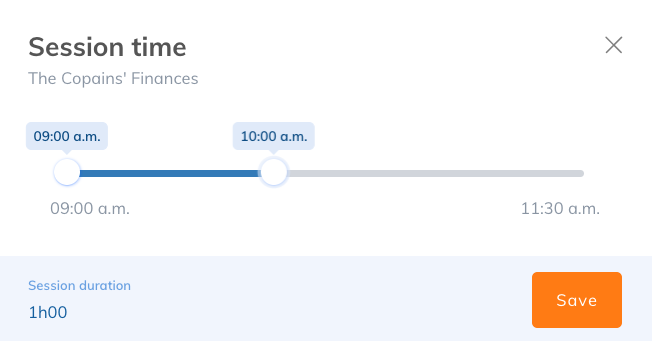
Click a workshop in the time block to adjust its duration.
Manually assign participants to workshops
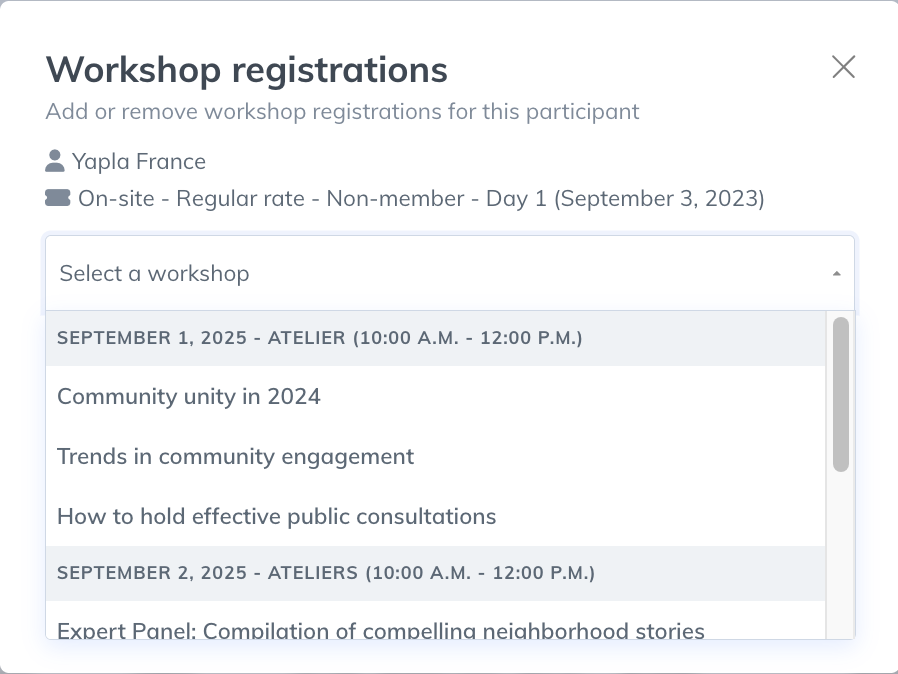
- In your congress, open the Registration tile and find the participant you want to register for specific workshops.
- Click the gear icon to the right of their registration, then click See workshops.
- Select the desired workshops, then click Save.
Create and assign speakers
The speaker database lets you manage each speaker's status (active or inactive), customize the fields of their profile, assign them to events or workshops and see the events each one is assigned to. It requires three prior settings:
- Enable the Data feature under Settings > Features.
- Under Events > Settings > Settings, check the Activate speakers base box in the Speakers section.
- Under Events > Settings > Speakers list, create your list of speakers and add the requested information. The Form tile in the same section lets you add extra fields to the speakers' profiles.
Then assign the speakers to their workshops under Events > [your congress] > Schedule > Session list > [your workshop] > Settings > Speakers, by selecting them in the drop-down list.

Assigned speakers appear on your congress schedule page.
Create and assign rates
- In your congress, open the Prices tile and create your rates. If needed, see the article Configure Prices for your Events.
- In the Sessions this price gives access to section, choose the workshops included in the rate: all workshops, selected workshops only (Access by session) or the workshops of certain days (Access per day).
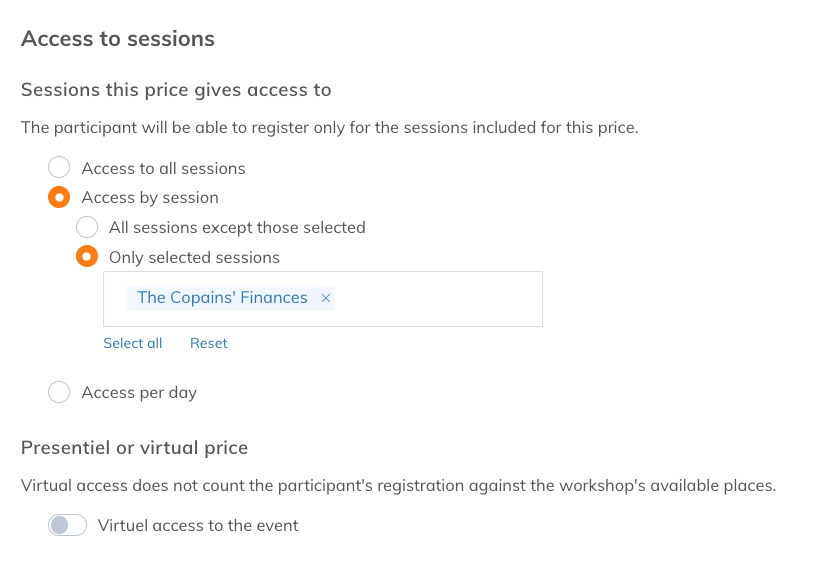
The Presentiel or virtual price option lets you offer virtual registration without reducing the number of in-person spots available.
A congress also accepts group rates, for example to sell a table or several spots in a single purchase. See the article Create group rates for your events.
Create the congress pages on your website
To promote your congress and collect registrations, create three pages in the Website feature: a registration page, a schedule page and a participant login page. If you don't have a website yet, see the guide on creating your website.
Registration page
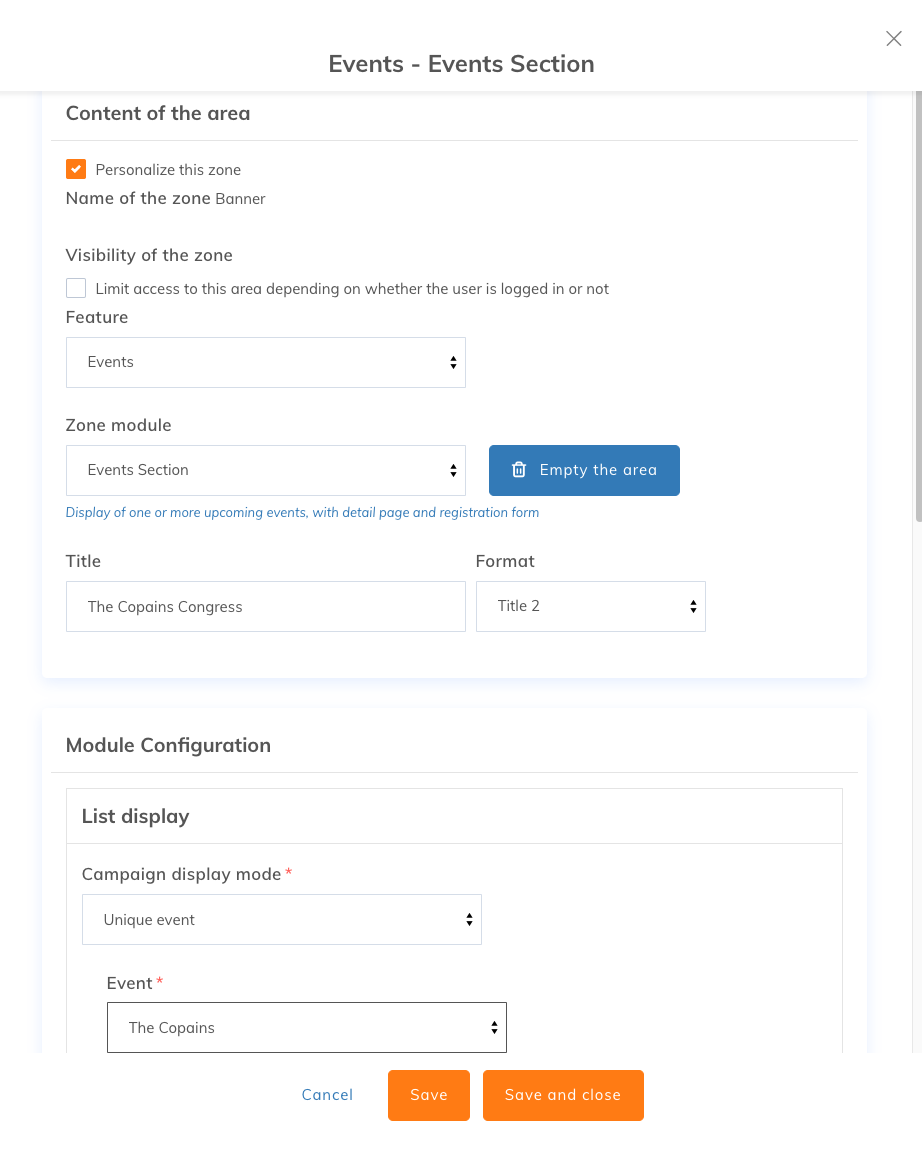
Add a page with the Events Section module (see the article Events Section). In the module settings, under Campaign display mode, select Unique event, then choose your congress from the list.
Schedule page
Create a second page and add the Event schedule module, which displays your congress time blocks and their workshops.
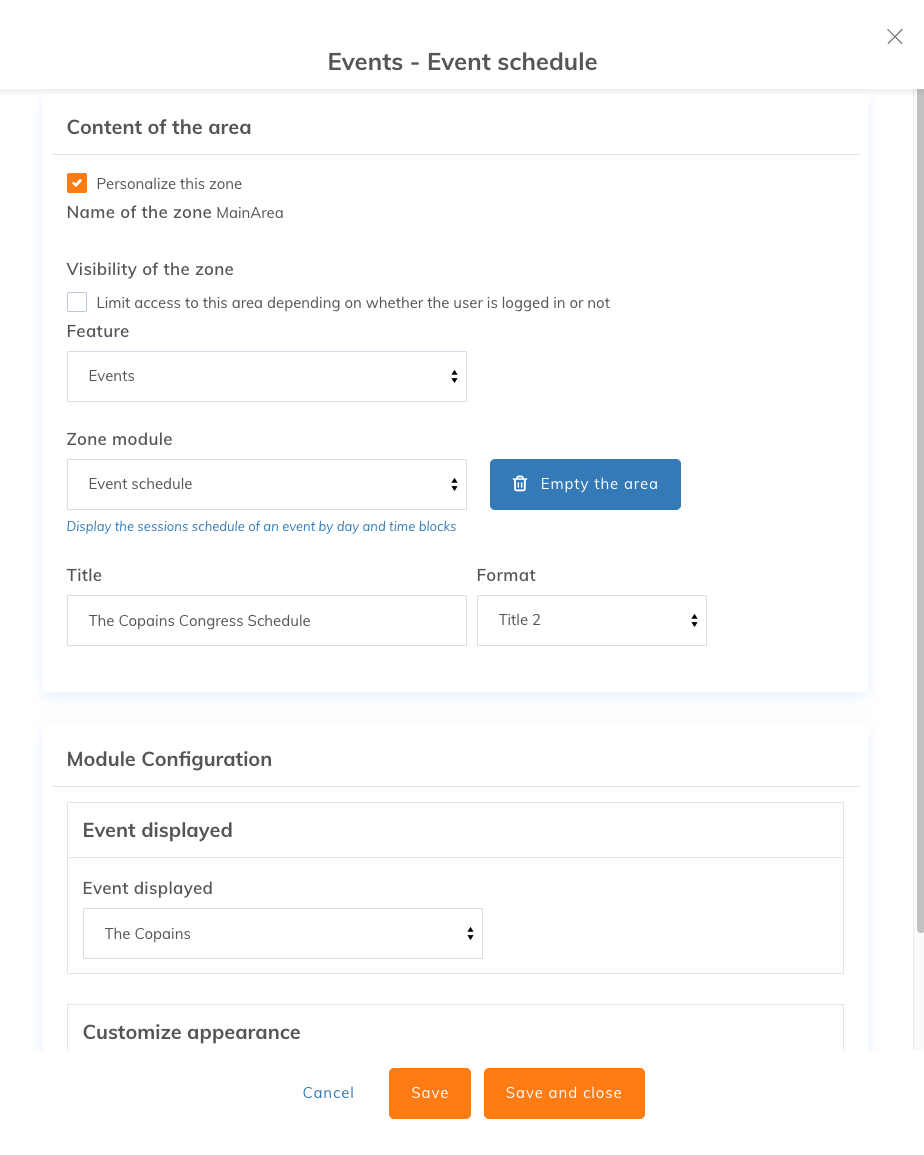
Here is a preview of the schedule page on the website:

Participant login page
Create a third page and add the Login module from the Website feature. In the module settings, redirect the login to the congress schedule page: once logged in, participants choose their workshops there.
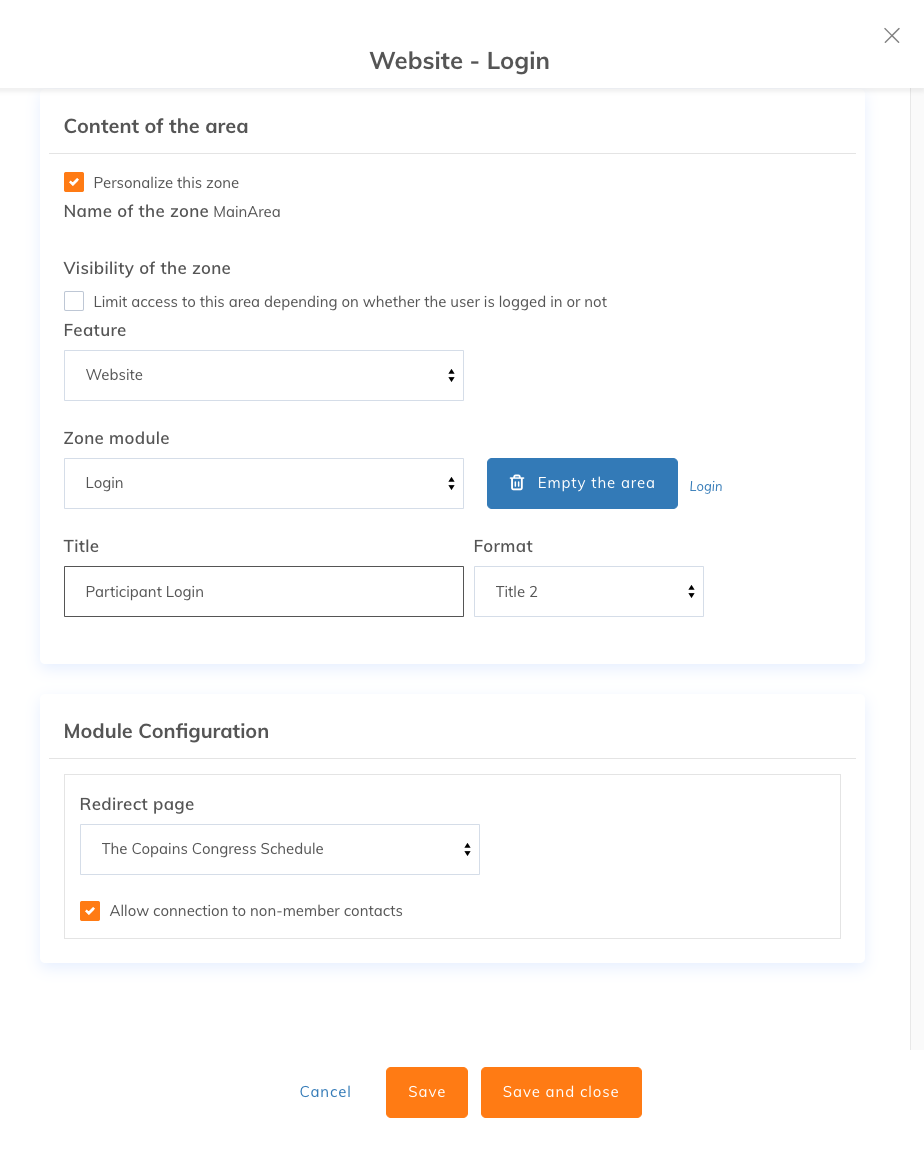
For participants who are not members of your organization:
- Check the Allow connection to non-member contacts box to let them register (see the article Allow members and non-members to log in to your website).
- At the end of their registration, non-member participants are already logged in and can choose their workshops right away.
- To invite them to create a password at their first login, add the LOGIN - Password Reset keyword to the registration communication. Otherwise, they can create their password with the forgotten password or first login feature.
Tips and best practices
- Test your congress before publishing it: make test registrations, check how the pages display and simulate the workshop selection.
- Showcase your speakers: complete their information and polish their presentation (photo, LinkedIn link, etc.).
- Enrich your pages: add modules for your sponsors or special events, such as a gala evening.
- Advanced needs: call on the Professional Services team.
Choose between a congress and an activity with sessions
Both features offer several choices to the participants of a single event, but they meet different needs:
- Activity with sessions: the activity groups several sessions of the same event, and each participant chooses their session before registering. This format suits relatively simple courses, training and recurring activities. The activity's general settings (rates, forms, automated communications) apply by default to all its sessions. Registrations go through the Activities section and Events Section modules of your website. See the article Create activities with multiple sessions.
- Congress: the congress suits more complex events, such as annual conferences or festivals, that span several days and offer various workshops. It provides detailed management of time blocks, workshops and speakers, with rates specific to each workshop. Registrations go through dedicated pages on your website (registration, schedule and participant login).