
Available with the Premium plan.
Let your participants register as a group for your event: a table, a golf foursome or duo, or any other group rate you offer.
Configure group rates for your event
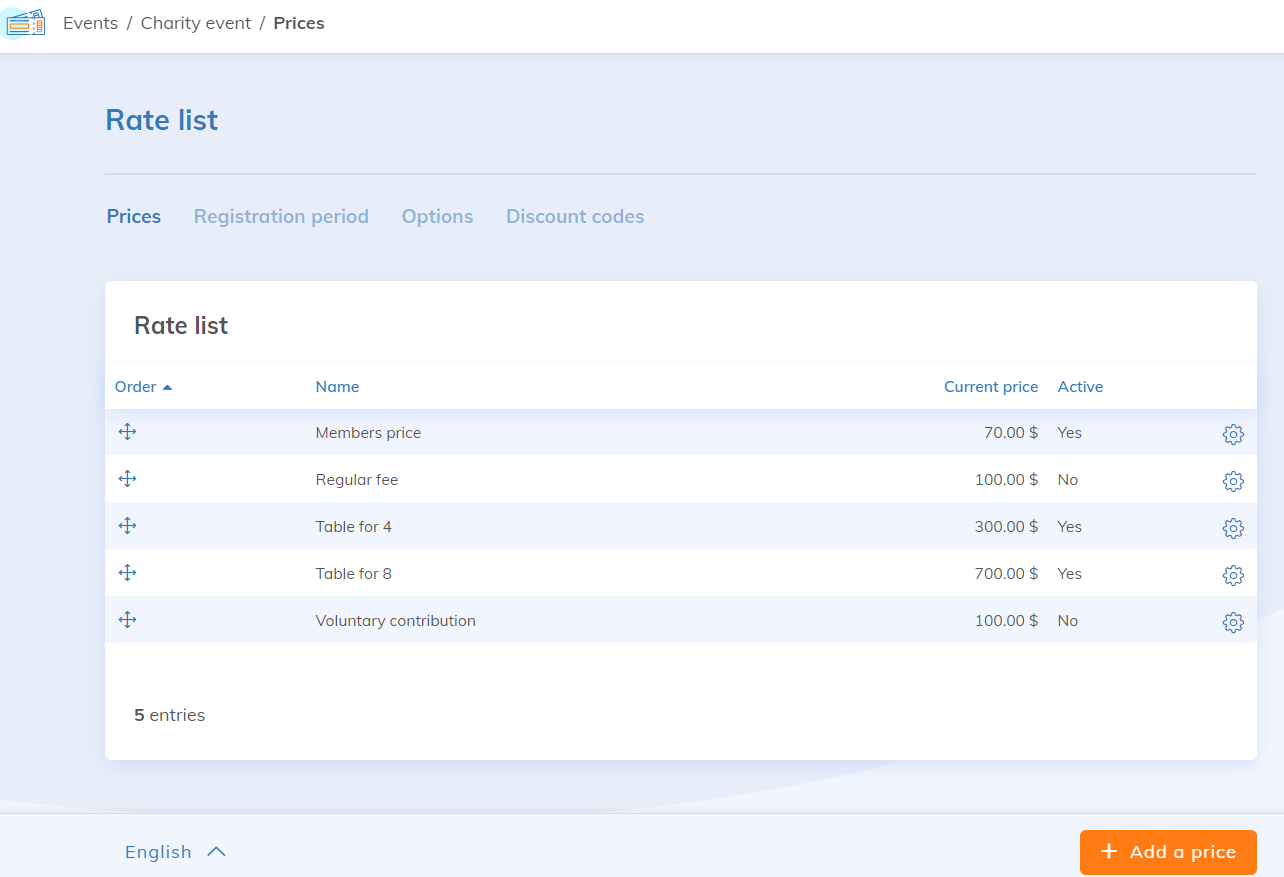
Once you have created your event, open the Rate list and click Add a price.
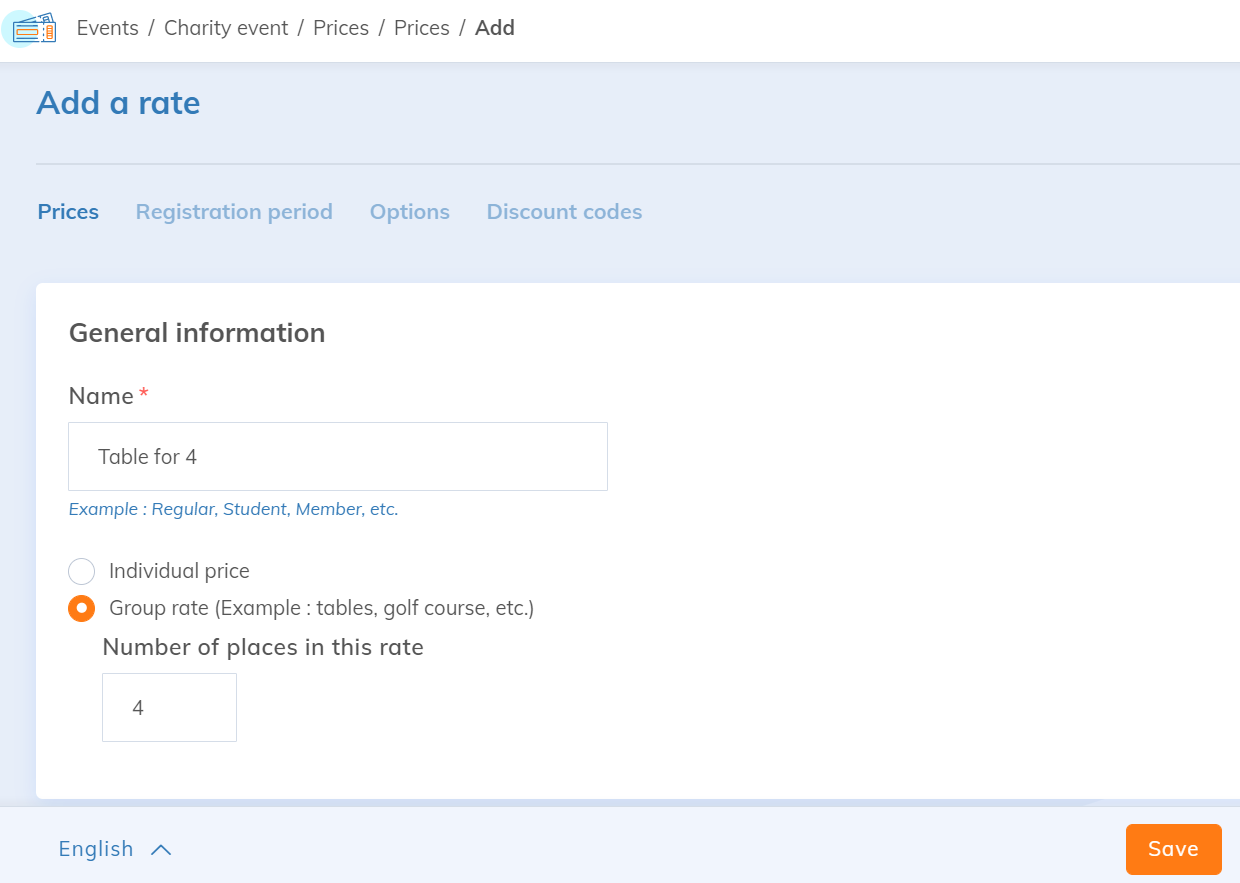
Two options are offered:
- Individual rate: the rate is valid for one registration only.
- Group rate: the rate is valid for two or more registrations.
For a group rate, specify the number of spots included. For example, if you enter "4", the purchase of the rate is valid for 4 people.
For an event in Congress mode, the group rate is set up the same way. Like any congress rate, it can give access to all workshops, to selected workshops only or to specific days. However, each participant in the group must have a different email address, since a congress accepts only one registration per email.
Registration on your website
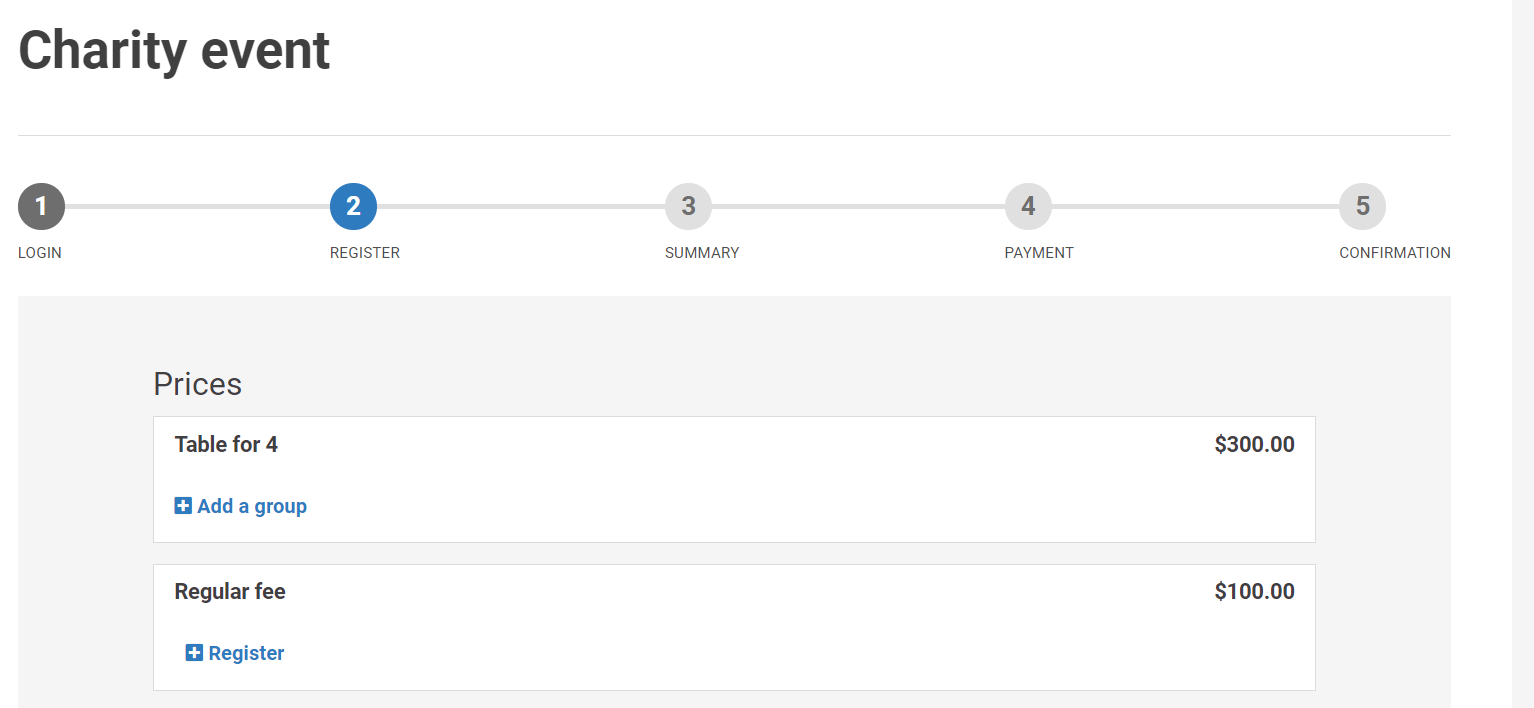
At the registration step on your website, the Add a group button, under the chosen rate, lets you enter the information of the first participant.
Once the first participant's form is saved, a table shows the other participants of the group, not yet identified.
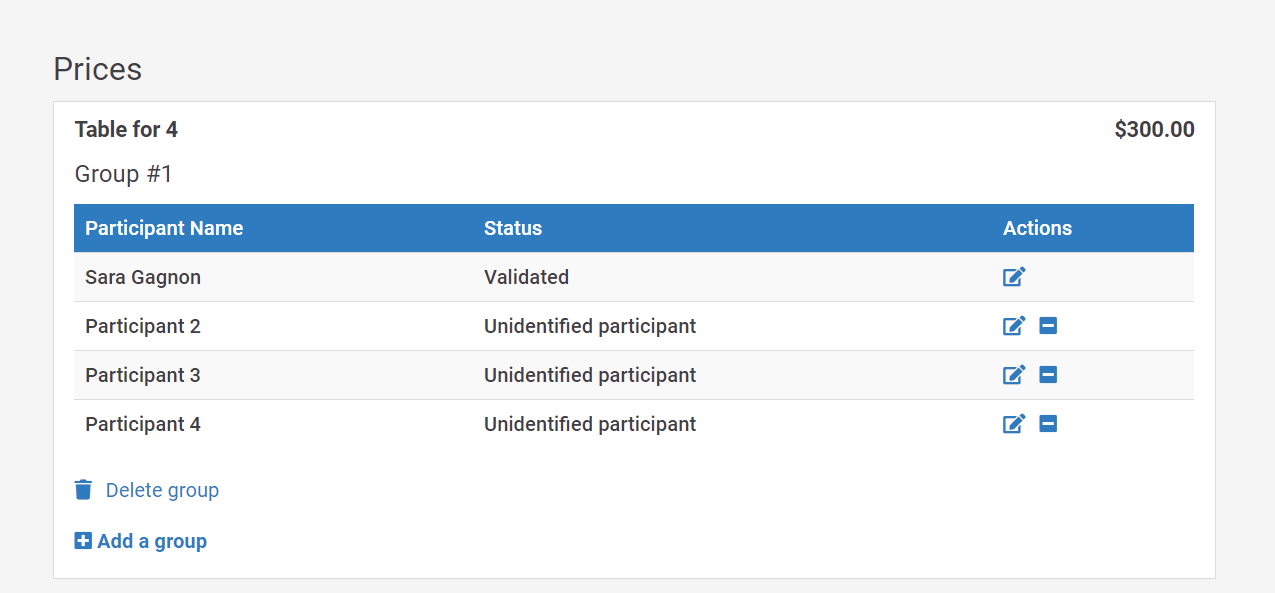
If you already know the other participants of the group, click the edit icon to fill in their information.
View the registrations
In the Event feature, select your event, then click Registration.
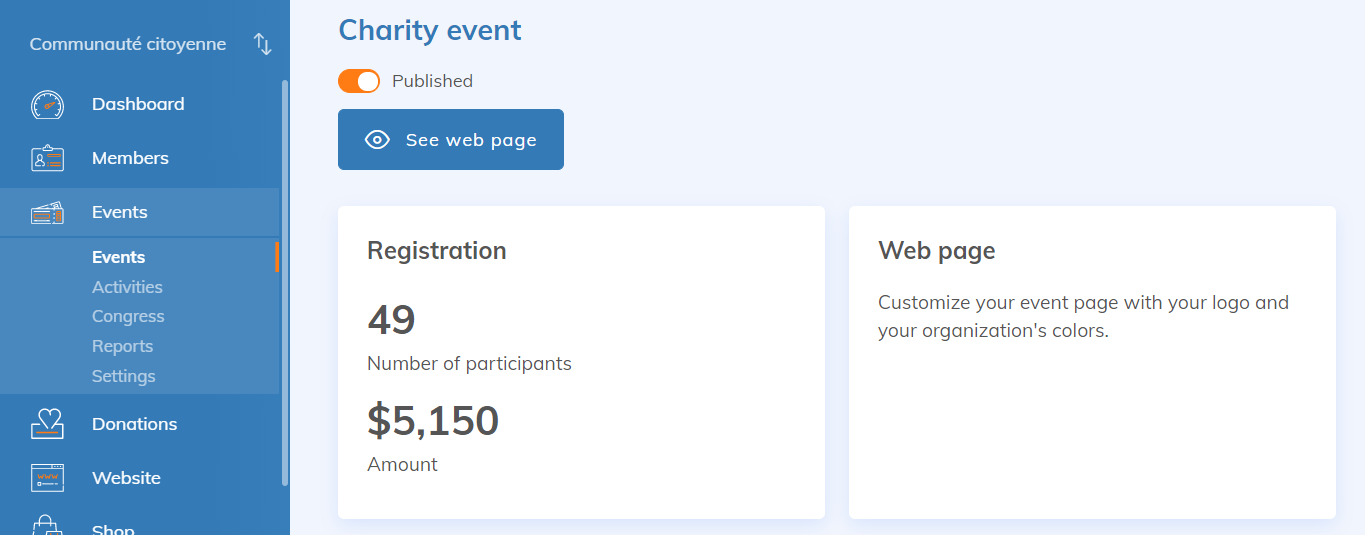
In the list of registrations, group rates stand out from individual rates thanks to the group number automatically assigned to them.
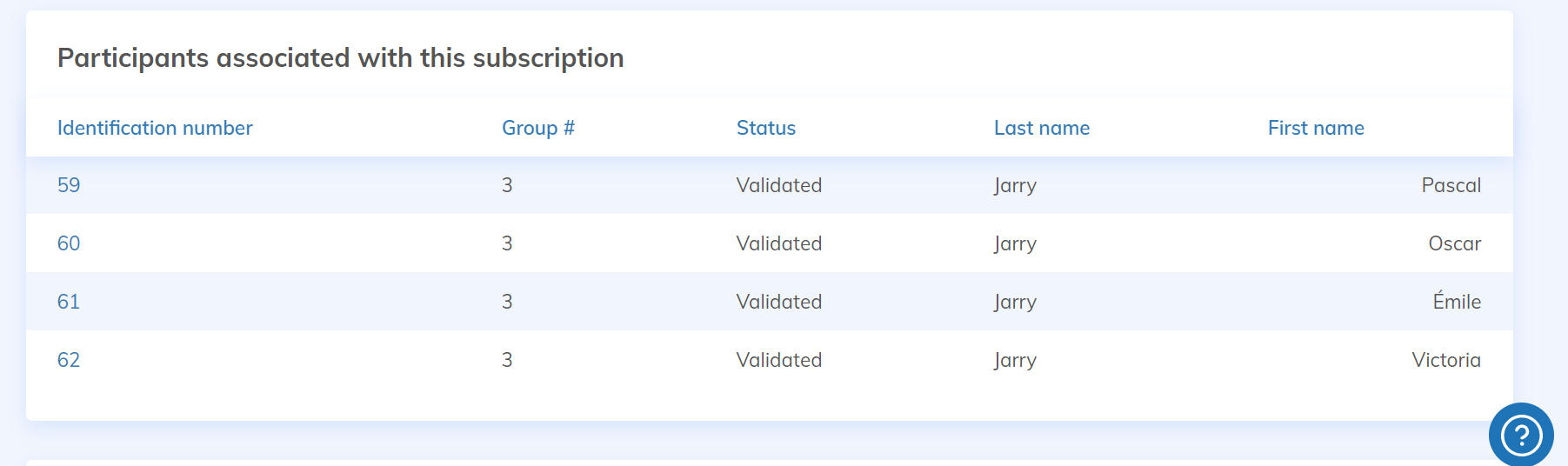
The rate applies only to the first participant of the group: additional participants have a rate of $0. Click one of the group's registrations to see its details and the people linked to the group.
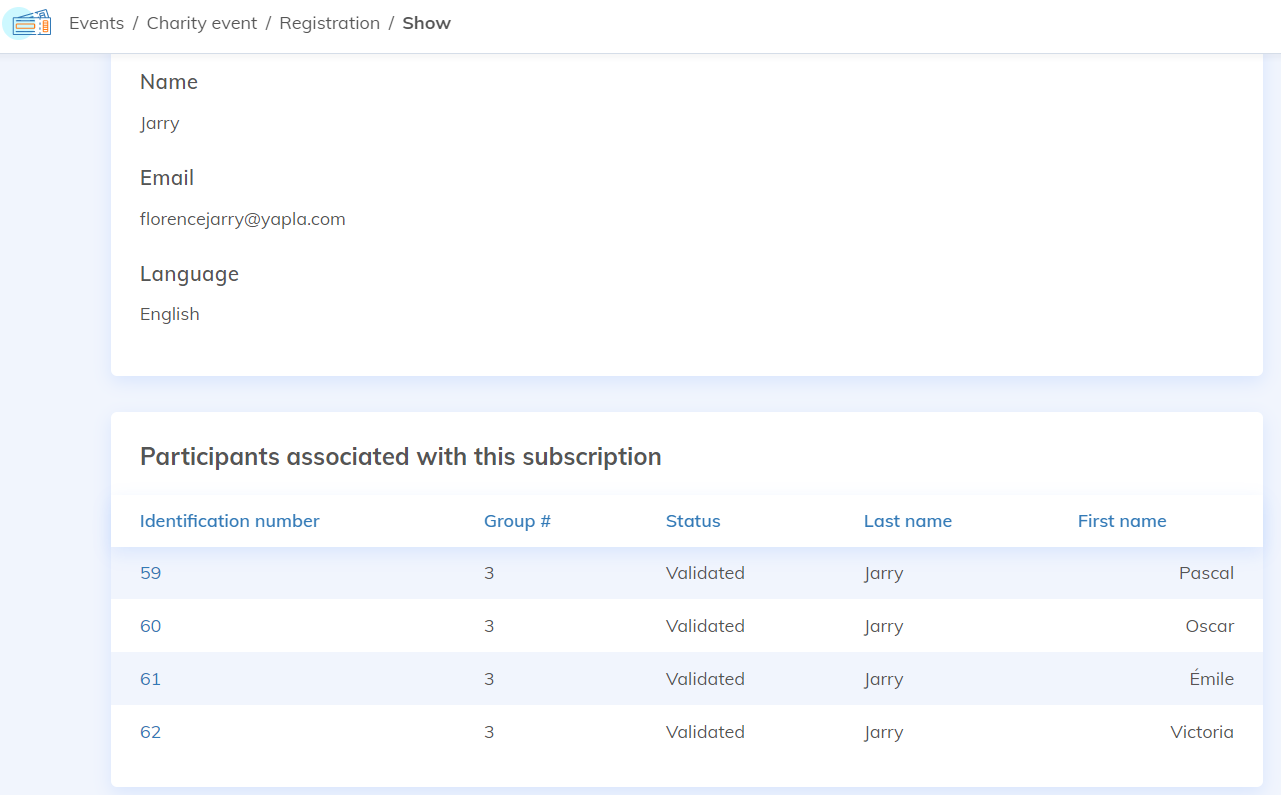
Understand the status of group participants
In a group, each spot has its own status, in addition to the registration status:
- Unidentified participant: no one is linked to this spot yet.
- Presence Confirmed: the participant for this spot has been identified.
The Status column of the registration list and the registration details do not always show the same information. For a spot with the Presence Confirmed status, the details show this status, while the list may show the step where the registration stopped, for example Price selection. Opening the details does not change the registration.
To find out whether the group purchase went through, open the group's main registration, the one that carries the rate. With the Validated or Waiting for payment status, the purchase is recorded. With the Price selection status, the registration stopped before confirmation.
Go further
- Creating donations from event registrations (fundraising event): if you organize fundraising events, offer your participants a tax receipt for the amount of your choice.
- Rates management: unless registration is free, set up one or more rates before opening online registrations. Rates can vary according to the registration date and the member's membership type, and can be linked to one or more options.
- Create and Manage Options: options let participants select additional items when registering, for example a meal choice.
- Forms Management: most of the platform's forms can be customized with custom fields. For group rates, a different form for each rate can be useful.