
By default, new members are automatically validated. You can customize the order of registration, payment and approval of a membership.
Two options are available:
- Approval mode: receive membership applications before allowing the purchase. When enabled, it applies to all memberships.
- 4 membership workflows:
- Type A - Immediate membership without validation (default configuration)
- Type B - Membership with validation after payment (from the Essentials plan)
- Type C - Membership with submission of document(s) and validation (professional associations, from the Plus plan)
- Type D - Membership with validation before payment (from the Plus plan)
Configure the validation process in 2 places: for all membership types, or for a specific membership type.
In this article
- Configure all membership types
- Configure the validation process for a specific membership type
- Enable document submission for Type C
- Change plans
- Learn more: configure your communications based on your processes
- FAQ
Configure all membership types
Set the same validation process for all memberships from Members > Settings > Membership settings > Validation process.
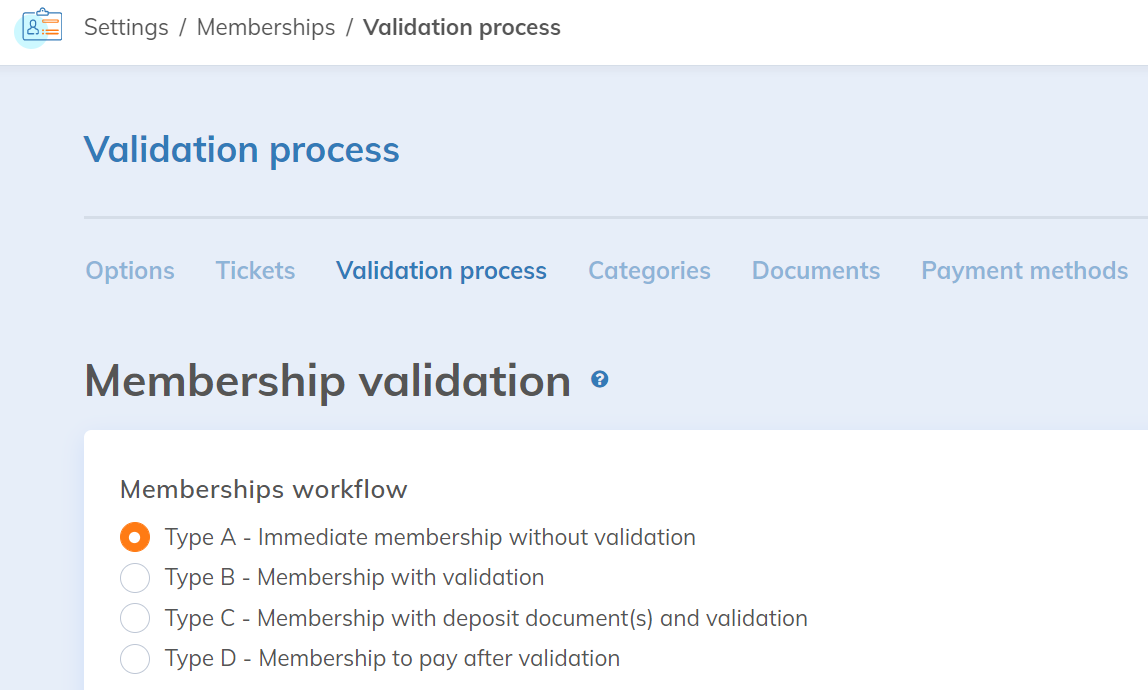
This configuration applies to all memberships without a custom process.
You can also enable the approval process from this menu.
Configure the validation process for a specific membership type
This configuration applies only to this membership type and takes precedence over the global configuration.
From Members > Settings > Membership Types, select the membership, then the Validation process tab. Check "Apply specific validation process to this membership type", then choose the desired workflow.
The "Do not ask for validation in case of renewal" checkbox applies Type A to renewals: an existing member who renews gets their membership immediately, without document submission or validation.
Enable document submission for Type C
In addition to choosing Type C, document submission relies on two settings: document management at the account level, then the list of documents required for each membership type.
Enable document management
Go to Members > Settings > Settings > Advanced functions, Document Management section, then check "Manage documents for your memberships".
As long as this box is unchecked, a Type C behaves like a Type A: no document is requested and the membership is immediate.
The "Allow members to upload their documents to their profile" checkbox does not affect Type C. It adds a documents area to the member's profile, with its own settings for accepted document types and maximum size. Documents submitted for a Type C membership accept common formats (images, office files, PDF, ZIP) up to 60 MB.
Choose the required documents
From Members > Settings > Membership Types, select the membership, then the Documents tab. In the "Required external document" section, click Add document, choose the document in the Name list, then check when it is required:
- First membership: the document is requested for a first membership.
- Renewal: the document is requested for a renewal.

The list shows the External documents created under Members > Settings > Membership settings > Documents.
A membership moves to the "Pending documents" status only if at least one document is checked for its context. With no document checked for renewal, for example, a renewal moves directly to the "Pending validation" status.
For a paid membership, the "Waiting for payment" status comes before the document step: the "Pending documents" or "Pending validation" status applies once the payment is accepted. If the member already submitted all documents during registration, the membership moves directly to the "Pending validation" status.
What the member sees
The member submits documents at one of these two moments:
- During registration: a Documents step appears in the membership form, after the membership type is chosen, as soon as at least one document is checked for the context. Submission is optional at this step: if the member continues without a file, the membership moves to the "Pending documents" status.
- After registration: from the "My memberships" page of their member area, the member clicks "Manage documents" (or the "View documents" folder icon in the new version of the page). The "Membership pending documents" email also includes a "Manage documents" link.
Submission remains possible as long as the membership is neither validated nor expired. Once the membership is validated or expired, the link becomes "View documents".
The "Manage documents" link does not appear? Check that "Manage documents for your memberships" is checked in the advanced functions and that the membership type uses Type C. The link also stays hidden while the membership has the "Waiting for payment" or "Waiting for confirmation" status.
Change plans
Type B is available from the Essentials plan, and Types C and D from the Plus plan. Moving to a lower plan does not automatically change your validation processes:
- a membership type set to Type B, C or D keeps that behaviour;
- memberships already pending keep their status.
To return to immediate membership, choose Type A in the global process and in each membership type that uses a specific process (see the sections above).
On the Essentials plan, you make this change yourself. On the Free plan, the Validation process screen is no longer accessible: set your membership types back to Type A before changing plans, or contact our support team to do it.
With Type C, new memberships and renewals still request the documents after the plan change, and pending members can still upload them. Documents already uploaded are kept. On the Essentials plan, saving the validation process settings replaces Type C. If you later return to the Plus plan, Type C reappears as it was.
Learn more: configure your communications based on your processes
Presentation of membership validation processes (Workflow)
FAQ
I set a membership type to Type C, but my members cannot submit their document. Why?
Check that "Manage documents for your memberships" is checked under Members > Settings > Settings > Advanced functions. Without this setting, a Type C behaves like a Type A. Also check that at least one document is checked in the Documents tab of the membership type.
Is the document required only for the first membership, or also for renewal?
The Documents tab of the membership type sets the moment: check "First membership", "Renewal" or both for each document. The "Do not ask for validation in case of renewal" checkbox, in the Validation process tab, also exempts renewals from any document and validation.