
Available with the Essentials plan and higher.
The Slider module scrolls through your articles one at a time in the same space on the page. It is suited to visual announcements: upcoming event, donation campaign, important news or welcome banner.
Each slide corresponds to an article. You choose which elements of the article are displayed in the slide: image, title, introduction, etc.
Add the module to a page
In the configuration window of a zone, select the Website feature, then Slider in the Zone module list. To learn how to open this window, see the article List of modules in the Website feature.
The Title and Style fields, at the top of the window, add a title above the module and set its level (Title 1 to Title 6).
Configure the module
Display options
- Display mode:
- Image with text on the left: two-column template. The text takes up the first third and the image, the rest. Ideal for announcements accompanied by a visual.
- Full width block: all elements take up the full width. Suited to banners or text-only slides.
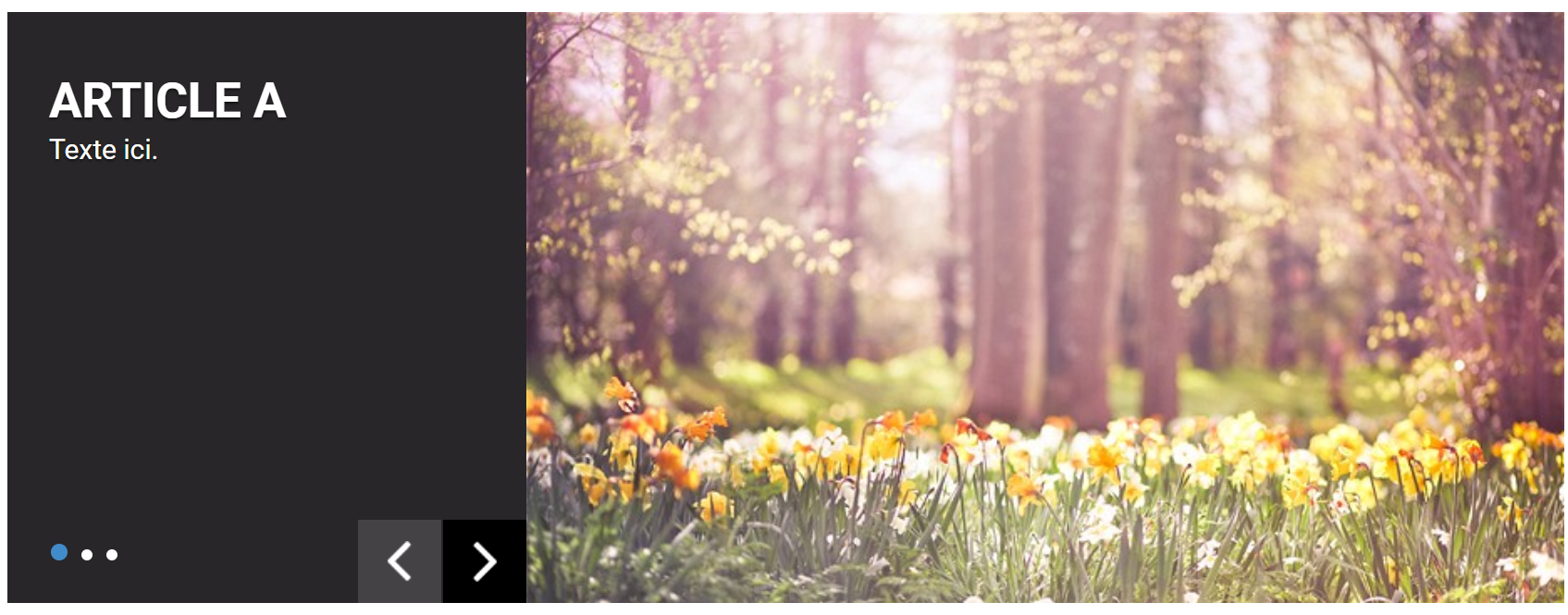
Image with text on the left mode.
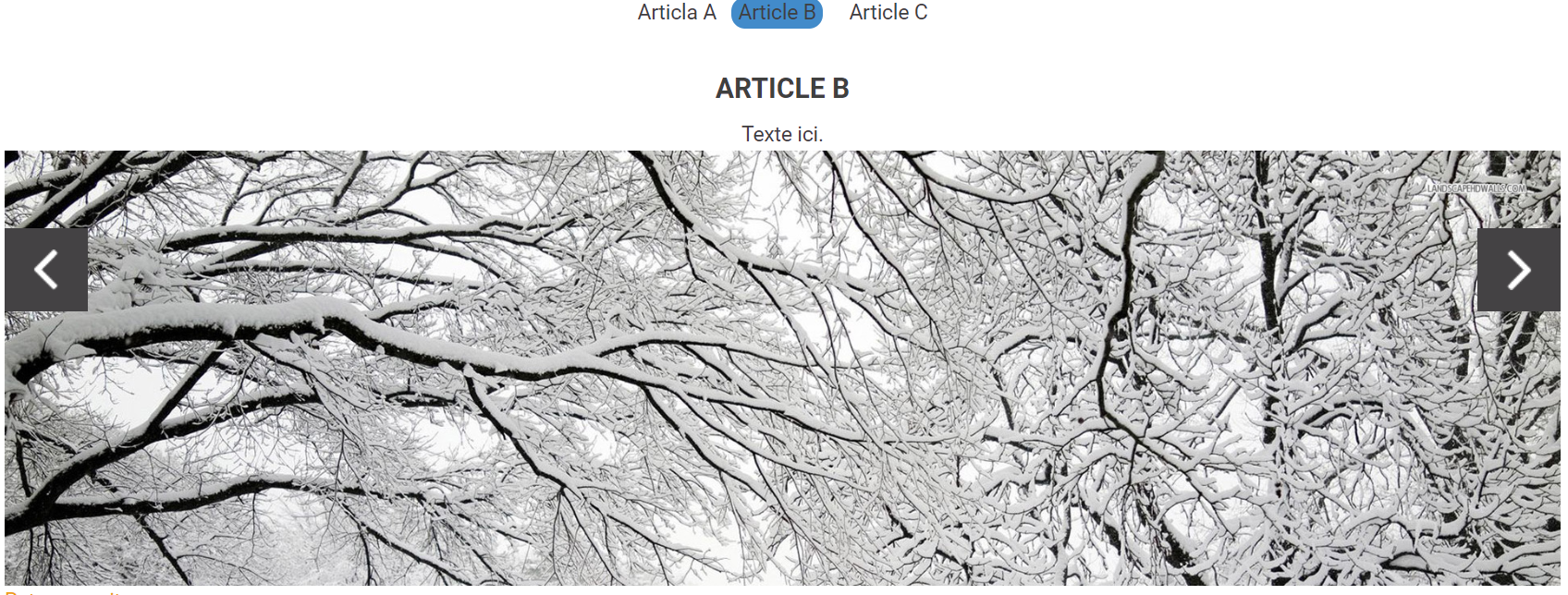
Full width block mode.
- Nb. news to show: number of slides in the slider.
- Order by: Creation date (from oldest to newest), Creation date descending (from newest to oldest), or ascending or descending alphabetical order of the article title.
- Show navigation arrow: adds an arrow on each side of the slider to move from one slide to another.
- Show navigation pins: adds one dot per slide under the slider.
Articles displayed
- Category of articles displayed: select the category or categories of the articles to scroll through. Learn more in the article Article categories and keywords.
- Keywords and Groups: limit the display to articles with these keywords or associated with these groups.
- Archive display: an archived article is an article whose end date of posting has passed. Choose Display all articles, Display articles without archives or Only display archives.
Create a category reserved for the slider, for example "Home announcements". Then add an end of display date to each announcement and choose Display articles without archives: expired announcements then disappear from the slider on their own.
Display of elements
Check the elements displayed in each slide: Title, Author name, Creation date, Picture, Introduction, Article (the full content, under the introduction) and Link.
To direct visitors to another page from a slide, add a hyperlink in the introduction of the article.
Click Save and close to display the slider on the page.
Prepare the slider images
When the slider spans the full width of the screen, for example a home page banner in Full width block mode, it has a fixed height: about 700 px on a computer and 386 px on mobile. The image is enlarged to fill this frame, then centred. The visible part therefore changes with the width of the visitor's screen, and slight cropping on the sides, or at the top and bottom, is normal on some screens.
To limit cropping:
- Image size: 1920 × 700 px.
- Safe zone: place text, logos and important elements in a central area of about 1000 × 520 px, which stays visible on most computers and tablets.
- File size: export as an optimized JPG or PNG, ideally under 500 KB.
- Consistency: use the same dimensions for all the images of the slider. The height then stays stable from one slide to the next.
In the image-with-text-on-the-left mode, the image only takes part of the width: a wide banner-type image is cropped. Choose a narrower image, closer to a square format.
If your website has advanced customization (CSS), these dimensions may vary slightly. Test with one image before preparing all your slides. See also the article Best practices for managing images on your website.