
This article explains how to import existing contacts from a spreadsheet into a Yapla Newsletters list. Follow the steps below to add your contacts correctly without skewing the total count of your lists.
- In Yapla Newsletters, go to Audience > Contacts.
- In the left-hand column, if you have more than one list, select the list you want.
- Click the (+) in the top right corner, then click Import contacts.
- Select the Existing option, choose your list, then click Continue.
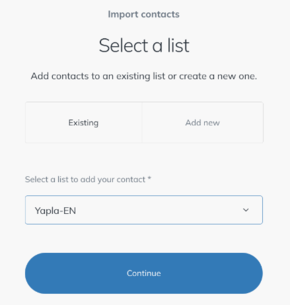
Do not import your contacts under the Add new option: your contact count is calculated from the total number of contacts in each list, even if the same contact appears in more than one list.
- Select the Copy/paste from spreadsheet option.
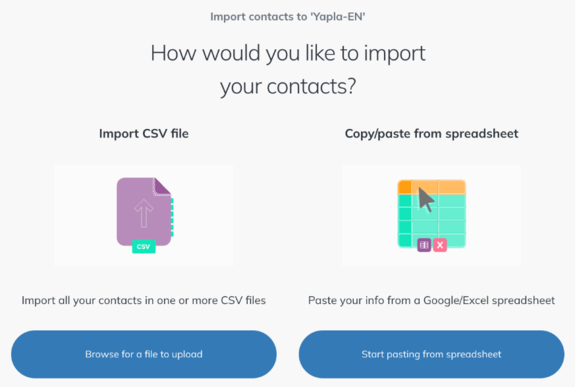
Are your contacts in a CSV file? Click Browse for a file to upload instead, under Import CSV file.
- Select all the data in your spreadsheet, copy it and paste it into the table. Click Continue.
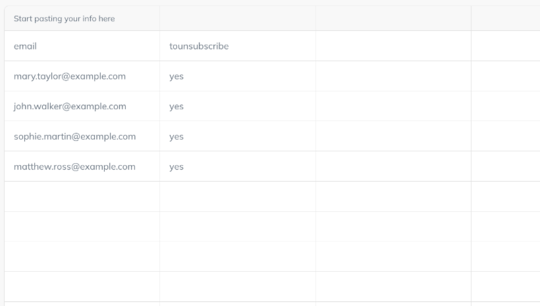
- In the next step, you can review the data. Make sure the first column field shows “email”. Add more columns if you want to assign groups to your contacts, for example. Then click Continue.
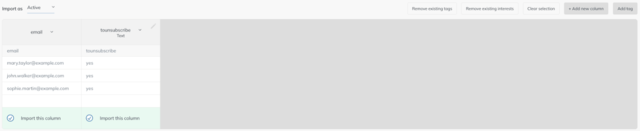
The Import as menu sets the status given to the imported contacts (Active by default). The Add tag button applies a tag to all the imported contacts, which makes it easier to segment them later.
- Next, confirm that you have permission to send emails to these contacts by selecting I confirm I have full permission, then click Continue. You will be redirected to your contact list.
Good to know
You need to repeat the whole import process for each of your contact lists. For example, if you send bilingual newsletters, you may have a list for each supported language.
If you run into any difficulties while importing your contacts or would like more help with it, feel free to contact our support team at support@yapla.com.