Whether it's for member activities without online registration or events with registration, Yapla allows you to easily record and confirm your participants' attendance. Attendance can be taken manually or by scanning a unique barcode via the Yapla Companion mobile app or directly within the platform. In this article, we will review the different options for recording attendance.
Note that it is faster and easier to scan or enter attendance using the Yapla Companion mobile app, available starting from the Essential plan. Learn how in this article.
Also note that this attendance-taking feature does not relate to the attendance tool for your members nor the scanner located in the Members tab. To manage your members’ attendance for activities that do not require registration and are not related to the event feature, refer to the following article:
Recording recurring attendance for your members
In this article:
Attendance recording options
Scanning can be done through the administration or through the mobile app, either by scanning or manually.
Attendance recording option – Via the mobile app
Recording attendance for your events using the Yapla Companion app is recommended, as it is faster and more convenient. Record participants’ attendance manually or—starting from the Essential plan—by using the camera to scan. Learn how in this article.
Attendance recording option – From the event registration list
For events with registrations, attendance can be confirmed directly from the registration list. Go to your Event > Registration List.
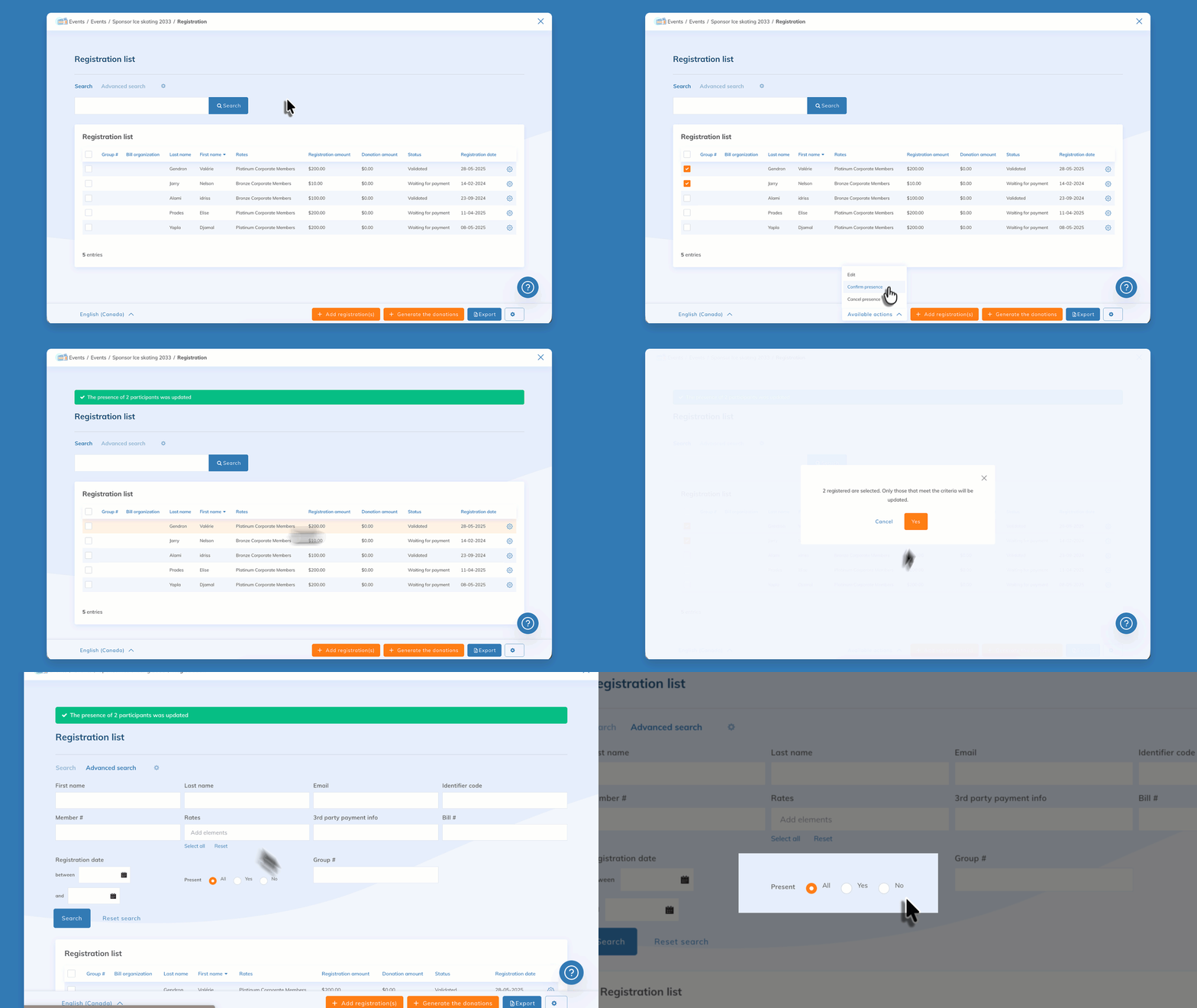
Select the participants who are present, click on Available actions, then select Confirm attendance. It is also possible to cancel attendance through the available actions.
To view the list of participants who were present, use the advanced filters and select yes or no under Present.
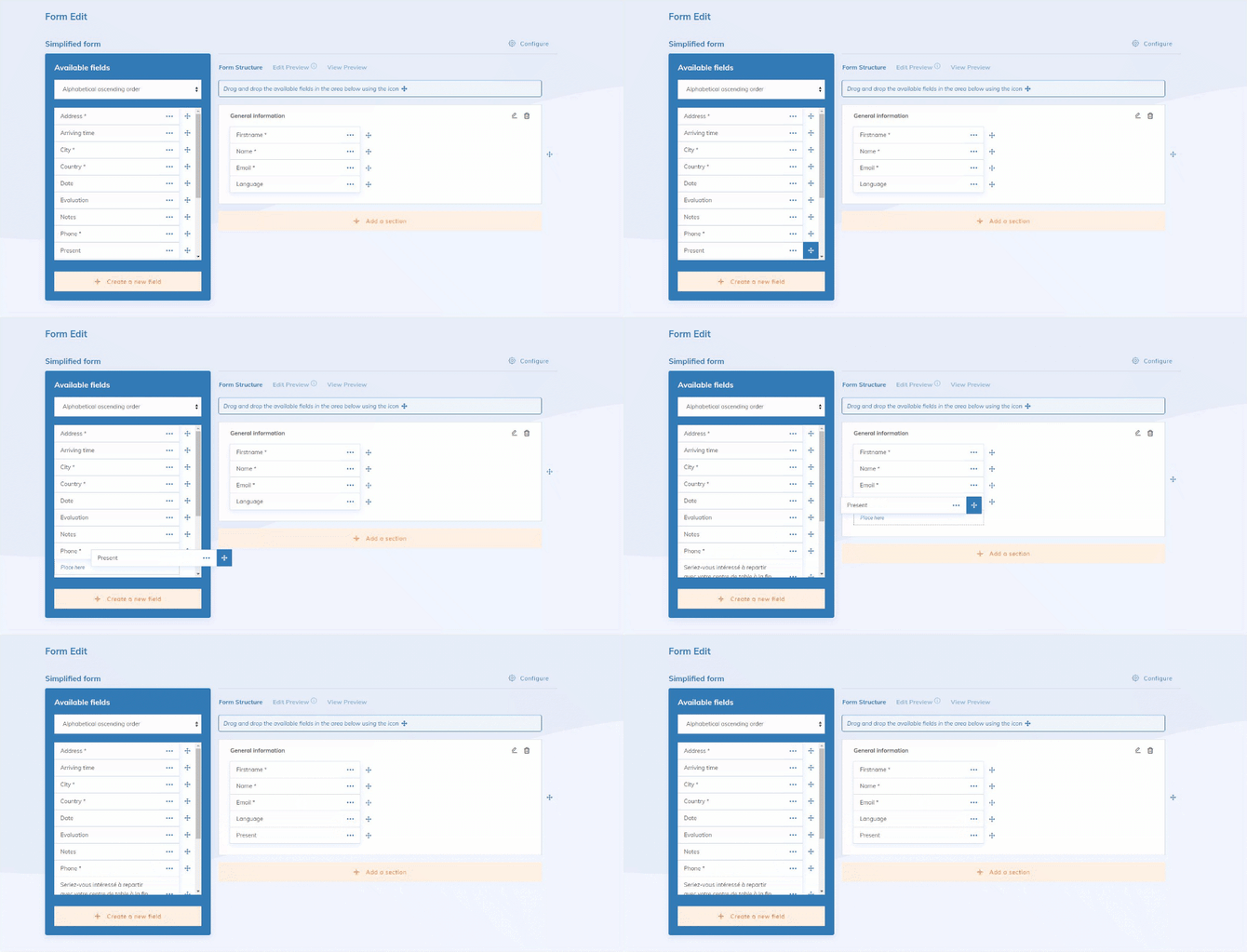
Adding the “Present” field to registration forms
If you want to display the attendance field in your event forms, you can add the field indicating whether the person was present or not. Confirming or canceling attendance will automatically update the Present field in the registration form.
In your event, click on Forms, choose a form, then add the Present field from the list of available fields.