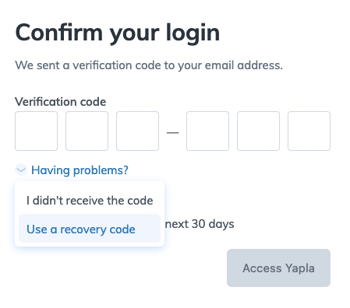
An authenticator app is an app on your phone that displays a 6-digit code. This code changes every 30 seconds. It's not a password. It's not a code sent by e-mail. The code is generated directly in the app, even without an internet connection.
When you log in to your account, you're asked for this code in addition to your password. Even if someone knows your password, they can't get in without the code shown on your phone.
Which apps can I use?
You can use any app that generates 6-digit codes renewed every 30 seconds (also called TOTP codes).
The most commonly used:
If you already use a password manager, it can often generate these codes too. In that case, you don't need to install another app.
Install the app on your phone before continuing.
Add Yapla to your app
When you're on the authentication method setup screen, a QR code appears:
- Open the authenticator app on your phone.
- Choose to add an account (often "Add" or "Scan QR code").
- A Yapla entry appears in the app, with a 6-digit code.
- Enter this code in Yapla, then click Continue.
The code changes every 30 seconds. If Yapla rejects it, wait for the next code and try again.
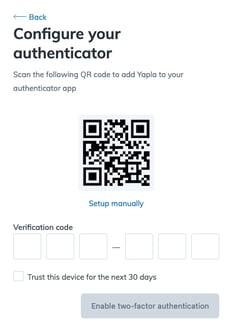
Can't scan the QR code?
Below the QR code, click Set up manually. Yapla will then display a key (a string of letters and numbers).
- In your app, choose to add an account manually (without scanning).
- Paste or enter this key.
- Save the account, then enter the 6-digit code shown by the app into Yapla.
What happens next?
Each time you log in, Yapla will ask for the code currently shown in the app, next to Yapla. Open the app, copy the code, and confirm.
Keep the app installed on your phone. Without it, you won't be able to get this code anymore.