
For a new year, you may create a new membership type (new rate, new period) and deactivate the old one. Your current members can then switch to the new type from their member area, without you having to reactivate the old one. In My memberships, the Change membership button then replaces the Renew button.
In this article:
- What the member sees
- Set up the new membership type
- The old membership type
- The Renew button does not appear
What the member sees
In the member area, the My memberships section shows the member's current membership with an action button:
- Renew: the member's current membership type is active, offered to existing members and open for renewal.
- Change membership: the member can no longer renew in their current type (type deactivated, no longer offered to existing members, or renewal not yet open), but at least one other type is open to them.
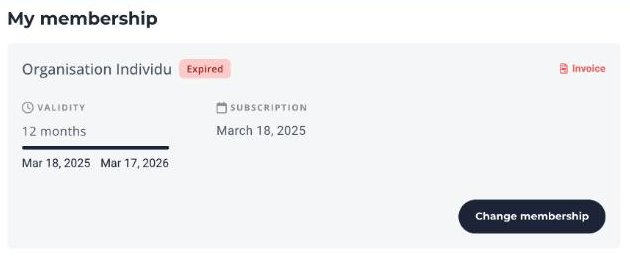
When they click Change membership, the member lands on the Renew my membership page, which lists the membership types offered to them. They choose the new type and continue as for a renewal.
By default, this switch to another type is classified as a renewal. If the Apply status New member when changing membership type option is checked in the Rate tab of the old type, it is processed as a new membership instead. See New membership or renewal: understand how a membership is classified.
The dates of the new membership follow the settings of the new type, including the Behavior of renewals section of its Rate tab.
Set up the new membership type
Go to Members > Settings > Membership Types, then open the new type. Check the following settings.
Active
The Active switch, under the type name, must be turned on.
Availability for existing members
In the Type tab, Availability of the type of membership on your website section, check Suggest this type of membership on your website for existing members. A member whose membership expired longer ago than the retroactive period is treated as a new member: for them to see the new type too, keep the new members box checked. To reserve this type for your current members, uncheck Suggest this type of membership on your website for new members. See Choose who can get a membership type.
Preliminary memberships
In the same section, the Preliminary memberships field reserves the type for members whose current membership is in the list. If you fill it in, add the old membership type to it; otherwise, its holders will not see the new type. Left empty, the field does not restrict access. See Choose who can get a membership type.
Renewal opening
In the Rate tab:
- Floating date: renewal is open at any time.
- Fixed date (calendar year, school year or custom period): by default, members can renew their membership 2 months before it expires. To choose another date, use Renewal available from, in the Behavior of renewals section.
Member Area module filter
The module's membership type filter is available with the Premium plan.
If the Member Area module of your website uses the Filter the proposed membership types option, make sure the new type belongs to the selected groups. This filter does not hide the Change membership button, but it limits the types shown on the Renew my membership page. See Add the Member Area module to your website.
The old membership type
You can leave the old type deactivated: your members do not need it to switch to the new one. Memberships already purchased remain linked to that type.
Renewal communications remain linked to the type of the member's current membership. Deactivating the old type therefore does not stop them from being sent. Make sure their text and links invite your members to choose the new type. See Configure communications for membership renewal.
The Renew button does not appear
Depending on what the member sees in My memberships, check the following:
- Change membership instead of Renew: the current type is deactivated, no longer offered to existing members or not yet open for renewal. This behavior is expected if you want to move your members to a new type.
- Neither button: no type is open to the member. On the new type, check the Active switch, the existing members checkbox, the Preliminary memberships and the renewal opening date. An opening date may be shown for the current type.
- Another button: a membership awaiting payment or validation shows a button to complete it instead. An upcoming membership already purchased or an automatic renewal can also replace the action.
- The new type is not in the list: check the Member Area module filter on your website.