
The Shop is a new Yapla feature currently in beta. It has a limited functional scope to which new features will be added. Please refer to the Feature limitations section to learn more.
With the online Shop feature, you can create a fully integrated sales space within your website. In just a few clicks, add your products, set your prices, and offer them to your community. Whether you want to sell physical products, services, or promotional items, this feature provides a simple and effective way to grow your online revenue.
Important: You must have a published Yapla website in order to display products in your Shop and allow your website users to make purchases. For more details on creating a website, consult this article.
In this article:
- List your products for sale
- Set up the Shop on your website
- Edit the product layout on your website (Premium)
- Sales tracking
- Automatic communications
- Feature limitations
List your products for sale
To configure your products and put them up for sale, go to Shop > Products. You will find the list of all your configured products. You can search for them using filters or the search bar.
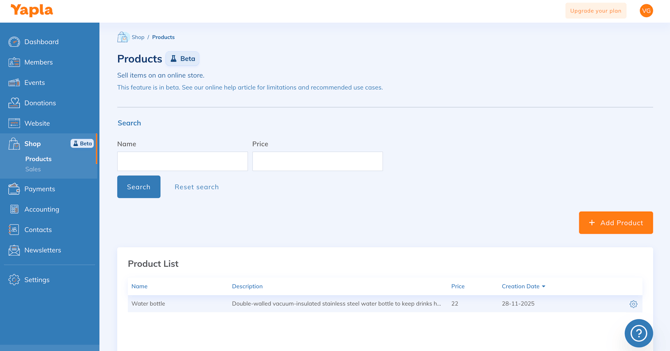
To add a product, click + Add a product. Enter a name, description, price, and upload an image. Finally, choose the accounting items related to product sales and select applicable taxes as needed, then save.
Your item is published and will be displayed on your website. Note that it is currently not possible to publish or unpublish an item. You can only delete it to remove it from your Shop. Sales will not be affected.
Set up the Shop on your website
Scenario 1 - I already have my website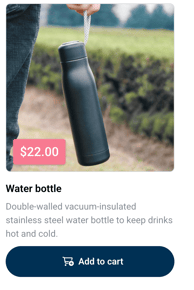
-
To display all your products on your website, make sure you have first added the cart module, if you haven't already done so. This module allows you to make transactions in the Members, Events, Donations, Data and Store features. To learn how to add the cart module to your website, see this article.
*Note that it is not recommended to add the cart module on the same page as your store. Instead, add the Cart on a dedicated page.
-
Add the store module to a new page on your website. Go to your website, to the Pages tile, and add a page.
-
Give it a name. This will be the visible tab leading to your online store. Enter the URL and choose whether you want to display this page to logged-in users or to everyone. Click on the next step. *To add it to an existing page, select the page in question from your list of pages, then choose the area where you want to display your store.
-
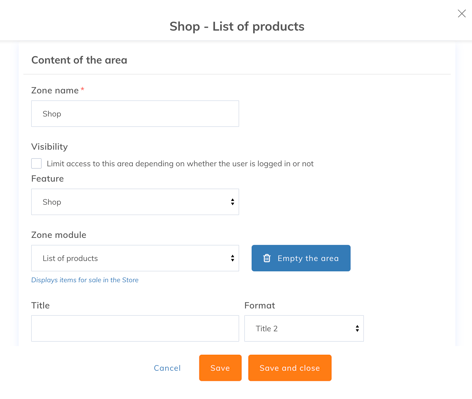
Select your created page from your list of pages, then, in the Structure sub-tab, choose an area to display your store content.
-
Under Feature, select Store, and under Zone Module, select Product Tile, then save.
Scenario 2 - I don't have a website
-
Once the first item in your store is created, you will have the option to create a website. Select Create a website.
-
You automatically get a published website that contains the basic pages including the page containing the Shopping Cart module and a Store page where your items will be displayed.
-
Click on Visit my website.
Your website will now contain a new space that will display all your products configured in your store. Users of your website will be able to add these products to the cart.
Edit the product layout on your website (Premium)
For even more customization on your website, you can create a fully custom display template for this data within your Yapla website.
Select your website, go to Views and templates, then to the Templates subtab. Click + Add a template. Enter a name for your template, choose Yapla module template, then select the Product list module under Select a module and Select an interface, then save.
You will be able to customize this view using CSS code. Select the pencil icon in the tile of your new template to open the editing page. To learn more about customizing templates, consult this article.
Sales tracking
To track Shop sales, go to Shop > Sales. You will see the complete list of sales made, including the product name, quantity sold, status, and creation date. To modify a sale, including its status, select it.
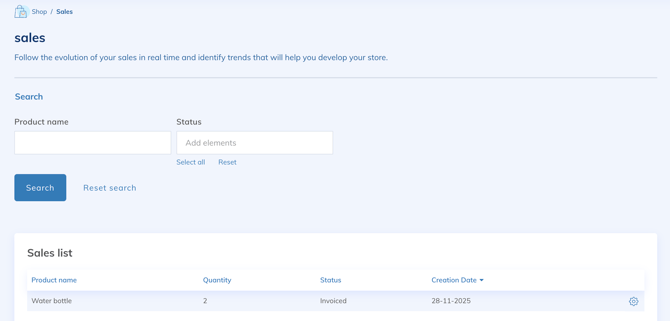
The statuses allow you to indicate whether you have delivered the product to the buyer:
- Invoiced – indicates that the product has been purchased
- Processed – indicates that the product has been delivered to the buyer and the sale is complete
By selecting a sale, you can view these details and access the invoice under Payment.
Automatic Communications
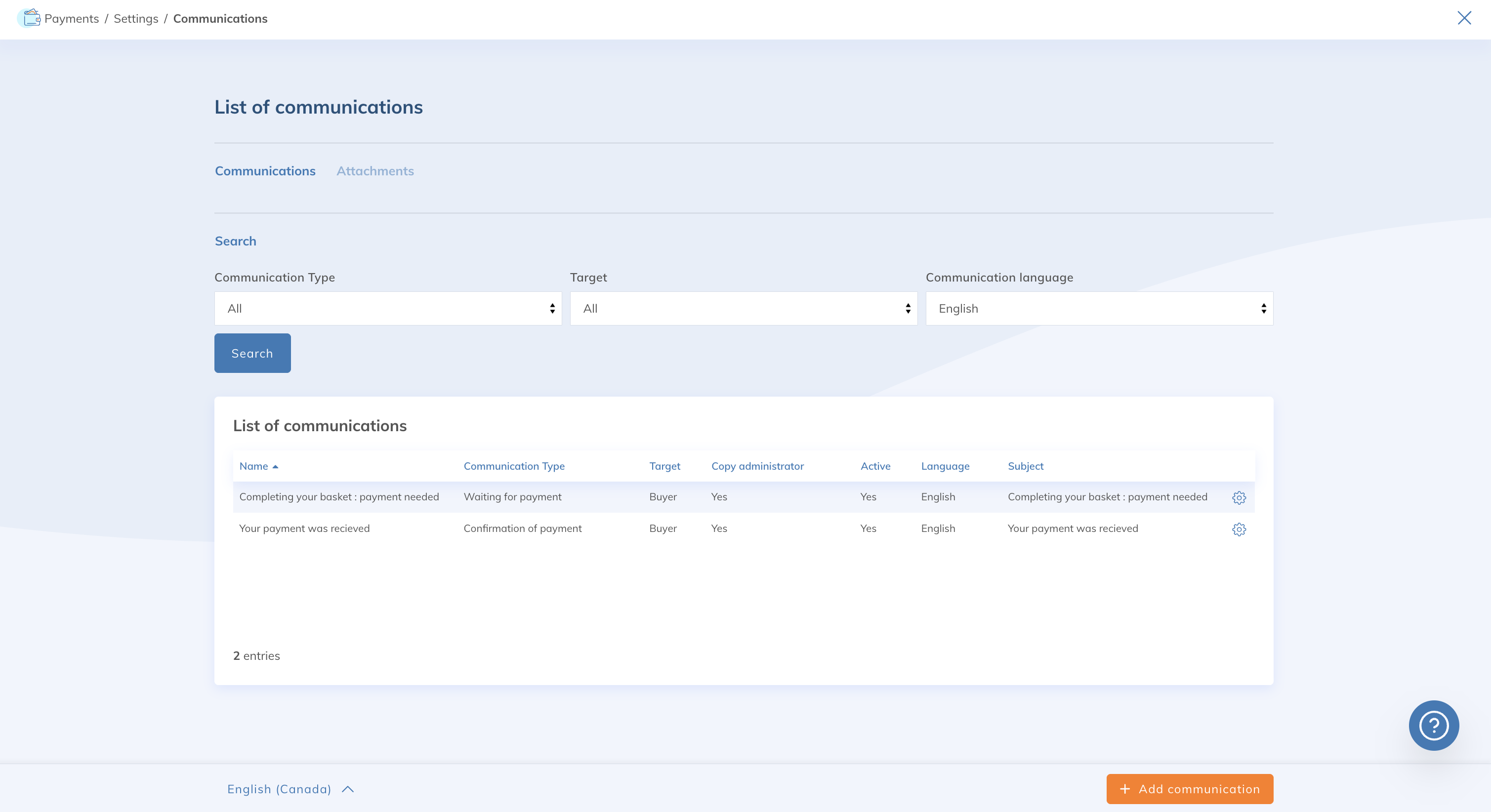
Automatic communications for the Store feature can be found under Payments > Settings > Communications. The two types of communications are Payment Pending and Payment Confirmation. Select the desired communication to access its settings and modify its content.
Feature limitations
The Shop feature is currently in development and has a limited functional scope. Refer to the points below to learn more about its limitations.
- It is currently not possible to manage inventory (stock or quantities).
- It is currently not possible to manage product variations in the Shop, such as sizes or colors.
- It is currently not possible to manage shipping.
- The Shop feature does not automatically enable a single-page checkout (automatic transactional page). The Shop requires a Yapla website.
- It is not currently possible to combine the purchase of products from the shop and memberships, registrations or donations in the same transaction.
- It is currently not possible to issue refunds for products purchased through the Shop feature. This functionality will be available in the coming months.
- It is currently not possible to duplicate an existing item.
- On the website, it is not possible to click on an item to open a detailed product page.
- Created items cannot be translated to allow a language-based display on a bilingual website.
- It is not possible to view the details of a shopping cart linked to a purchase in the store.