
Communications allow you to manage all emails sent automatically by the Yapla platform. Each application manages its own communications, which can be customized according to your organization's needs. You can create new communications and choose the delivery triggers from those available.
Create a new communication
Communications related to each feature can be found in their respective settings. You will find the list of available communications for each activated language. For example, for the Members application, find them in Members > Settings > Communications.
In the Communications Tracking sub-tab, you will find the history of sent communications. You can also completely deactivate communications. This option is useful when configuring your communications to prevent any messages from being sent by mistake.
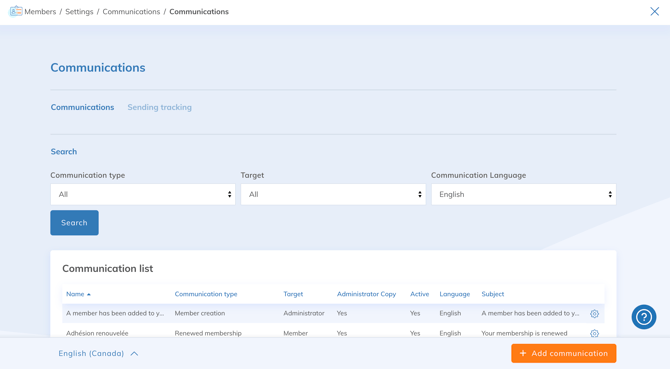
To add a new communication, click on + Add a communication.
Settings for the new communication
Choose the trigger for sending your message. See the full list of triggers. Give your new communication a name for internal use.
Examples: next expiration date, event reminder, registration confirmation, etc.
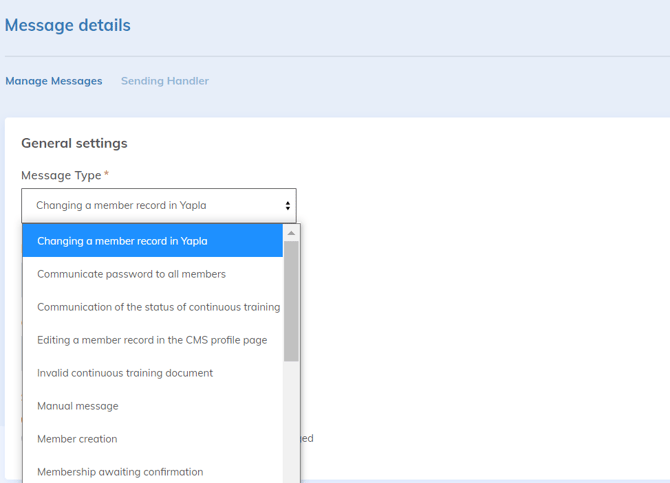
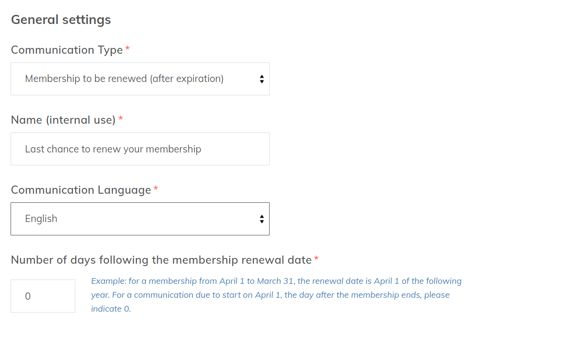
Depending on the chosen trigger, you may need to enter a number of days before or after to trigger the sending of your communication.
Example featuring a membership expiration alert.
Configure the different components of your communication:
- Target - Group of people to whom the communication will be sent.
- Email Subject - The subject of the email that will be displayed.
- Apply general template - If checked, the template configured in the Settings will be applied. Otherwise, only the message content will be sent.
Finally, configure the content of your communication using the text editor.
You can also personalize the content of your communications using dynamic keywords. Consult this article to learn more.