
Tax management activation
By default, Yapla is configured not to manage sales taxes in your rates.
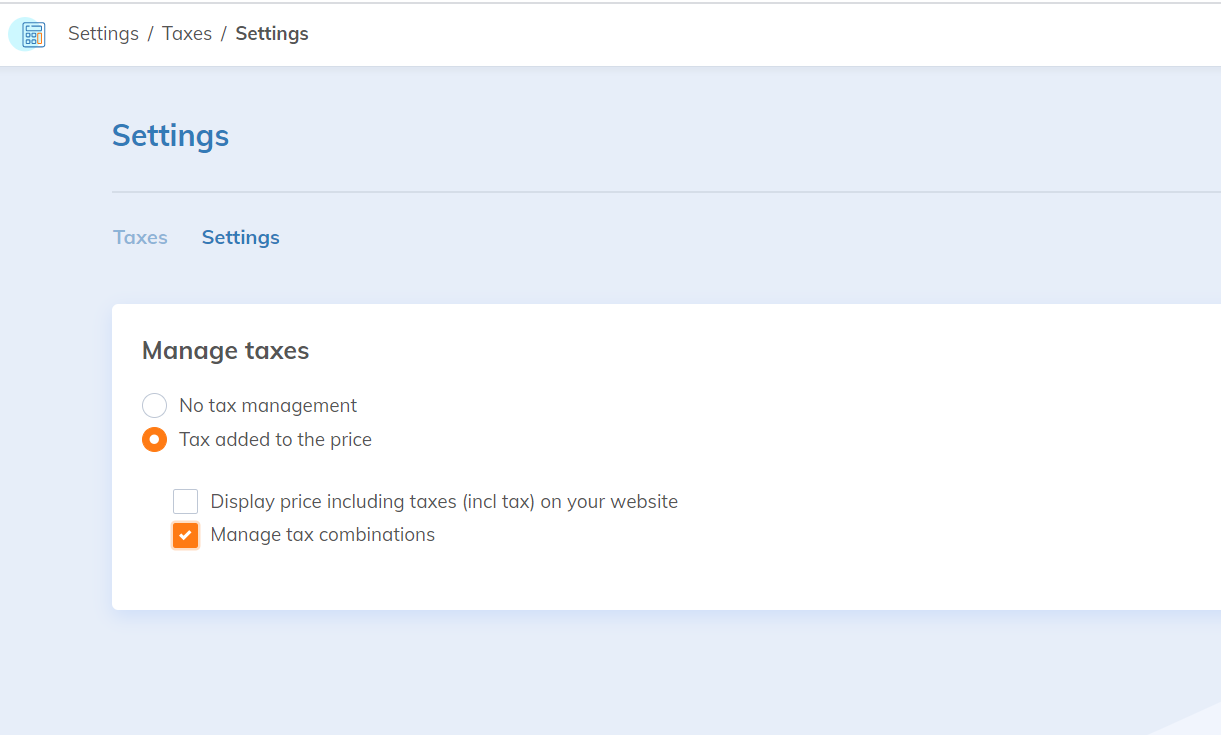
To enable tax management, you need to go to Accounting > Settings > Taxes > Settings and choose the option "Tax added to the price".
Define sets of taxes
Go to the Accounting > Settings > Taxes.
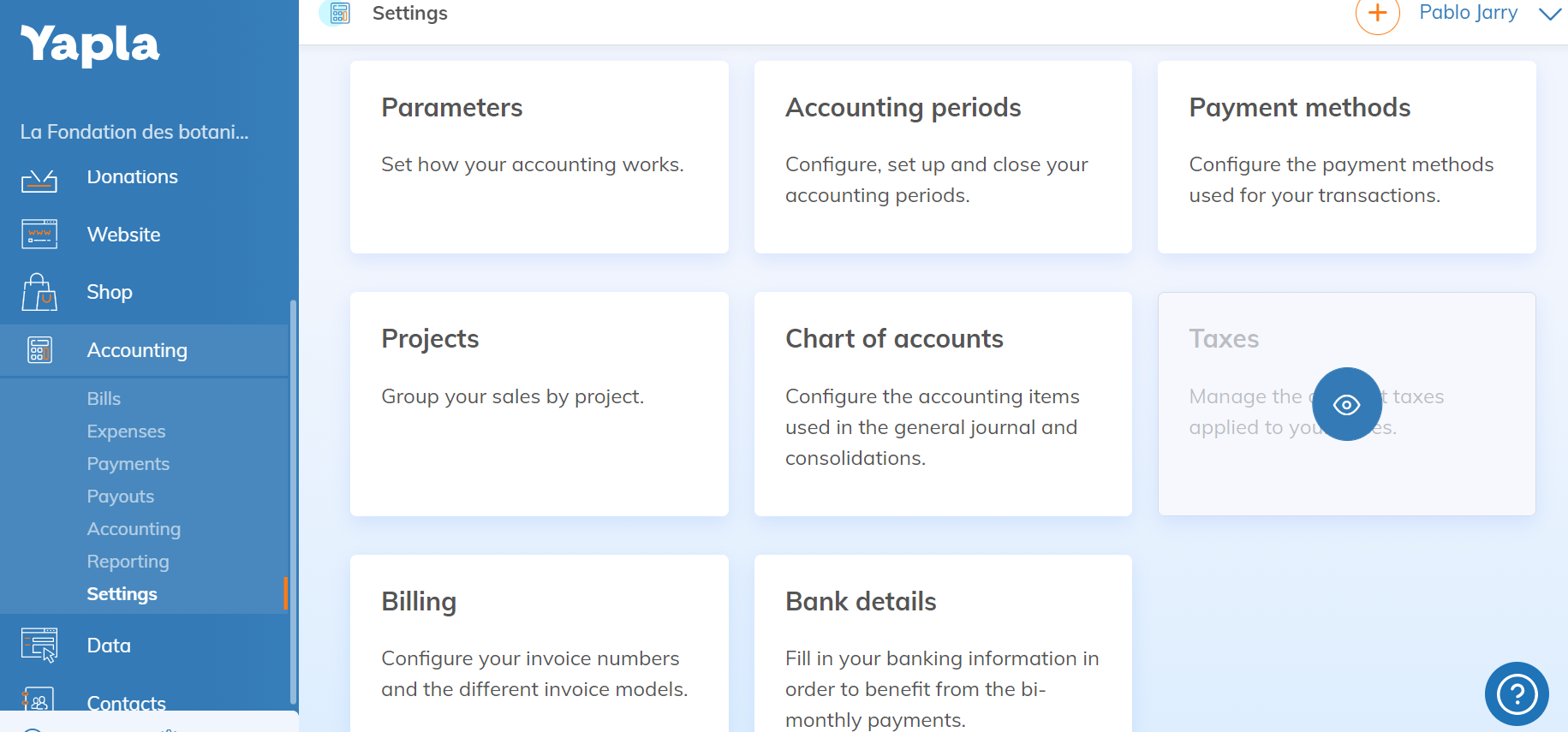
The "Combined taxes" tab allows you to manage sets of taxes.
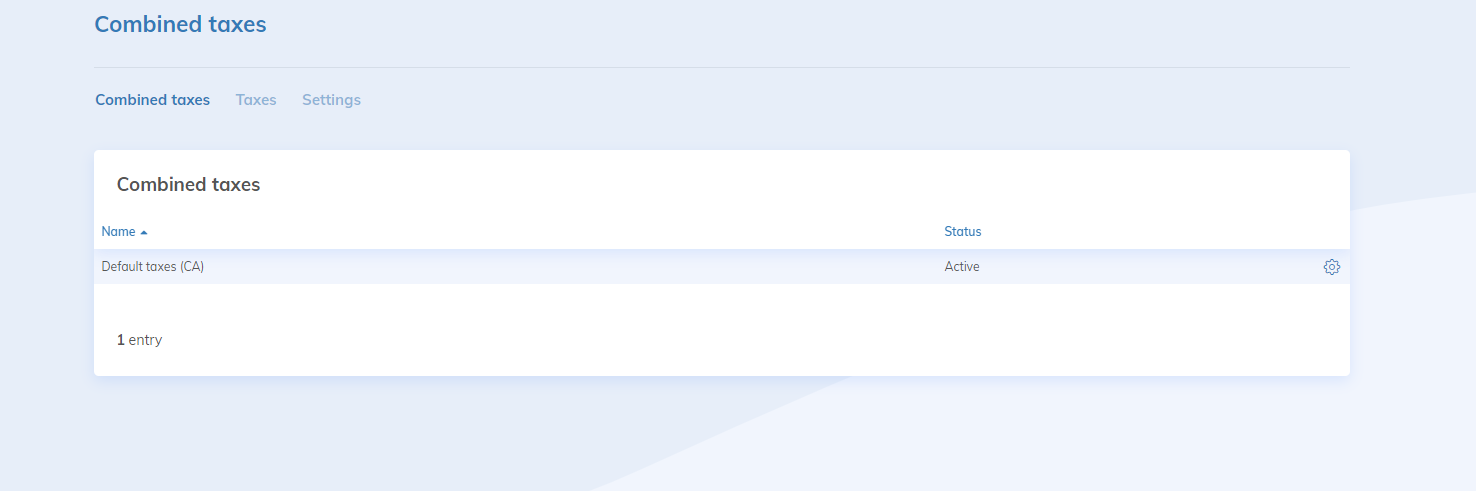
By default, Yapla creates a "Default taxes Canada" tax combination that includes all federal, provincial and harmonized taxes.
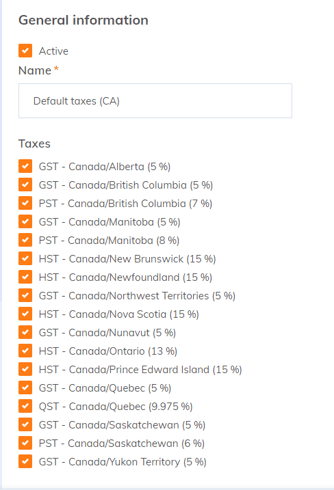
All taxes are checked by default. You can deselect taxes at any time if you are not subject to them. It is up to you to determine whether or not you must collect taxes and register with the tax authorities.
Create new combined taxes according to your needs.
Configure a tax
The main Canadian federal and provincial taxes are created by default when the account is created.
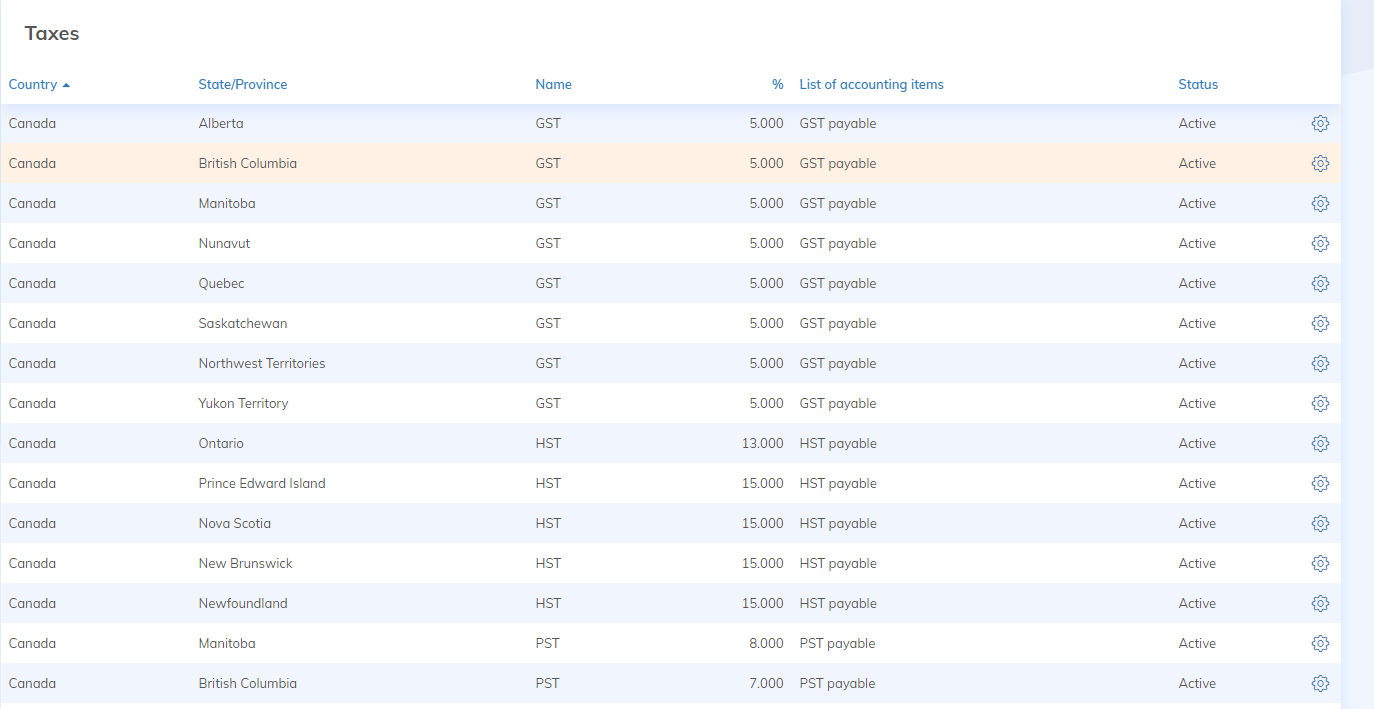
For each tax, you can define the name displayed to your users, the country and province in which it applies, as well as its rate.
You will also have to enter your tax number in the "Number" field, as well as the associated accounting item.
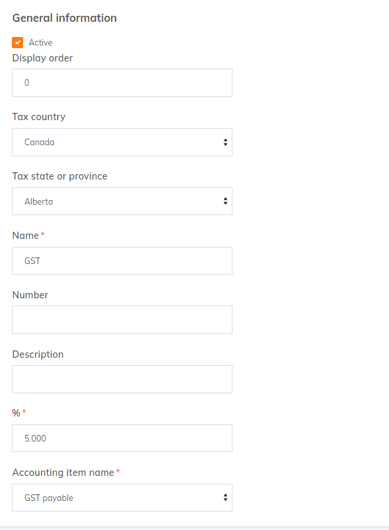
The choice of the country is mandatory, but the choice of the province is optional. If no province is specified, the tax will be applied for all provinces.
Apply your configuration to a rate
For each of the event or membership rates, you will now be able to select the tax combination that applies.
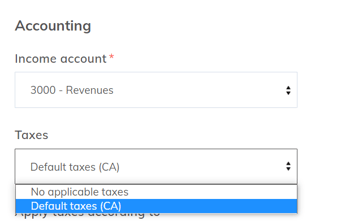
Choose the tax calculation method
Yapla allows you to choose between two tax calculation modes for each of the rates available in the platform.
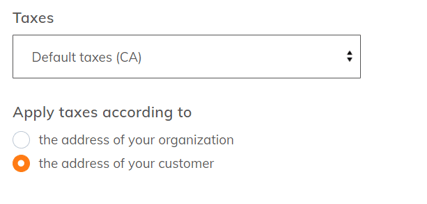
Applying taxes based on your organization's address will use the address defined in your account configuration for the tax calculation.
Apply taxes according to the buyer's address will use the address specified during the purchase process for the tax calculation:
- If you choose to use the buyer's address, ensure that the required address fields are present in your registration form for the chosen feature.
- In the case of a multi-registration, the calculation will be based on the address of the first registered participant. If the Registration manager mode (available with the Plus plan) is activated, the calculation will be based on the address of the registration manager.
- In the case of a tax calculation based on the user's address, you must be able to define all provincial taxes according to the provinces you cover with your users.