
Available with the Essentials plan.
You cannot delete an individual member: archive them instead. Once archived, the member record no longer appears in your member list or in your searches, but it remains in your database. You keep a record of the former member and can restore them at any time, for example when they want to take out a membership again.
In this article
- Archive a member
- Email address and number of an archived member
- Find an archived member
- Restore an archived member
- Let a former member take out a membership again
Archive a member
The member must be inactive to be archived (see Member status).
In the member list, click on the member: a panel opens on the right. Click View detail, then the File tile. Then click Available actions among the action buttons at the bottom, then Archive Member. Archiving is done one record at a time, from each member.
This action is reversible: you can restore the member at any time (see Restore an archived member).
For a simplified membership campaign, simply cancel the member's membership (see Cancel a membership). To empty your entire member base, see Delete members.
A former member asks you to erase their personal data? First replace the information in their record with anonymous values (for example xxxx@xxx.com for the email address), then archive the record.
Email address and number of an archived member
An archived record remains in your member base and keeps its information:
- Email address: the address stays linked to the archived record. If the former member fills out a new membership form with the same address, a message tells them the address is already in use. Restore their record instead (see Let a former member take out a membership again).
- Member number: a member number is unique and cannot be reused, even when the member is archived.
As long as their record is archived, the member cannot log in to their member area.
Find an archived member
By default, the search Status field only keeps members waiting for approval, inactive and active: the member list therefore does not show archived members. A former member you cannot find in your list is often an archived member.
Go to Members > Members > Advanced search, select Archive in the Status field (remove the other statuses to show archived members only), then click Search.
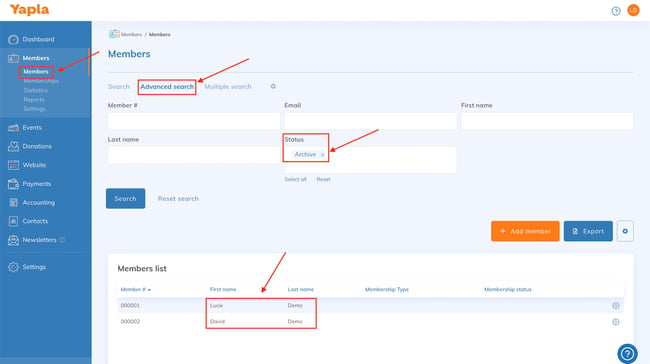
Archived members will appear in this list.
The Status field does not appear in your advanced search? Add it from the search settings (gear icon to the right of the search tabs). See Search for a member for details.
Restore an archived member
Click on the member in question, then View detail in the panel that opens on the right. Then click the File tile.
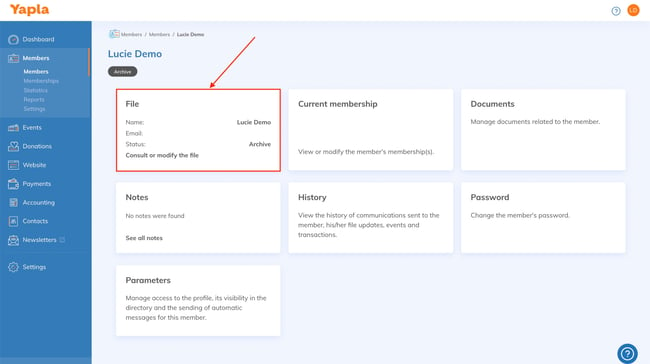
Once in the member's file, click Available actions in the bottom right-hand corner, then Restore Member.
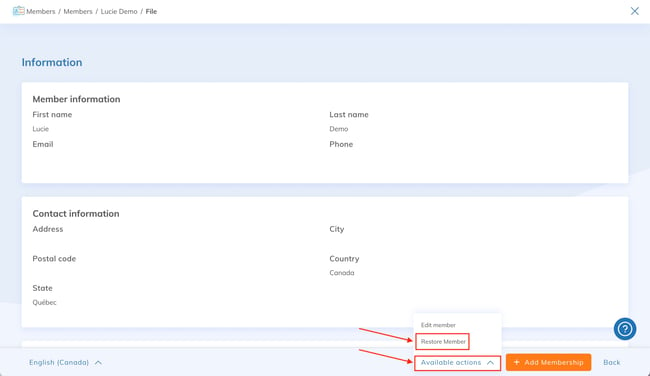
The member then reappears in your member list. Their status then depends on their membership: without a valid membership, they remain inactive (see Member status).
Let a former member take out a membership again
A former member whose record is archived cannot take out a membership through a new form, since their email address is already in use. Follow these steps instead:
- Find their archived record.
- Restore their record.
- Invite the member to log in to their member area to renew their membership.
You can also add a membership for them yourself from their record: see Add a membership to a member in back office.