
Yapla's email editor for newsletters allows you to insert personalized content to match your preferences. Easily add text, images, videos, or buttons linking to web pages, blog posts, or even documents. This article gives you an overview of the tools available in the email editor.
To access the email editor, go to the Newsletters > Campaign tab, create a new email or edit an existing draft, then click on Edit email.
In this article:
- Add a link to a donation or membership campaign
- Add a document download link
- Use the Yapla connected content modules (Growth package)
Add a link to a donation or membership campaign
Find the web page link
- Go to the Donations > Campaigns or Members > Campaign tab.
- Select the donation or membership campaign you want to promote.
- Once on the campaign, click View my web page. This will be the donation submission or membership signup page.
- Copy the page’s URL.
⚠️ Make sure the page is published before sharing the URL.
Add the link in the newsletter:
- Create or select a text block, image, or button and add a call to action (Join, Sign Up, Donate, etc.).
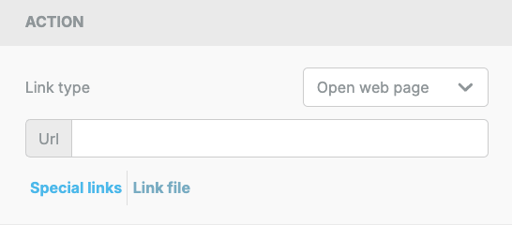
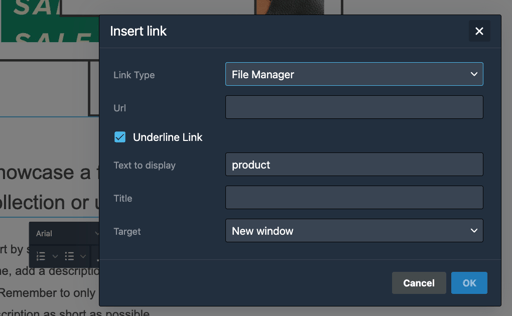
- When selecting the item, image or button, insert the link either from the right panel or within the text editor under the selected text. Choose the link type and paste your web page URL.
Add a document download link
If you want to add a button or link to directly download a document.
- Create or select a text block, image, or button and add a call to action (View Document, Download, etc.).
- When selecting the item, image or button, you can insert the document in the actions panel on the right by selecting Link file or in the text editor under Link type.
- Select or upload the desired document, then click Insert.
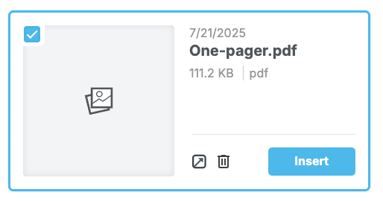
By clicking the button, image or link, your contacts will view the document in a new browser tab and can download it from there.
Use the Yapla connected content modules (Growth package)
Yapla Newsletters lets you dynamically display pre-formatted content from your events and articles in your newsletters. This feature helps you save time by automatically including key info like date and time, thumbnail, descriptions, and buttons to redirect readers to the registration page or full article.
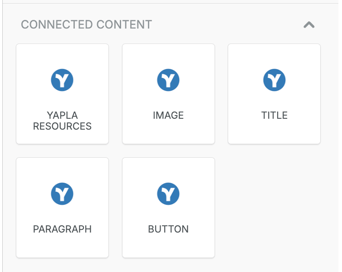
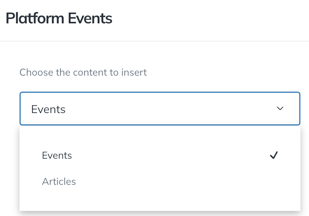
In the email editor, find the Yapla content blocks, choose the content type to display, and drag it where needed. If you choose the Yapla Ressources block, you can select between Events or Articles and choose which properties to display.
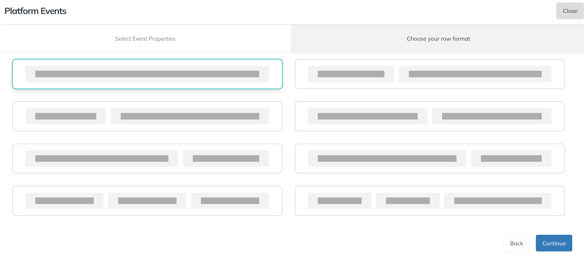
You can also customize the row layout — for example, by adding a button or image to the same horizontal line.

Good to know
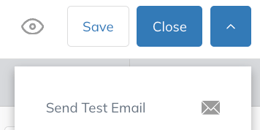
Always test the newsletter before sending. Before sending the newsletter to all your contacts, preview and test the links to make sure everything works. You can also send yourself a test email by clicking the arrow in the upper right corner.
Want to go further?
Watch our webinar Yapla Newsletters: Master the Basics of Newsletter Design (Content & Layout) to learn more about designing effective newsletters.