
Available with the Essentials plan and higher. The document download function is available with the Premium plan and higher.
The Single article module displays the content of one of your articles on a page of your website. It is suited to fixed content: About page, presentation text, mission of the organization or description of a service.
The module can also act as a container, that is, as the detail page for the articles of a list. See the section Use the module as a container.
Add the module to a page
In the configuration window of a zone, select the Website feature, then Single article in the Zone module list. To learn how to open this window, see the article List of modules in the Website feature.
The Title and Style fields, at the top of the window, add a title above the module and set its level (Title 1 to Title 6). Leave the Title field empty if the article already displays its own title.
Configure the module
Articles displayed
- Use as a container: check this box so the module displays the article the visitor clicked elsewhere on the website, instead of a fixed article. The Category and News fields are then no longer used. See the section Use the module as a container.
- Category: select the category of the article to display. This list filters the choices of the next list.
- News: select the article to display.
Elements on detail view
Check the elements of the article to display: Title of the article, Creation date, Image, Introduction, Article (the full content), Author, Category, Keywords and Group.
For a presentation page, check only Article. The text then blends into the page without a date or author name.
Call to action
- Label for View all link: text of the link that leads to the list of all articles. Leave the field empty to hide the link.
Linked articles
The Linked articles block suggests other published articles from the same category or with the same keywords as the displayed article.
- Location: position of the block relative to the article: Do not display, top, bottom, Left or Right.
When the block is displayed, the following settings appear:
- Block title: title displayed above the linked articles.
- Category and Keywords (criteria): check one or both criteria to determine which articles are considered linked.
- Creation date, Author name, Category and Keywords (displayed elements): check the information to display for each linked article.
- Number of articles: total number of linked articles displayed.
- Number of articles with photo: number of linked articles displayed with their thumbnail. The others are displayed without an image.
- Number of columns: number of columns in the block.
Linked articles are sorted from newest to oldest.
Download documents
Available with the Premium plan and higher.
This section lets visitors download the documents attached to an article from its detail page. First attach the documents to the article in its Settings tab, Download documents field. Learn more in the article Create a media library.
- No downloads: the attached documents are not offered for download.
- Activate the download function: displays the download area under the content of the article.
Once the function is activated, select the articles that accompany the download. Create them beforehand in Website > Articles.
- Introduction article: article displayed under the content of the detail page to present the documents. It is the only article displayed when data collection is disabled.
- Article when download is allowed: in connected mode only, this article replaces the introduction article once the visitor is logged in.
- Confirmation article after download: when data collection is enabled, this article replaces the introduction article (or the permission article) once the document is downloaded.
- Activate the data collection function: check this box to ask visitors for information before the download.
When data collection is enabled, configure the following settings:
- Contact form used: form from the Contacts feature that visitors fill out.
- Contact identification:
- Mode not connected: the form is displayed under the introduction article. Visitors do not need an account.
- Connected mode: a login module is displayed under the introduction article. Visitors must log in or create an account to download the document.
- Data collection strategy: with each download, the visitor fills out one section of the contact form. Once all sections are completed, the selected strategy applies:
- Show all sections of the form: the complete form is displayed with each download.
- Do not display the form: the visitor downloads the document directly.

Example of a download form in non-connected mode.
Split your contact form into several short sections. Visitors then provide their information gradually, download after download, instead of filling out a long form right away.
Click Save and close. The article is now displayed on the page.
Use the module as a container
By default, when a visitor clicks an article in a Multiple articles or Featured articles module, the full article is displayed in place of the list, with the same layout. Container mode instead opens the article in a separate page that you design as you wish: banner, sidebar, contact form, other modules, etc.
Example: your News page displays the list of your news. You want each news item to open in a page that also shows upcoming events on the right.
- Create a News detail page and check Don't display this page in your web site menu.
- In the main zone of this page, add a Single article module, check Use as a container and choose the elements to display (title, image, article, etc.). Add the Featured events module in another zone of the page.
- On the News page, open the configuration of the Multiple articles module. In the Call to action section, select the News detail page in the Details page field.
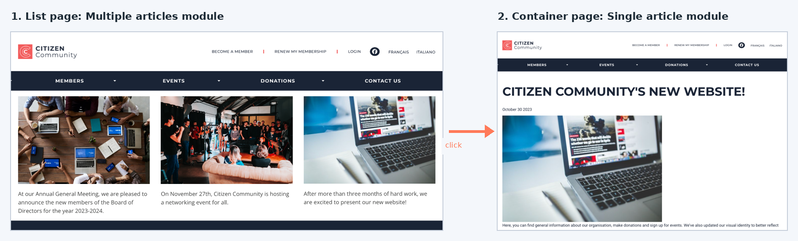
When a visitor clicks a news item, they land on the News detail page, which displays the selected news item. A single container page is enough for all the news items in the list.
Learn more in the article Settings common to all modules.
To display several articles on the same page, use the Featured Articles, Multiple articles or Slider module instead.