
Available from the Premium plan.
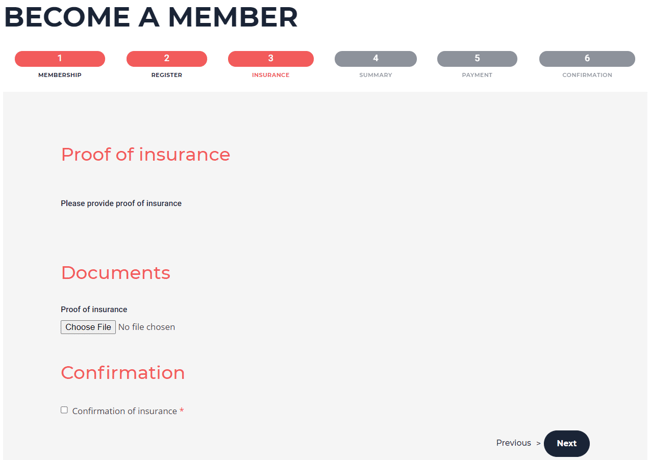
Add an insurance step to the sale or renewal of a membership to collect proof of insurance from your members. This feature is often used by professional associations.
In this article
Set up the insurance step
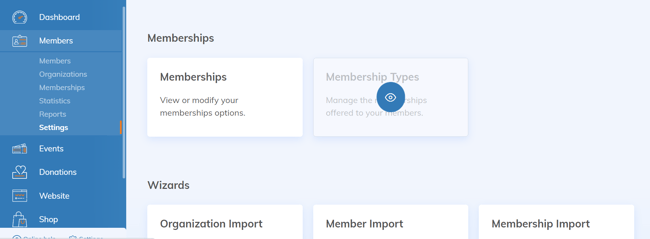
- Go to Members > Settings > Membership Types and open the membership type.
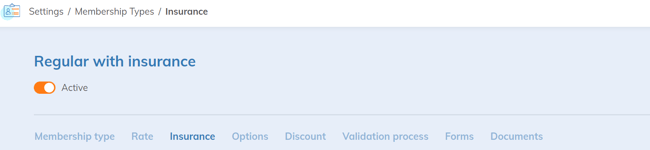
- Open the Insurance tab.
- Add at least one item or form. The item describes your organization's insurance rules; the form collects the information from your members.
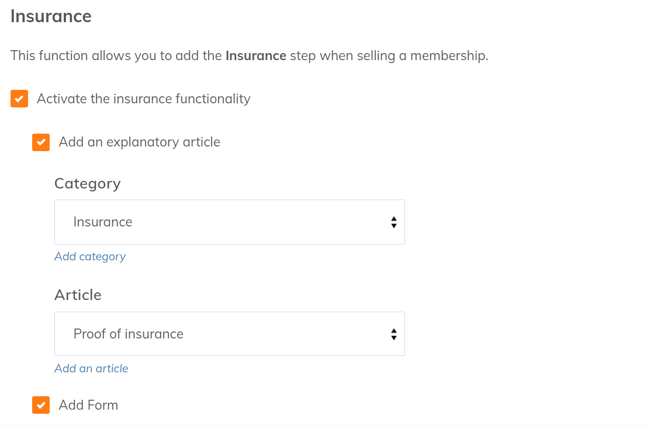
Only forms that are not already used elsewhere are offered, so you will usually create a form dedicated to insurance. To make proof of insurance mandatory, make the relevant fields of the form required.
View insurance information
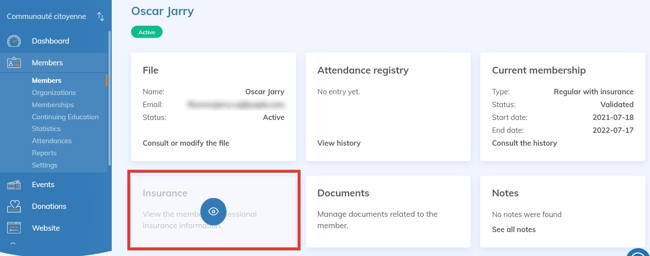
On the member's record, the Insurance tile displays the information submitted. It also appears in the insurance section of the related membership record.
Export insurance information
The answers to the insurance form are saved in the member's record, so you can export them with the rest of your members' information.
- Go to Members > Members, or to Members > Memberships to also get the membership columns.
- Click Export.
- Choose Export all member data (or Export all membership data), then click Export.
- Get the file in Members > Reports.
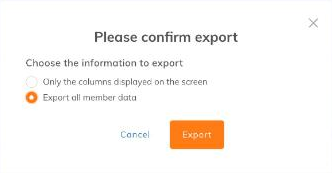
To export only some columns, first add the insurance fields to the list with Search presentation, then choose Only the columns displayed on the screen.
Exporting requires the Export permission.
If you use Prolink Insurance, the insurance status (valid, expired, etc.) is checked directly with Prolink. It is not saved in Yapla and is therefore not included in the export: check it in the Insurance tile of each member's record.