
Available starting from the Essentials plan.
Depending on your type of organization, your tax receipts sometimes need to show additional information: your registration number, or information specific to each donor. Keywords placed in the tax receipt template display this information. Creating and customizing templates in general is covered in Customize the donation tax receipt information.
Display your organization's registration number
Go to Donations > Settings > Settings, section Information used for donation receipts. Enter your charity registration number in the Registration number field, then save. This field accepts free text.
In your template, click Receipt Keywords in the editor toolbar, then choose Registration number. The __RECEIPT:REGISTRATION_NUMBER__ keyword is inserted in the text and works in both the individual receipt and the organization receipt.
Display a donation form field
Any field of the donation form can appear on the receipt, for example a donor company's business number.
Create the field
Create the field and add it to your donation form to collect the information from your donors. If the field only applies to organizations, create a second form and edit the contexts.
Find the field's technical name
The keyword relies on the field's technical name. Unless you customized it, this name matches the field name, without spaces or special characters. It appears in the field details and in the Technical name column under Donations > Settings > Forms, Fields tab.
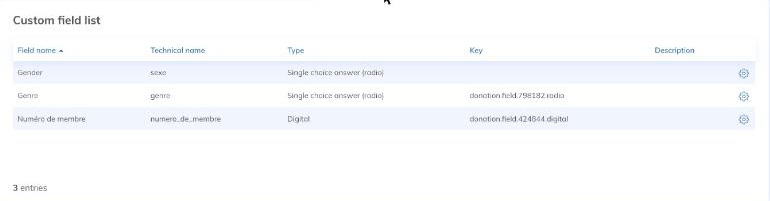
Add the keyword to the template
The keyword takes the form __RECEIPT:FIELD_XXX__, where XXX is the field's technical name, written in capital letters. A field with the technical name business_number therefore appears with __RECEIPT:FIELD_BUSINESS_NUMBER__.
Type the keyword yourself, entirely in capital letters: the Receipt Keywords selector does not list donation form fields, and a keyword in lowercase appears as is in the receipt PDF.
Go to Donations > Settings > Tax receipts templates, then click the template to edit.
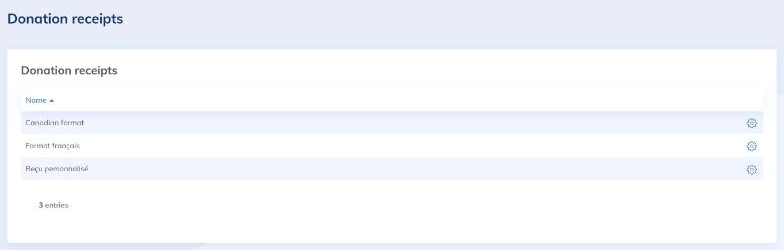
The page contains two editors: Individual receipt and Organization receipt. Add the keyword to the receipt or receipts you want, then click Save.
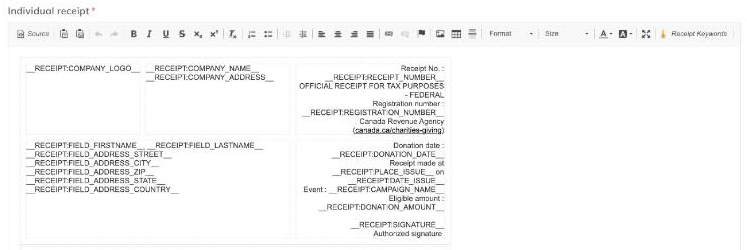
The keyword only works if it is written in full, with no missing part and no formatting splitting it. If in doubt, delete it and type it again.
The Enter key creates a new paragraph (double spacing). For a simple line break, for example in a mailing address, use Shift+Enter.
How the displayed value works
- Value read on each donation: the receipt shows the value entered in the field when the donation was made. If the field is empty on a donation, nothing appears. A value entered once in the campaign settings is not read.
- Template used by several campaigns: each of these campaigns must have a field with the same technical name.
To associate the edited template with a campaign, see Change the receipt template of a campaign.