
You can create action-based segments by tagging contacts. For example, if your subscribers click certain links, you can mark them with one or more tags. These tags can then be grouped to form a specific segment of people to whom you want to send more targeted newsletters, or follow-up or reminder communications within the same campaign. Both segments and contacts can be associated with one or more tags.
In this article:
How to create tags
- In Yapla Newsletters, go to Audience > Tags. The Manage your tags window opens.
- Enter the name of your new tag in the Create or find tags: field. You can enter several at once by separating them with a comma.
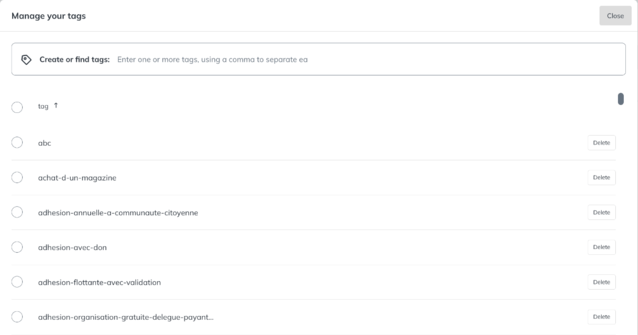
- Click Create 1 tag, to the right of the field.
- Your tag is now created. Click Close.
How to assign a tag to a contact
To use a tag:
- Go to Audience > Contacts.
- In the left-hand column, select a contact list.
- Check the circle to the left of the email addresses you want.
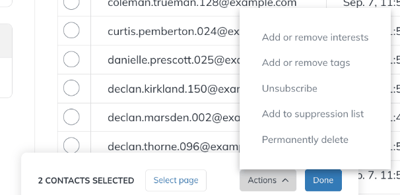
- A new menu appears at the bottom of the page. Select Add or remove tags in the Actions menu.
- Choose the tag you want to use from the CHOOSE A TAG: list. You can also create a tag directly in this menu, from the Create or find a tag field.
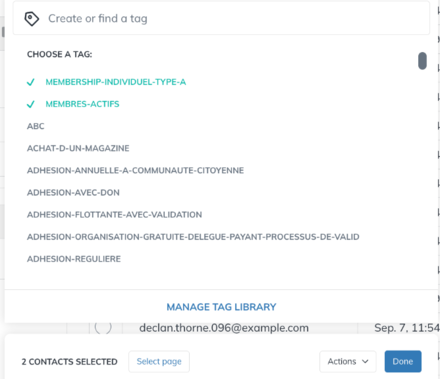
- Once you have selected the tag, click Done. Your contact is now tagged.
About contacts synced from Yapla
Remember that your contacts in Yapla are automatically synced to Yapla Newsletters. All the groups in your account (system or custom) are automatically imported as tags, which you can then use and group to create segments.
Tags created in Yapla Newsletters are not synced to Yapla and will not create a custom group in Yapla. Also, during the automatic sync of your Yapla contacts to your Yapla Newsletters lists, tags created in these lists will be deleted.
- For synced lists: if you are on the Plus or Premium plan, create a new group in Yapla instead. This will automatically create a new tag in these Yapla Newsletters lists at the next sync. Otherwise, we recommend importing your contacts again and assigning them one or more attributes so you can segment them. Learn how here.
- For lists that are not synced: you can freely create tags directly in Yapla Newsletters, and they will be kept in these lists.
To learn more, see the article Creating segments for your newsletters.
To learn more about segmenting contacts at import, see this article: Import external contact groups to Yapla Newsletters.