
Available with the Essentials plan and higher.
Want to go further than colours and fonts? The CSS snippets below adjust some visual elements of your website: icon size, menu colours, background image, banner, logo, footer. Copy the one you need, adapt the values and paste it into your website.
In this article
- Where to add the CSS code
- Icons and header
- Navigation menu
- Website background
- Mobile display
- Banner and logo
- Footer
- Hide elements
Where to add the CSS code
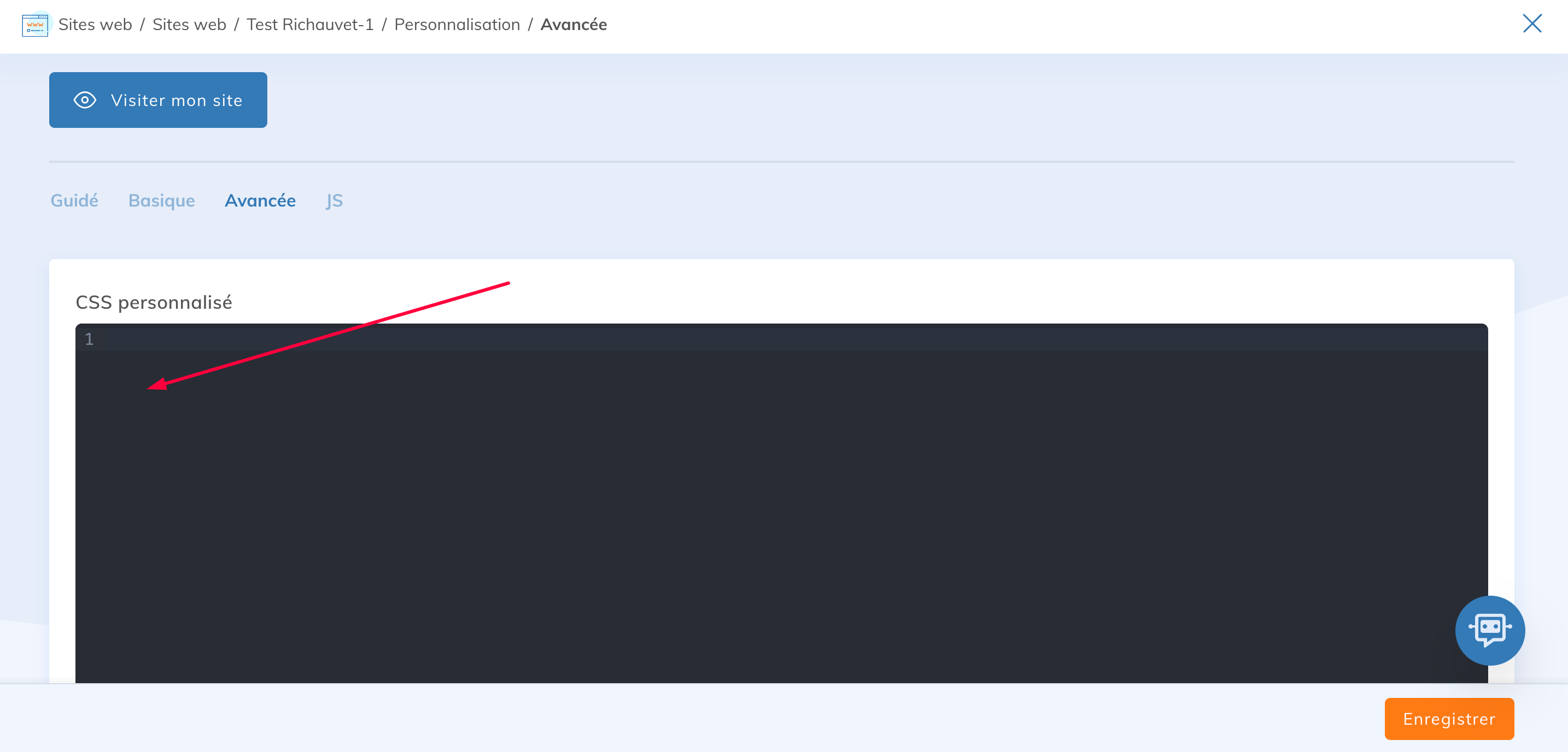
- In Website, open your website, then click the Customization tile.
- Open the Advanced submenu.
- Paste the snippet into the Custom CSS field, after the existing code.
- Click Save, then reload your website to see the change.
For colours, use an English colour name (red, green, etc.) or a hexadecimal code (#FF0000, #00FF00, etc.).
Icons and header
Enlarge the social media icons in the header
.mod-social-links .icon-facebook,
.mod-social-links .icon-instagram,
.mod-social-links .icon-x-twitter {
  font-size: 26px; /* Adjust the size to your needs */
}
Navigation menu
Change the colour of the menu links
.navbar-nav > li > a,
.navbar-default .navbar-nav > li > a {
  color: black !important; /* Replace "black" with the colour of your choice */
}

.navbar-nav > li > a:hover,
.navbar-nav > li.active > a {
  color: black !important;
}
Website background
Add a background image to the website
body {
  background-image: url('path/to/image.jpg');
  background-size: cover;
  background-repeat: no-repeat;
  background-position: center center;
}
Replace path/to/image.jpg with the full address of your image, for example an image uploaded to the file server.
Change the website background colour
body {
  background-color: #333333; /* Replace with the colour you want */
}
Mobile display
Change the colour of the three menu bars (mobile)
.navbar-default .navbar-toggle .icon-bar {
  background-color: #FFFFFF; /* Change this code to change the colour */
}
Banner and logo
Change the banner height
.mod-banner__img {
  height: 200px; /* Adjust the height to your needs */
  background-size: cover;
}
Change the size of the logo in the header
.mod-header-logo {
  max-width: 200px; /* Adjust to the size you want */
}
Footer
Change the size of the phone number
.footer-phone h3,
.footer-phone p {
  font-size: 18px; /* Adjust the size to your needs */
}
Change the size of the email address
.footer-email h3,
.footer-email a {
  font-size: 18px;
}
Change the size of the postal address
.footer-address h3,
.footer-address p {
  font-size: 18px;
}
Change the colour of the text and links in the footer
.line-footer p {
  color: white; /* Change to the colour you want */
}

.line-footer a {
  color: white; /* Change to the colour you want */
}
Hide elements
Hide the workshop registration button of a conference
/* Replace the page ID to target only the page concerned */
.pageid-89591 .workshops .registration-action {
  display: none !important;
}
The page number (pageid-89591) appears in the page address in your account. Replace it with your page's number so the rule only applies to that page.
For the other design options (colours, font, CSS classes), see the article Customize the look of your website.