
Using Newsletter Templates
Email templates are pre-configured models you can reuse for different types of communications. They save you time, maintain consistency in your messages, and ensure all your emails respect your organization's brand identity.
In this article:
Create a Custom Template
If you want full control over the structure and content of your email, you can create a custom template:
Go to Campaigns > Email Templates then select Create a Template. Enter the name and subject of the template. You will be redirected to the email content editor where you can create your template to your liking.
For more details on the design and layout of your newsletters, watch our webinar Master the basics of newsletter design (content and design).
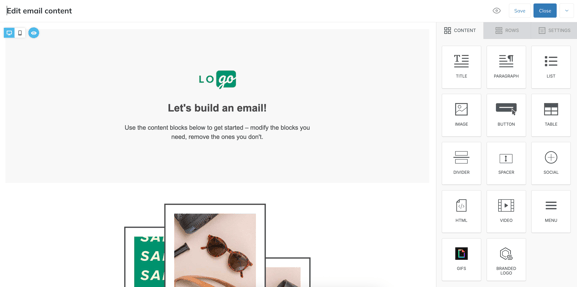
Once your template is created, click Save. It will appear under Campaigns > Email Templates > My Templates. You can reuse it as a base template to create new newsletter campaigns at any time.
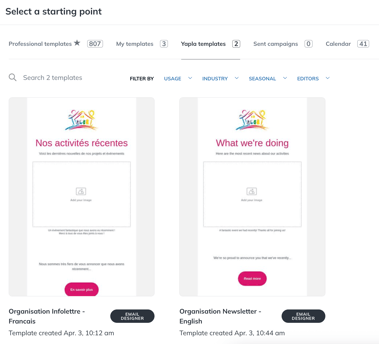
Yapla also provides you with custom templates that meet the needs of associations. To use and customize them, from the email content editor, select the arrow in the upper right corner, then click Change Template. You will find them in the Yapla Templates sub-tab.
Use Smart Templates
Smart templates in Yapla allow you to create newsletters quickly while respecting your organization's brand identity — logo, colors, and style are automatically integrated for a professional and consistent result.
Important: make sure you have configured your brand identity before using smart templates in Settings > Brand Kit > Smart Templates.
Changes you make on this page will apply to existing smart templates and current campaigns created from a smart template. Once your brand is configured, you will not be able to modify its elements in the editor.
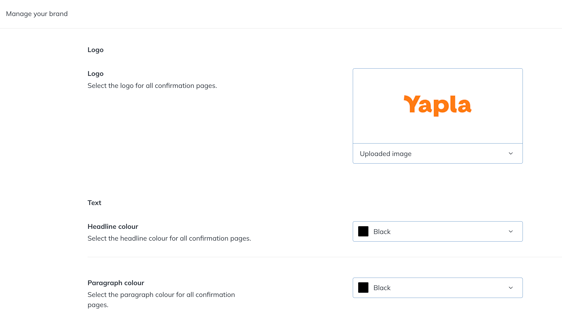
Once your brand identity configuration is complete, click Publish. Smart templates will now automatically include your brand identity.
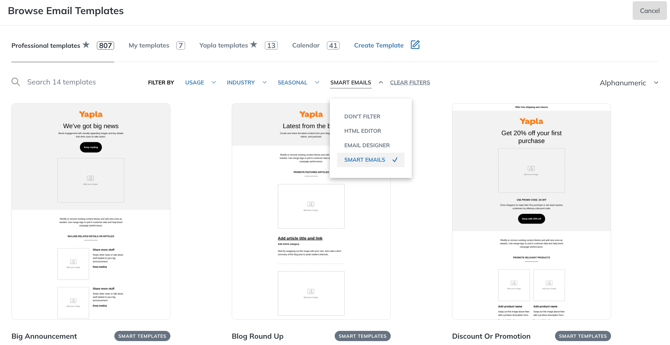
To choose and use a smart template, go to Campaigns > Email Templates > Professional Templates. Smart templates are found under the Smart Emails list. Your logo and colors will already be included in the available templates. To use one, click Create a Campaign under the desired template. You will be redirected to the email content editor.
Editing Brand Identity in a Smart Template
Smart templates use your brand settings — changes made to text, links, button colors, or your logo will not be saved. Only content or sections should be modified.
If you wish to modify brand-related elements in a smart template, from within a smart template, select the arrow in the upper right corner and click Disable Smart Branding.
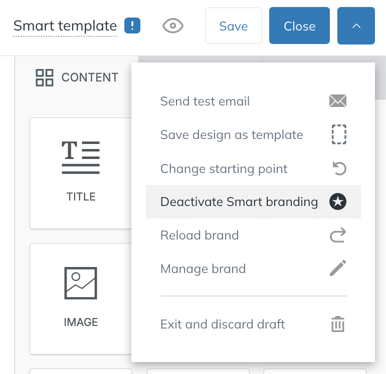
Important: by re-enabling Smart Branding, any changes you made to smart templates will be overwritten by the configurations present in the brand identity settings.
Going Further
How to add a link to your campaigns and events in your newsletters