
Congratulations! Your organization is now all set up on Yapla and you're ready to welcome your members. There's just one last step before launching the platform: you must let your members know that they can now log in to complete their member profile.
Preparing the communication to send the password
Go to the Settings tab in the Members application and click on Communications.
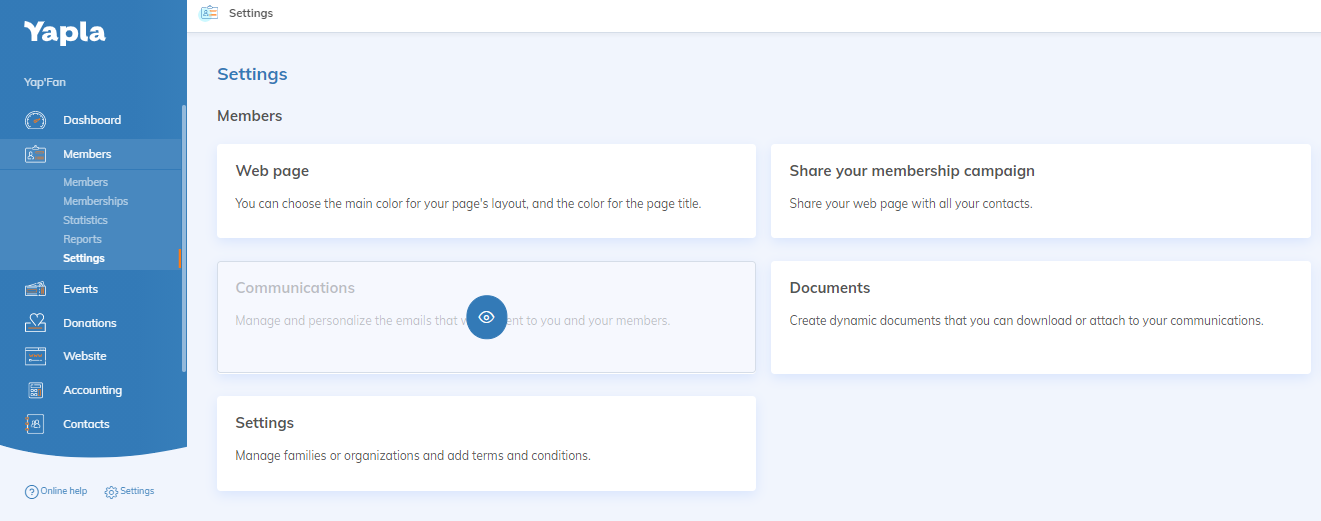
This communication is created by default. View it in Members > Settings > Communications. It's titled Members Area Login Instructions.
Use this communication to:
- Welcome your members to the new platform
- Give your members instructions on how to log into their account for the first time
- Present your different membership levels to your members
- Present your events and donation campaigns, and invite them to participate
Creating a password for the first time
The default text for the email provides your members with their login information. If you've imported your members and their membership types, they will still not have a password and you must make the following modifications to include a reset password link in your membership campaign.
- Go to the Settings tab in the Members application and click on the Web page tile.
- Click on View page and your membership campaign page will open in a new window.
- Click on I'm already a member
- Click on Forgot password
- Copy the page's web address and include it in your email. Explain to your members that they must reset their password in order to log in for the first time.
Important considerations for bilingual users
- If you've selected different languages in your member profiles, you must ensure that you create a separate email for each language.
- When sending the communication, under Send a communication the name of the communication will only be displayed in one language, but concerns all configured languages. You can send it only once, all configured languages will be sent equally.
Send the email to your members
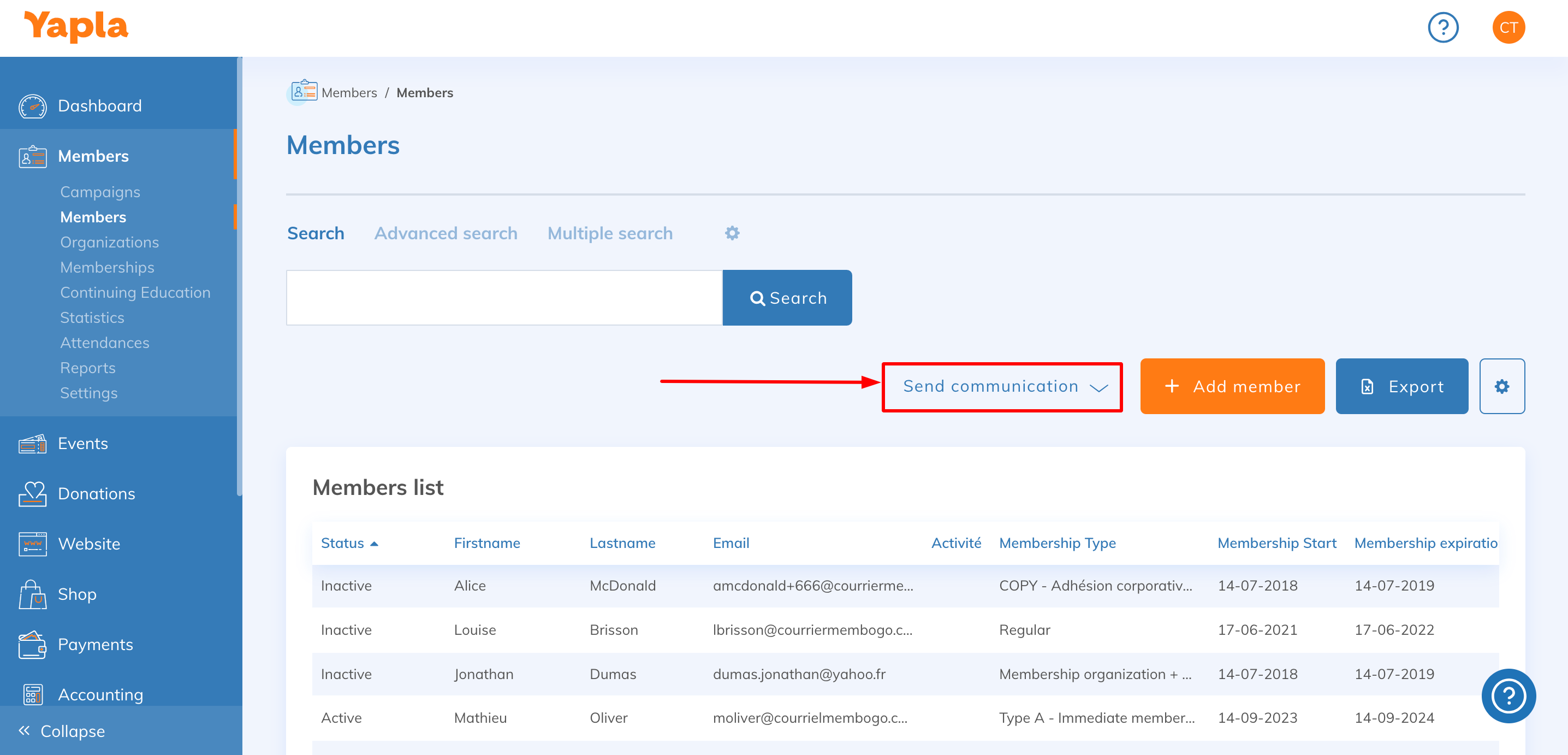
Go to the Members > Members and click on Send a communication
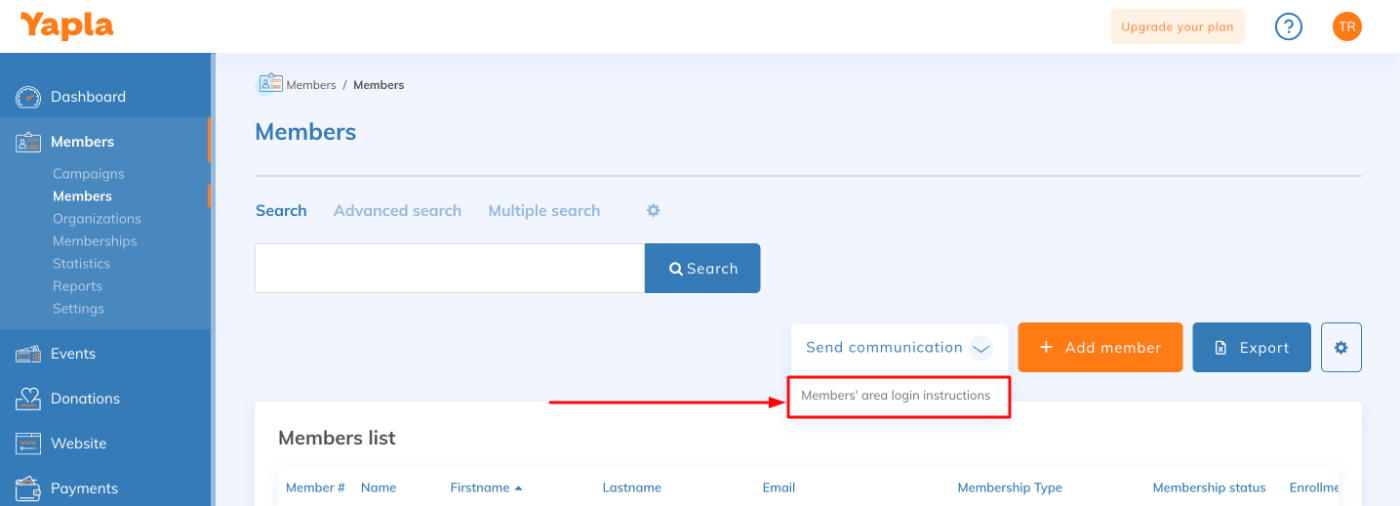
Then click on Members' area login instructions
Important
- An email will be sent every time you click on the button Members' area login instructions. Ensure that you only click on the button once.
- The email will be only sent to active members or members awaiting approval.