
After creating your member database, it is possible to add other membership types or duplicate an existing membership.
Duplicate a membership
Find the list of your memberships under Members > Settings > Membership Types.
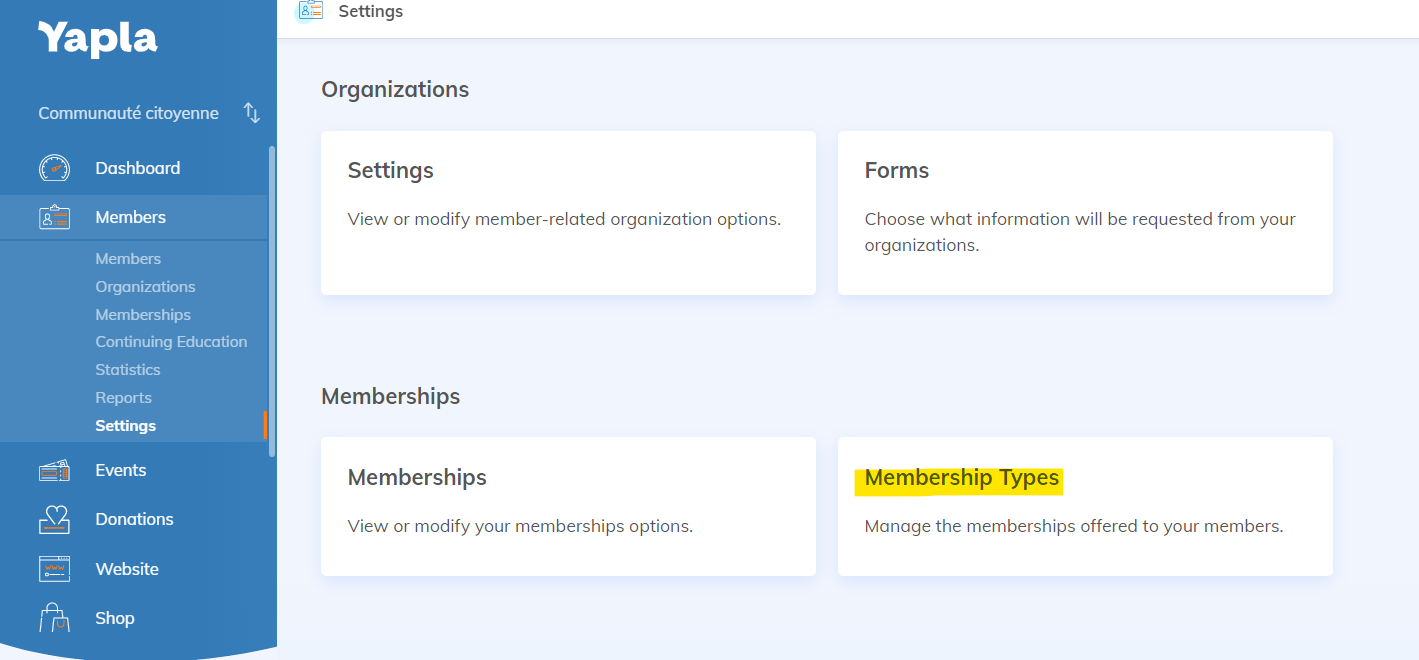
On the right side of the membership of your choice, click on the settings wheel, then click on Duplicate and confirm.
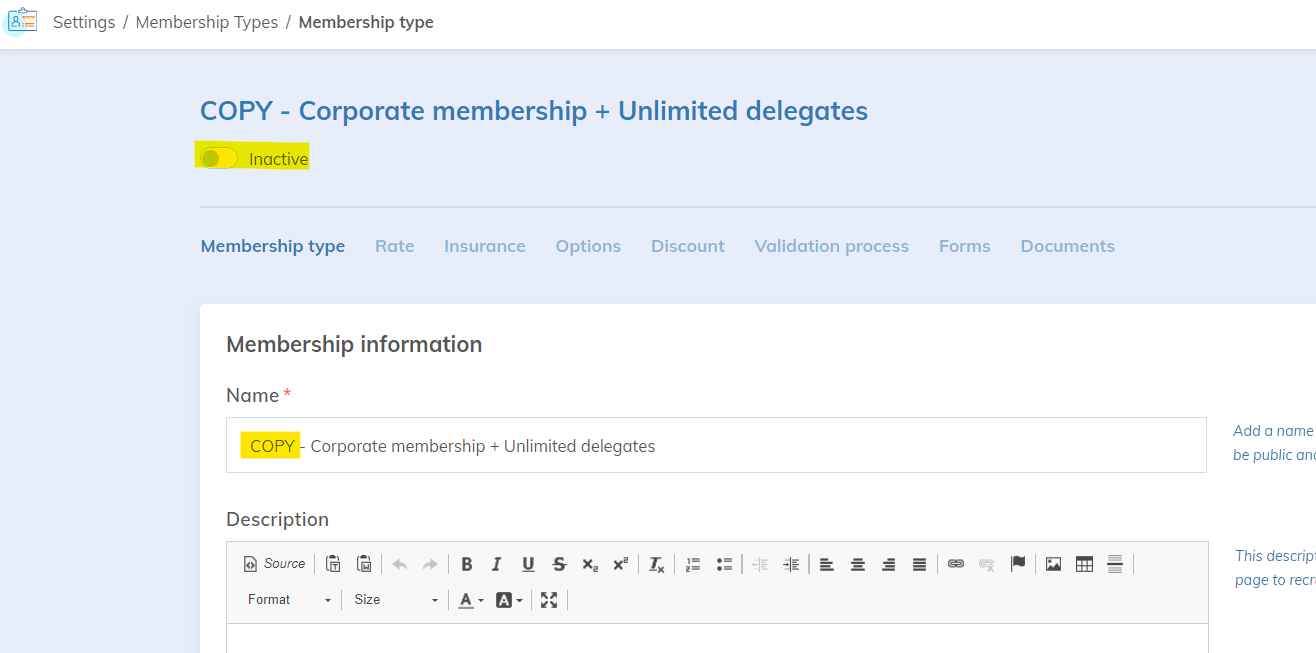
You will automatically be redirected to the membership editor. Change the configurations of your choice. Don’t forget to customize the membership name: by default, Yapla names the new membership in the following format “Copy – Name of the duplicated membership.”
The copy of the membership type will be inactive by default. Don’t forget to activate it once it is correctly configured, then save.
Create a new membership type
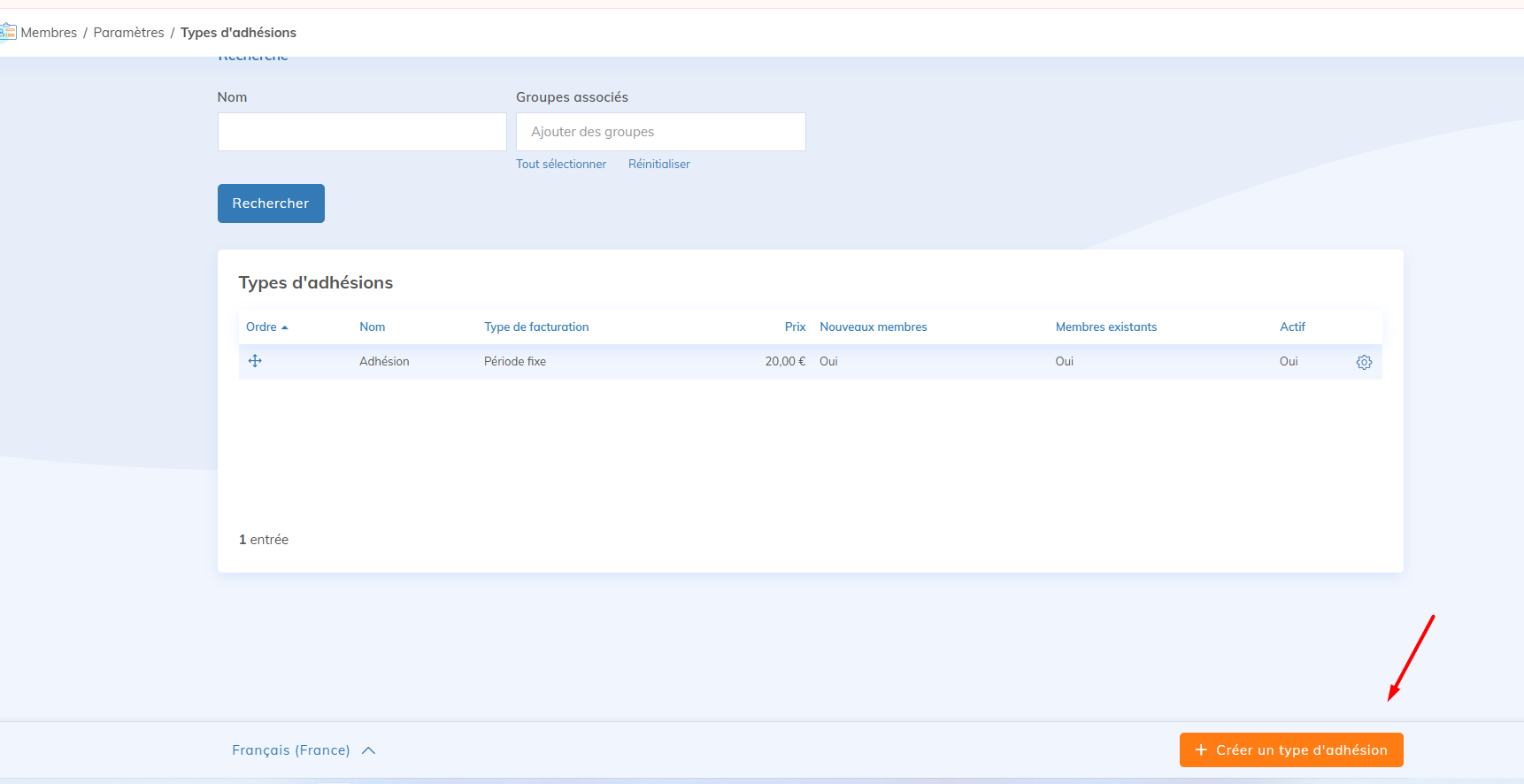
In Members > Settings > Membership Types, click Create a membership type. Enter the membership name and configure the price.
Learn More
How fixed-date membership billing types and decreasing prices work