As an administrator or manager of a Yapla account, you can create access to the Yapla platform for your collaborators and define which actions and data each person can perform and view.
To learn how to add a user, see this article.
Creating a Role
Creating roles allows you to control the actions taken and the information available to each person on the platform, providing a higher level of confidentiality and security.
To create and customize a role, go to Configuration > Users and Licenses > Roles.
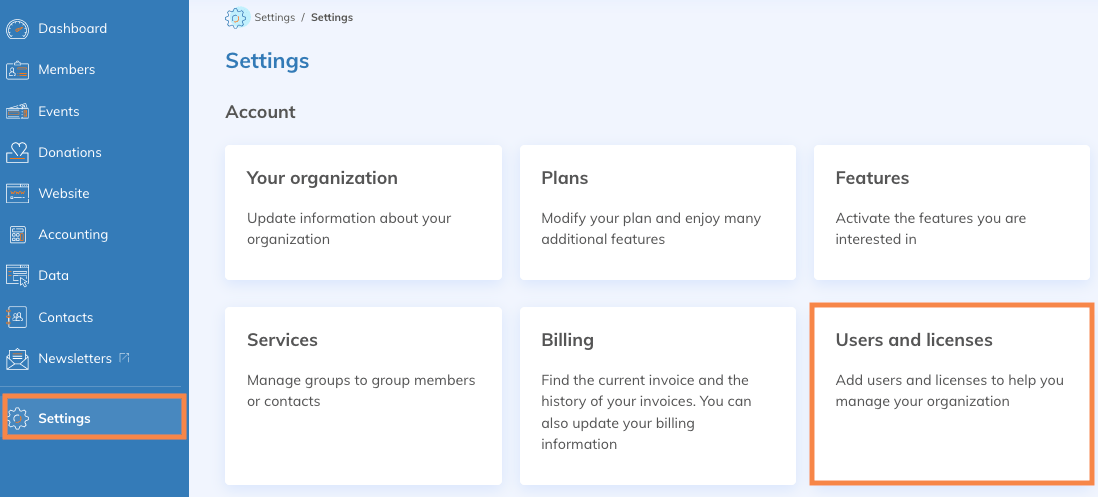
You will find the list of default roles. You cannot modify them, but you can rename them for clarity. To create your own role and customize it, click Add a Role.

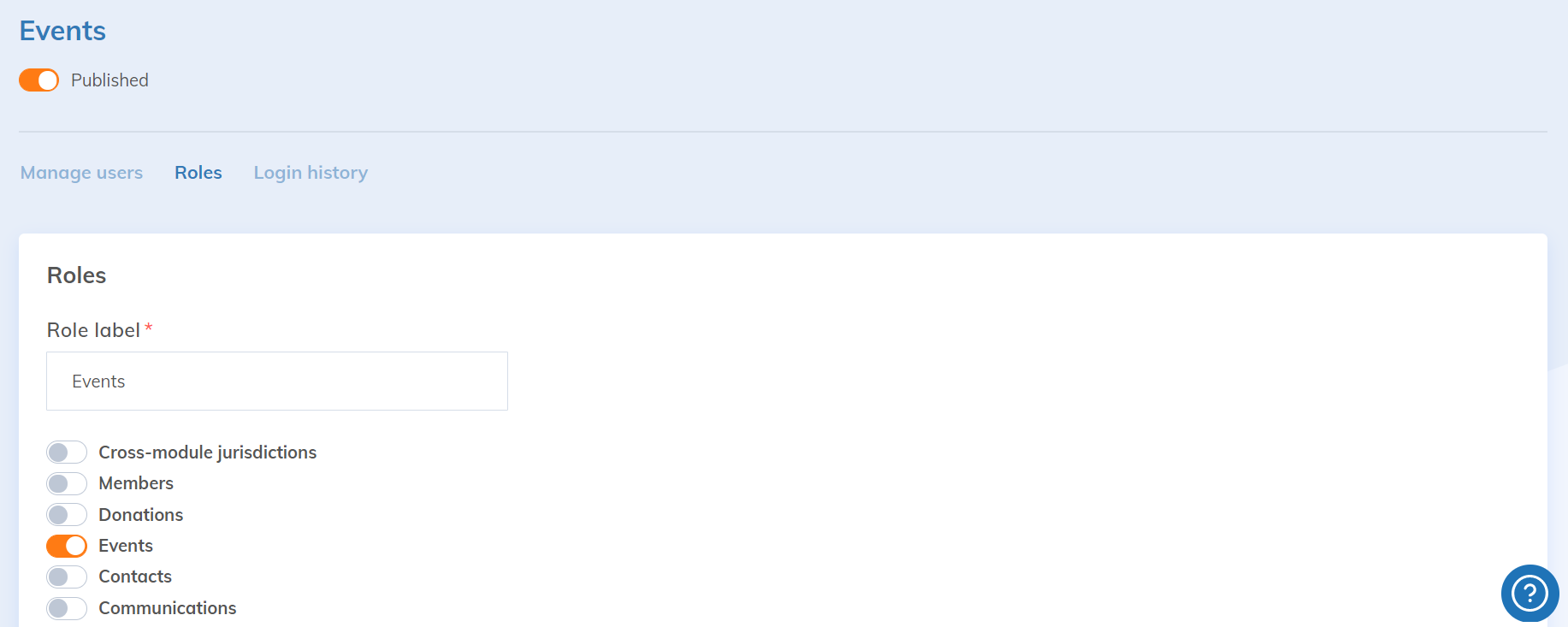
Name it, use the toggles to enable the available applications and specific features accessible to the user, then click Save.
Assigning a Role to a User
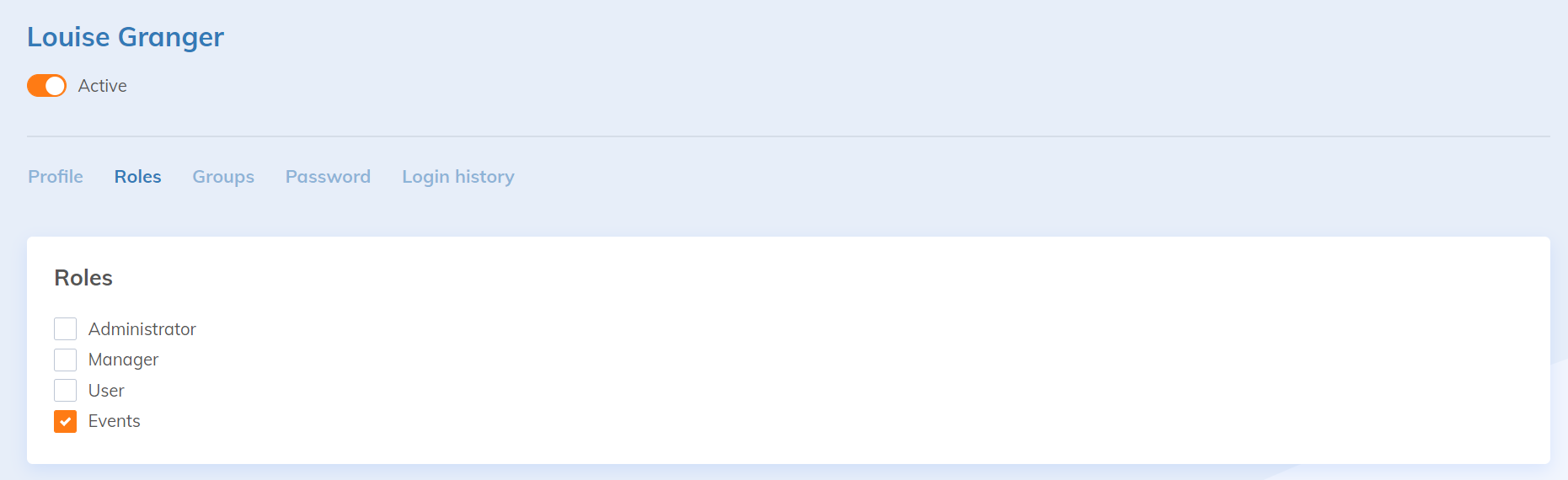
In the User Management sub-tab, select the user whose role you wish to change. Then click on the Roles sub-tab. Select the role of your choice and save.