To collaborate in Yapla, you need to grant access to your collaborators. In Yapla, it is important to note that an administrator is first and foremost a user to whom permissions are assigned.
Adding a user is therefore the essential first step before assigning administrator roles. This system allows you to delegate the management of your activities while precisely controlling the access of each team member.
Where to Configure Users?
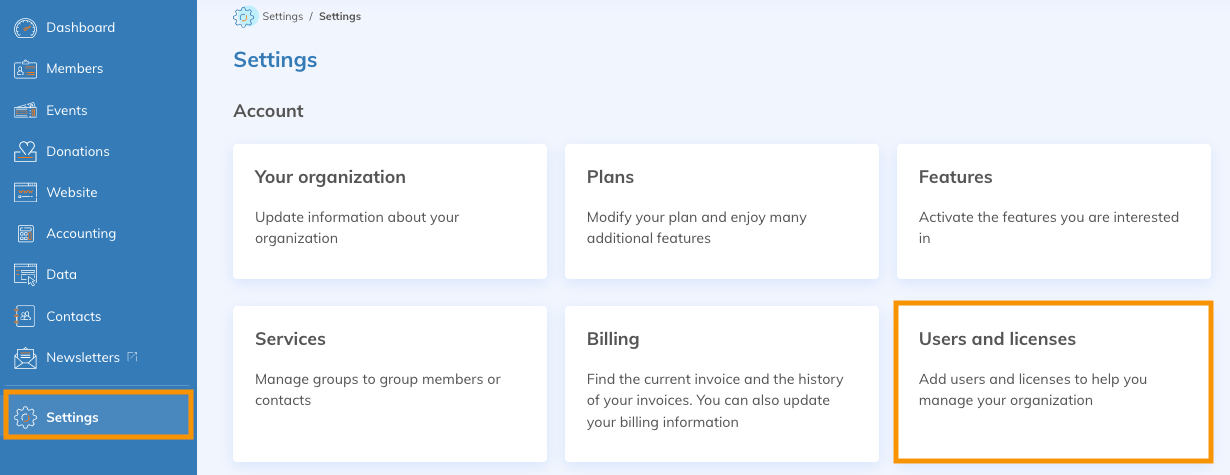
Configure user and administrator accounts in Yapla under Configuration > Users and Licenses.
Adding a User
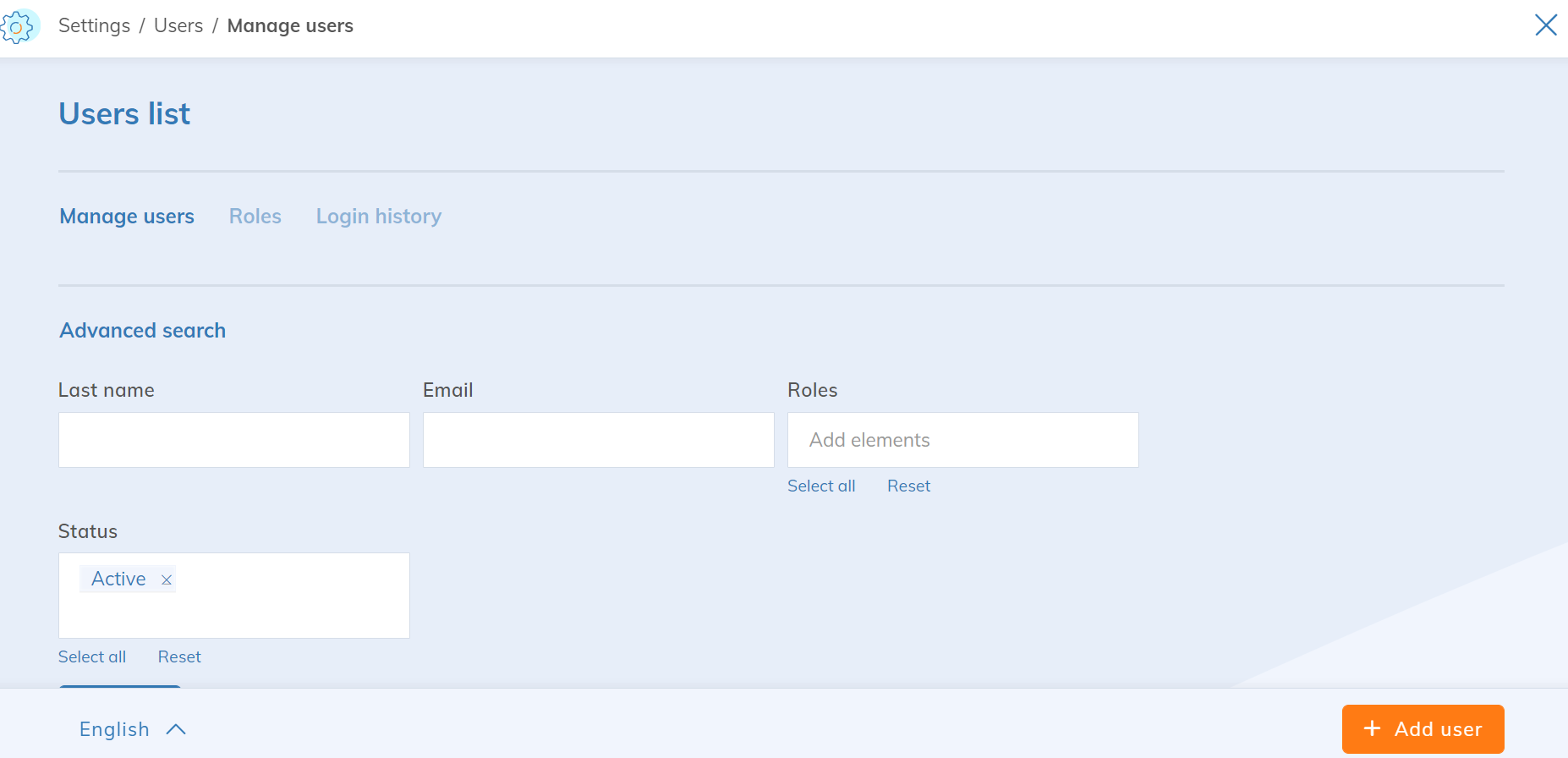
Add a user by clicking Add a User.
Create the user by filling in the following information:
- First name
- Last name
- Email — the email address used to log in and receive communications
- Phone
- Photo
- Language — default language upon login
- Time zone — used for displaying times in the administration panel
Editing a User Account
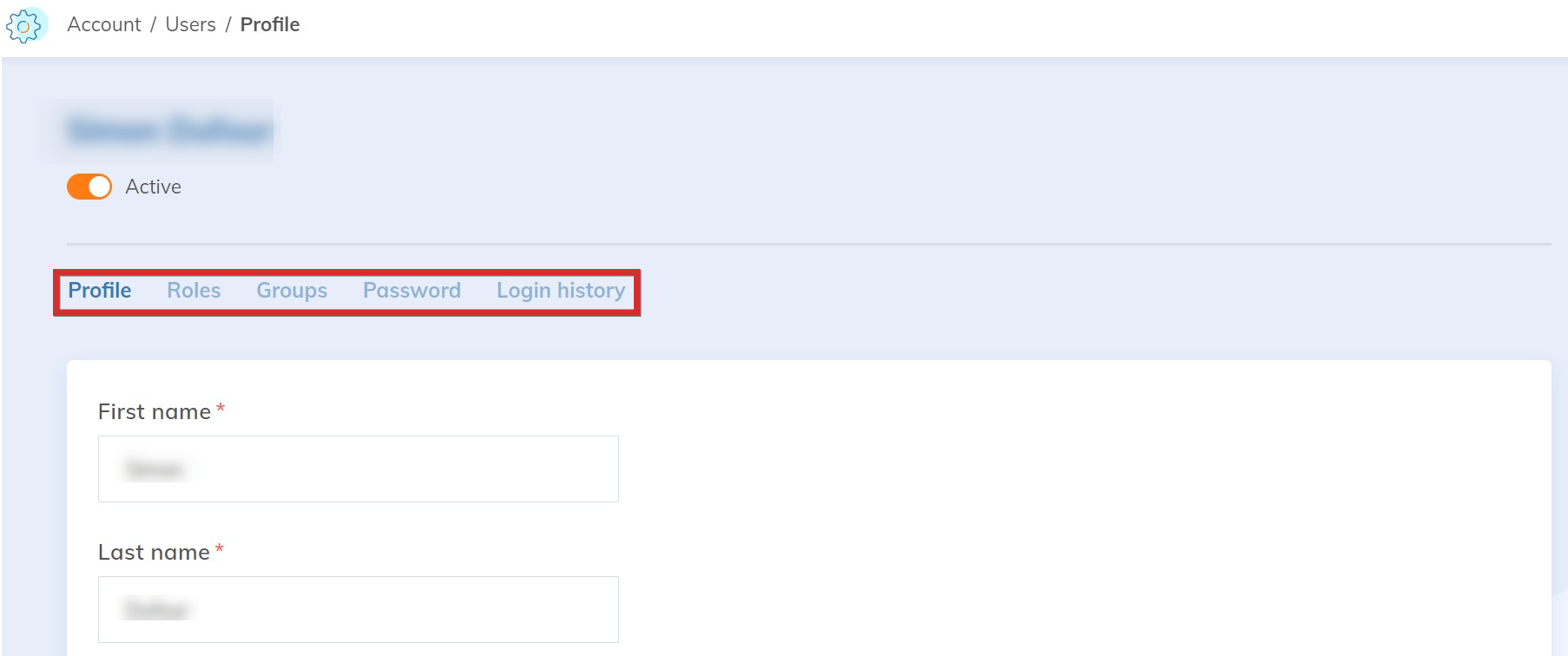
Once the user is created, you can access their profile to modify their settings. You will have access to their profile to edit basic information as well as the secondary menus Role, Password, and Login History.
Editing a Role — Essential Plan
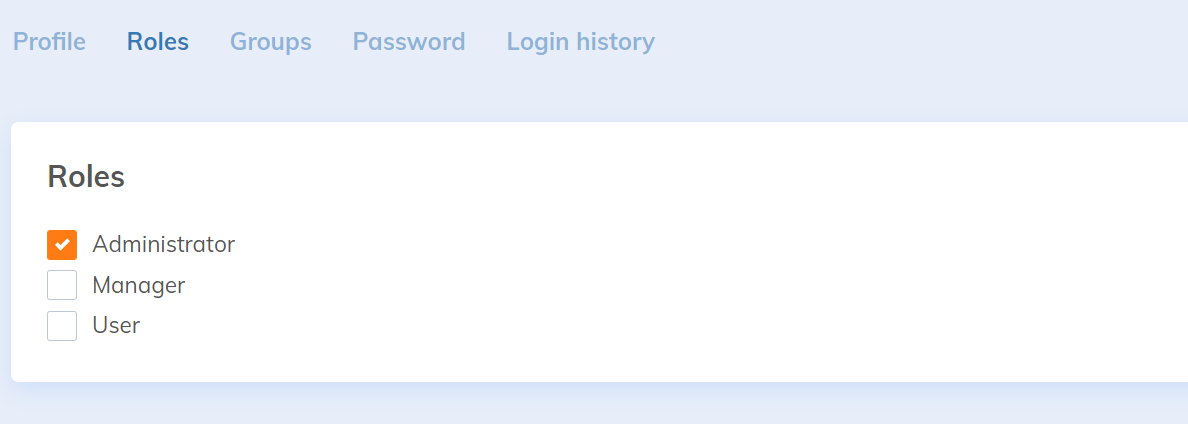
To edit a user's role, click on Roles. Assign the user's role, which will define their permissions. The three native roles on the platform are:
- Administrators
- Manager
- User
To learn about the permissions associated with each role, refer to the role menu in the user list.
Forgotten Password
User passwords can be reset on the Yapla login screen.
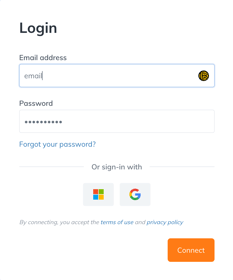
To send the reset link directly to a user, select Password Reset Request in the Password sub-tab of the user's profile. They will receive a reset link by email.

Deactivating a User
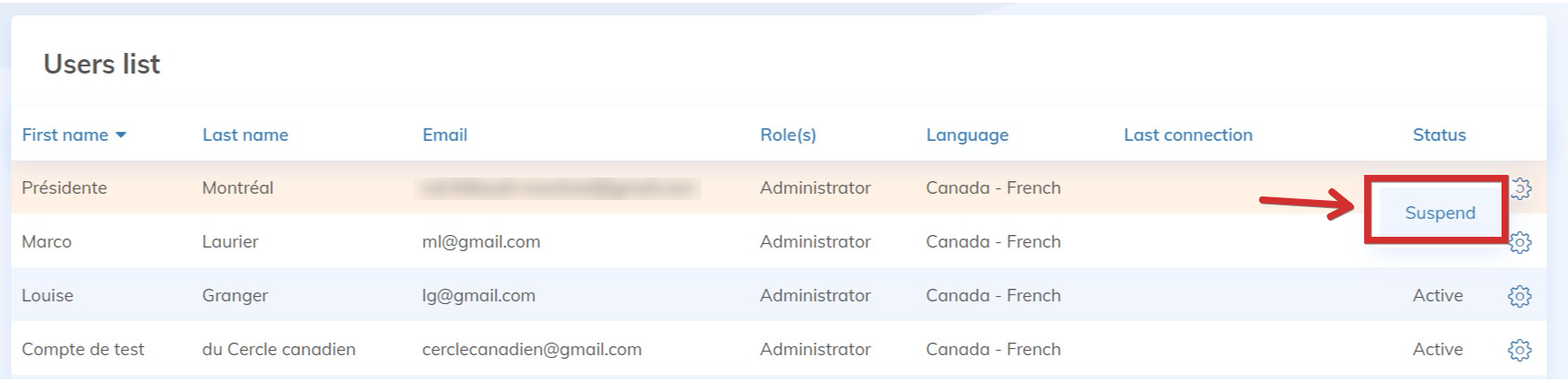
To deactivate a user, click the gear icon to the right of their name in the user list and select Suspend.