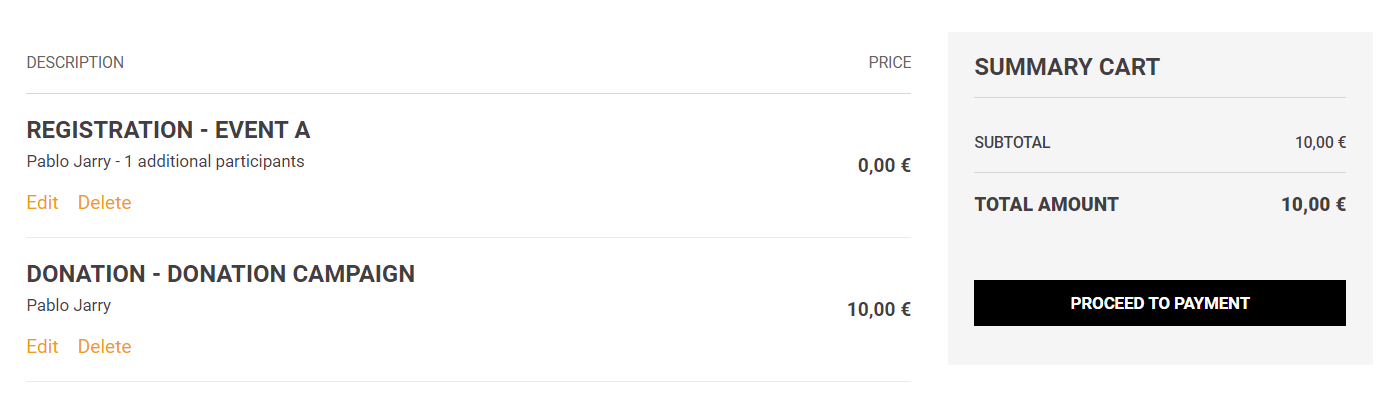
The shopping cart allows your site users to make multiple purchases from the Members, Events, Donations, and Data features in a single transaction. Purchases will be added to the cart until the user proceeds to payment.
In this article:
- Configure the shopping cart
- Add the shopping cart to your site
- Configure shopping cart communications
Configure the shopping cart
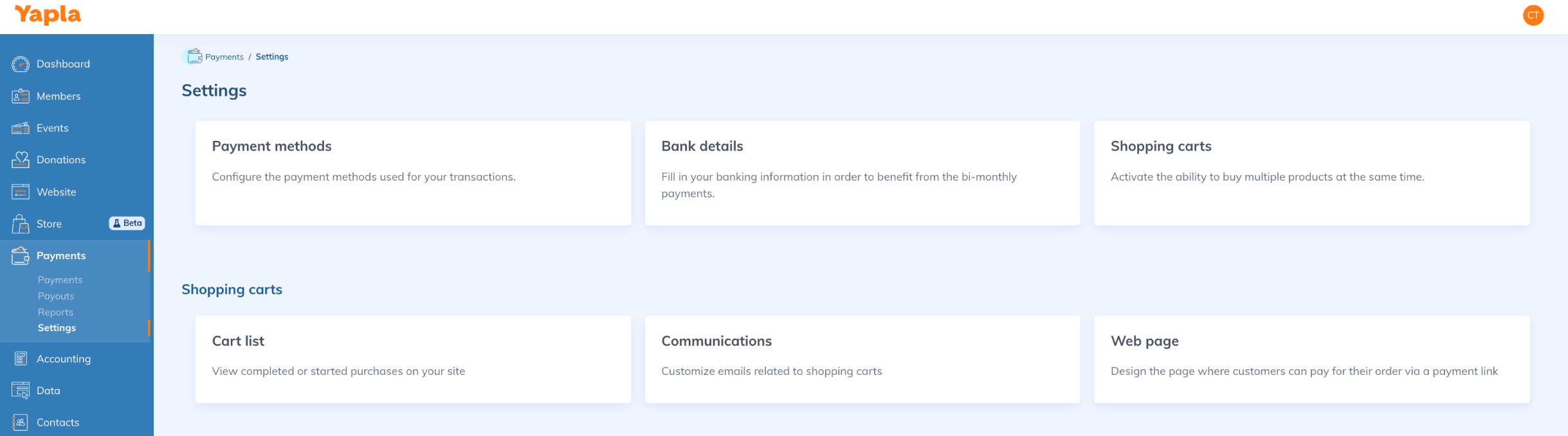
To use the shopping cart, go to Settings > Payments > Shopping Carts.
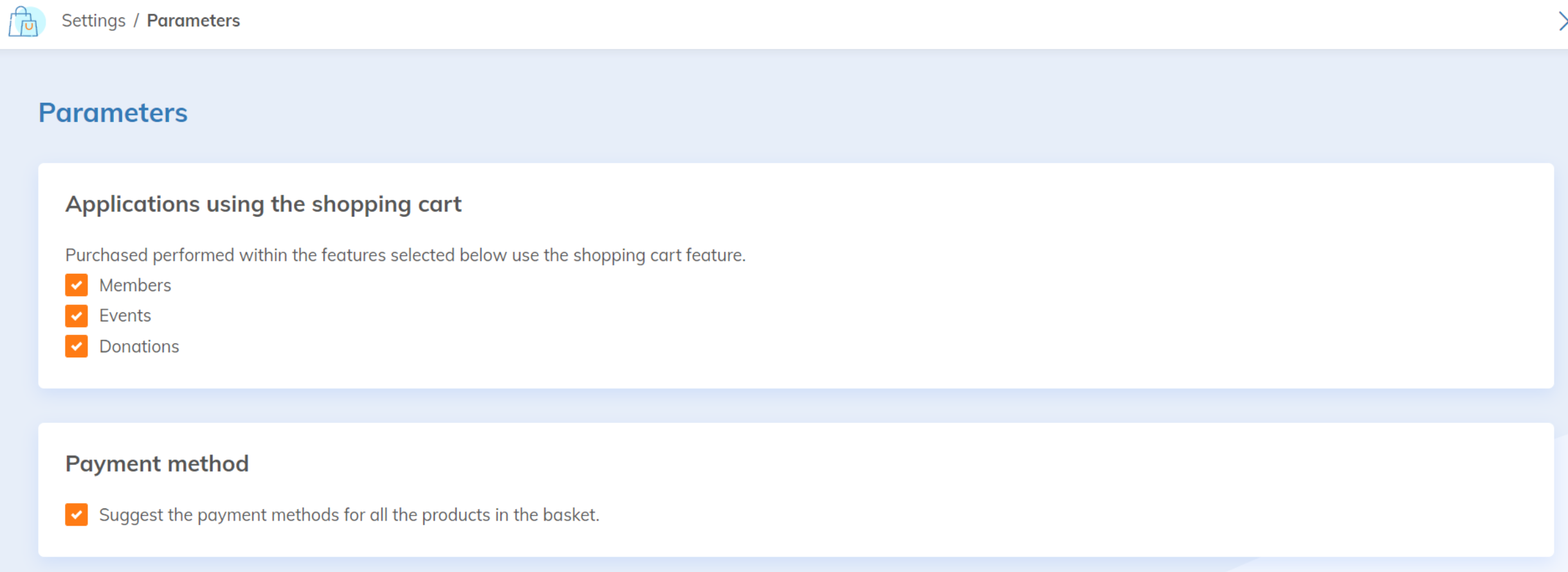
Then select the features for which the cart will be available.
Add the cart to your site
Go to Website, choose your website, select Pages and choose a page or add a new page to your site.
It is recommended to add the cart module to a page dedicated exclusively to the shopping cart.
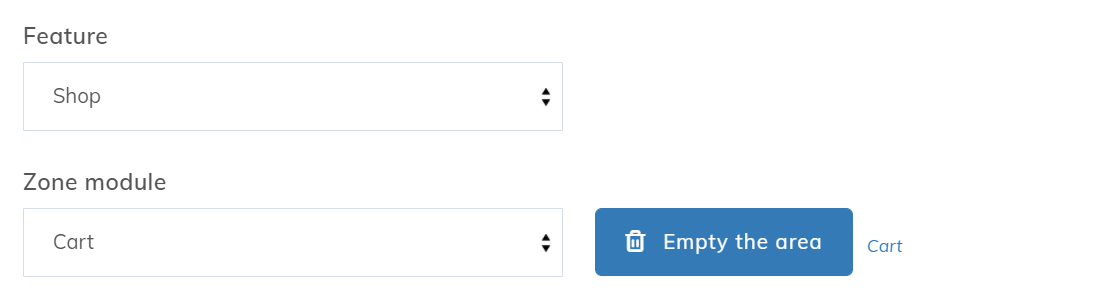
Once the page is created, go to the Structure or Edit tab and click on one of the zones to add the Cart module (e.g., the main zone, MainArea).
Choose the Store application and the Cart module, then save.
Add the cart icon to your website header (optional)
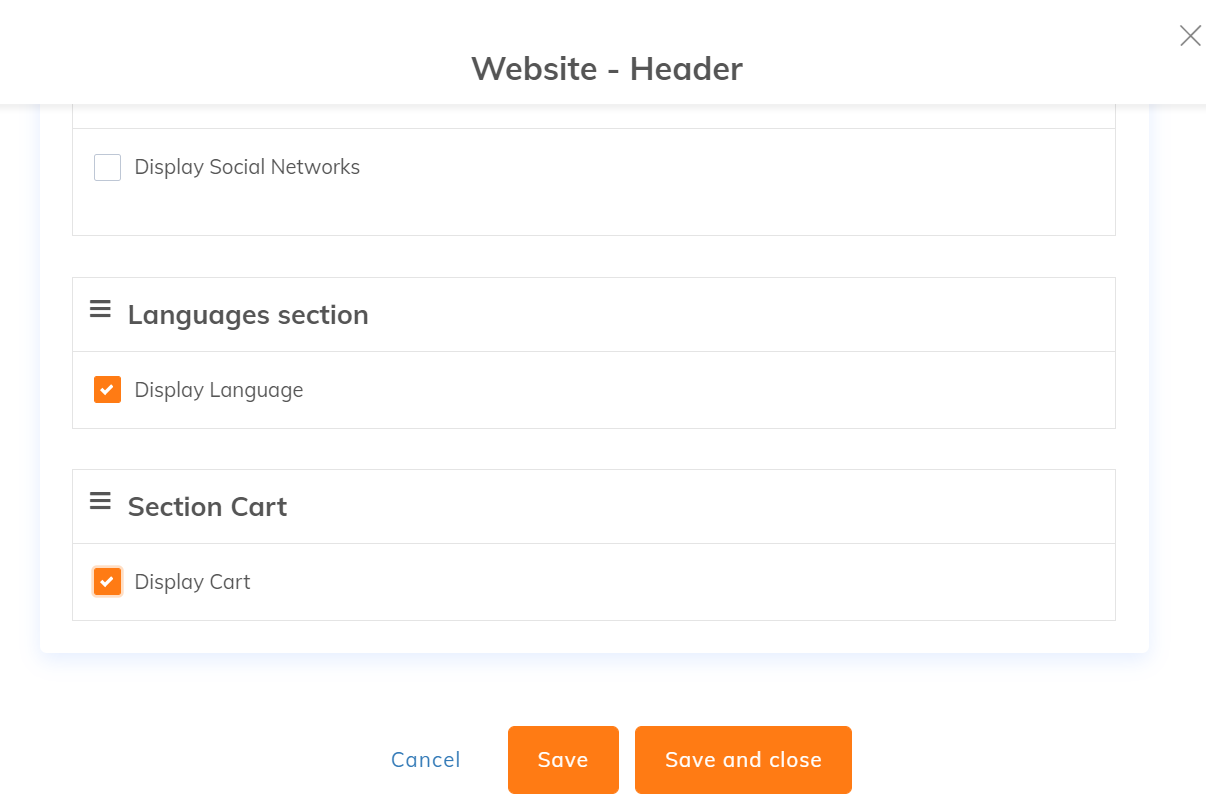
In the master pages of your site, edit the Header module settings and then enable the Cart Section.
Configure cart communications
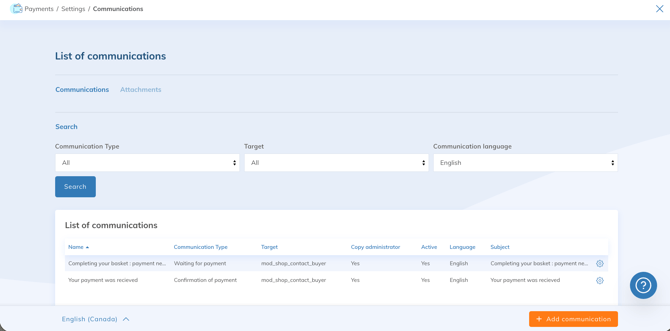
To configure automated cart communications, go to Settings > Payments > Communications and add the Payment Confirmation and Payment Pending communications. Consult our online help article to learn how to configure communications in Yapla.