
Yapla allows you to configure and manage different payment methods by application and by specific events or donation campaigns from the methods used by your NPO: credit card, check, bank transfer.
To learn more about the general configuration of your payment methods:
In this article:
- For an event
- For a donation campaign
- For all donation campaigns
- For memberships
- How custom payment methods work in the shopping cart
For an event
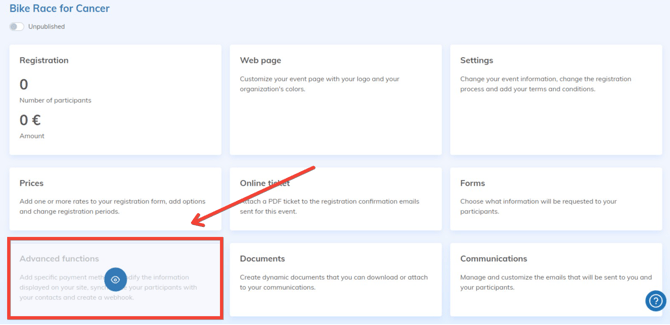
Customize the payment methods for an event in Events > Your Event > Advanced functions > Payment Methods
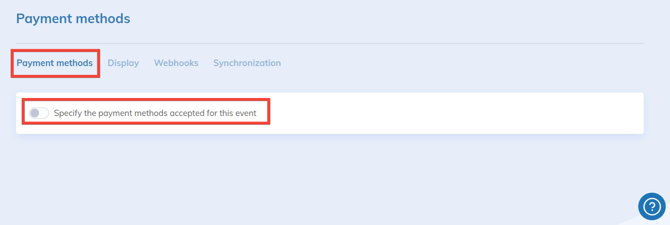
In the Payment methods tab, check Specify the payment methods accepted for this event.
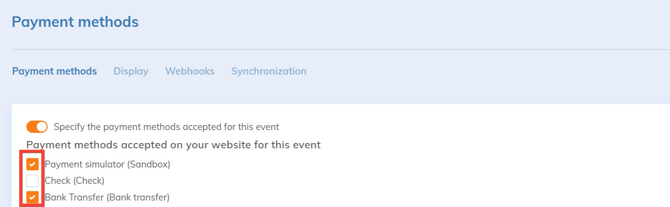
Check or uncheck the desired payment methods.
For a donation campaign
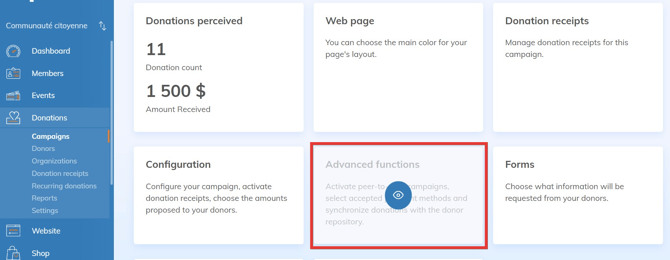
Customize the payment methods for a specific donation campaign in Donations > Your Campaign > Advanced functions > Payment Methods and check or uncheck the desired payment methods.
For all donation campaigns
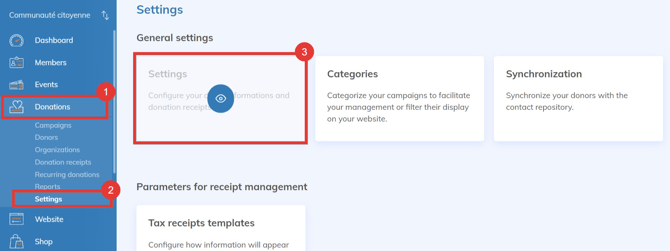
Customize the payment methods for all your donation campaigns in Donations > Settings > Settings > Payment methods and check or uncheck the desired payment methods.
The selection of payment methods will apply to all donations.
For memberships
Customize the payment methods for all your memberships in Members > Settings > Membership Settings > Payment methods and check or uncheck the desired payment methods.
The selection of payment methods will apply to all memberships.
How custom payment methods work in the shopping cart
If you use the shopping cart, which allows for purchasing multiple items with a single payment, consult this section for usage scenarios.
Configuration settings
By default, the cart will use all payment methods configured in the account. However, it is possible to change this behavior via the shopping cart settings in Payments > Settings > Shopping Carts.
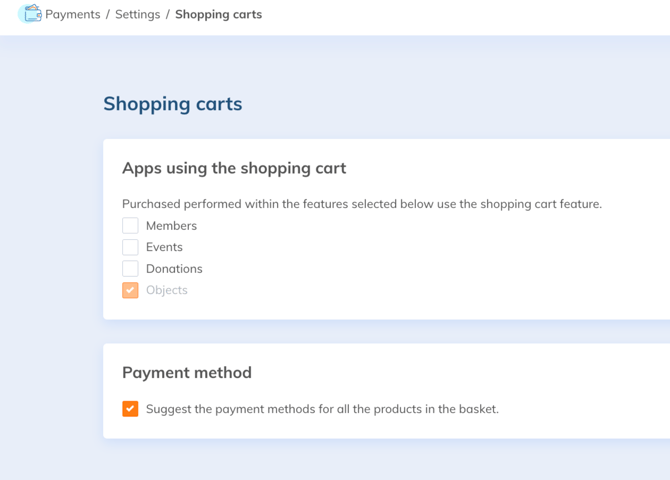
Checking the box Suggest the payment methods for all products in the basket will compile all payment methods present in the cart at the time of payment.
Usage examples
Configuration by application
Your account has payment methods A, B, and C. You have configured your memberships with payment method A, your events with payment method B, and your donations with payment method C.
A person becomes a member and registers for an event. With the default behavior, all three payment methods would be offered at checkout. With the Offer payment methods for all products in the cart option, only payment methods A and B will be offered.
Configuration by groups
Payment method A is accessible to everyone. Payment method B is accessible only to logged-in users, and payment method C is for members with "VIP" membership only.
An unauthenticated person (not logged in) making a purchase on the site will not be able to choose their payment method, as only method A will be offered. However, if they are logged into their account, payment methods A and B will be offered. If they have a VIP membership, payment methods A, B, and C will be offered.