
When a payment is received by cheque or bank transfer, the invoice remains pending. It will appear in the accounting section with the status Balance due. To validate an invoice after receiving the payment, follow the steps below.

For users on the Free plan, select the feature where the transaction took place.
- Members > Membership > Filter by Status – Pending payment > Click on the transaction > Membership details > Available actions > Proceed to payment.
- Event > Select the event > Registration list > Select the transaction > Available actions > Edit or pay.
- Donations > Campaign > Select the campaign > Donations received > Select the transaction > Pay.
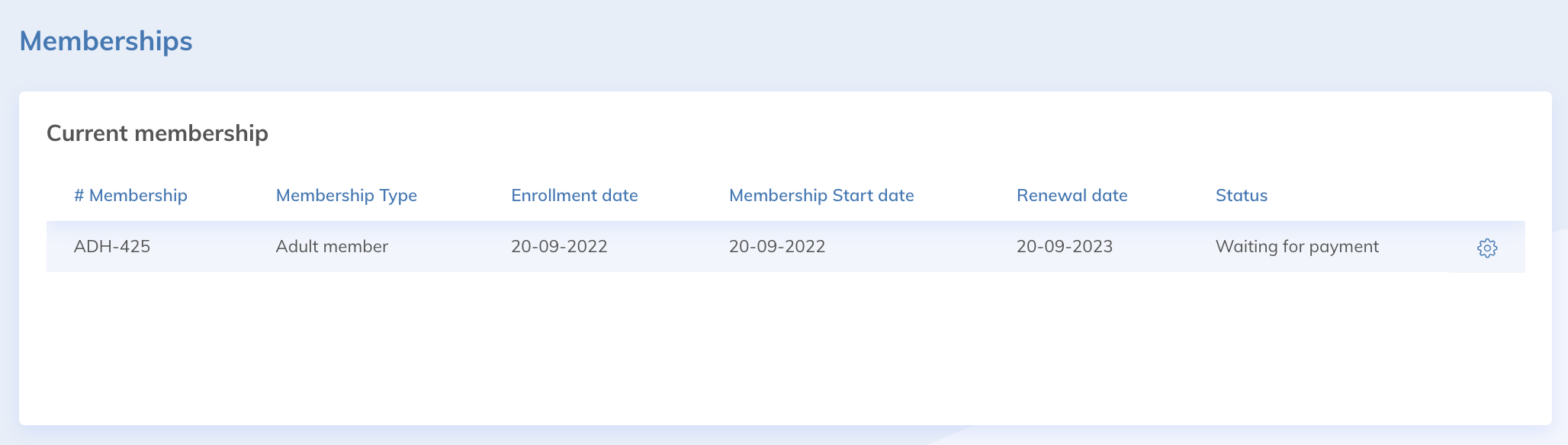
Then choose the payment method and confirm. Payments made by credit card are processed automatically and will appear on the client’s statement within 5 to 10 days.

For users on the Essential, Plus, or Premium plans, go to Accounting > Bills and locate the desired transaction made via the Members or Events feature. It will display the status Balance due. Use the filters if needed.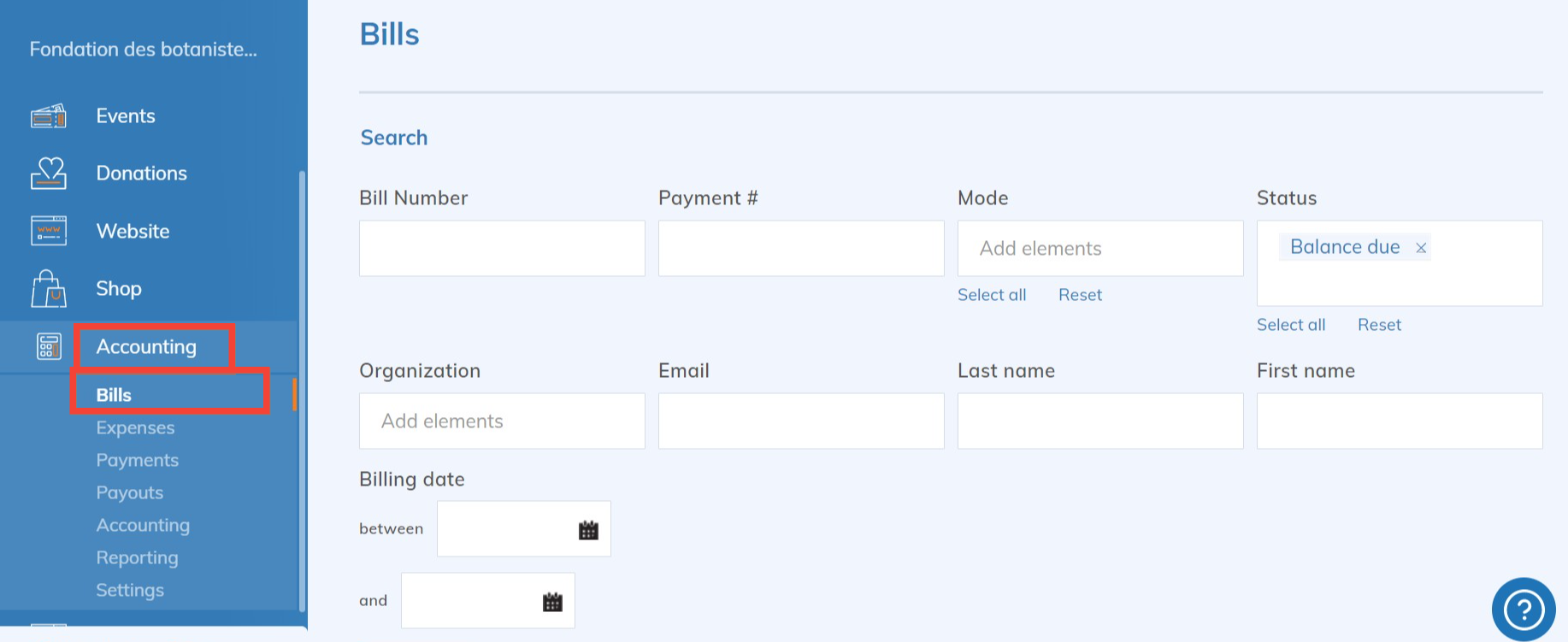
Select the transaction, then click Pay at the bottom of the page.
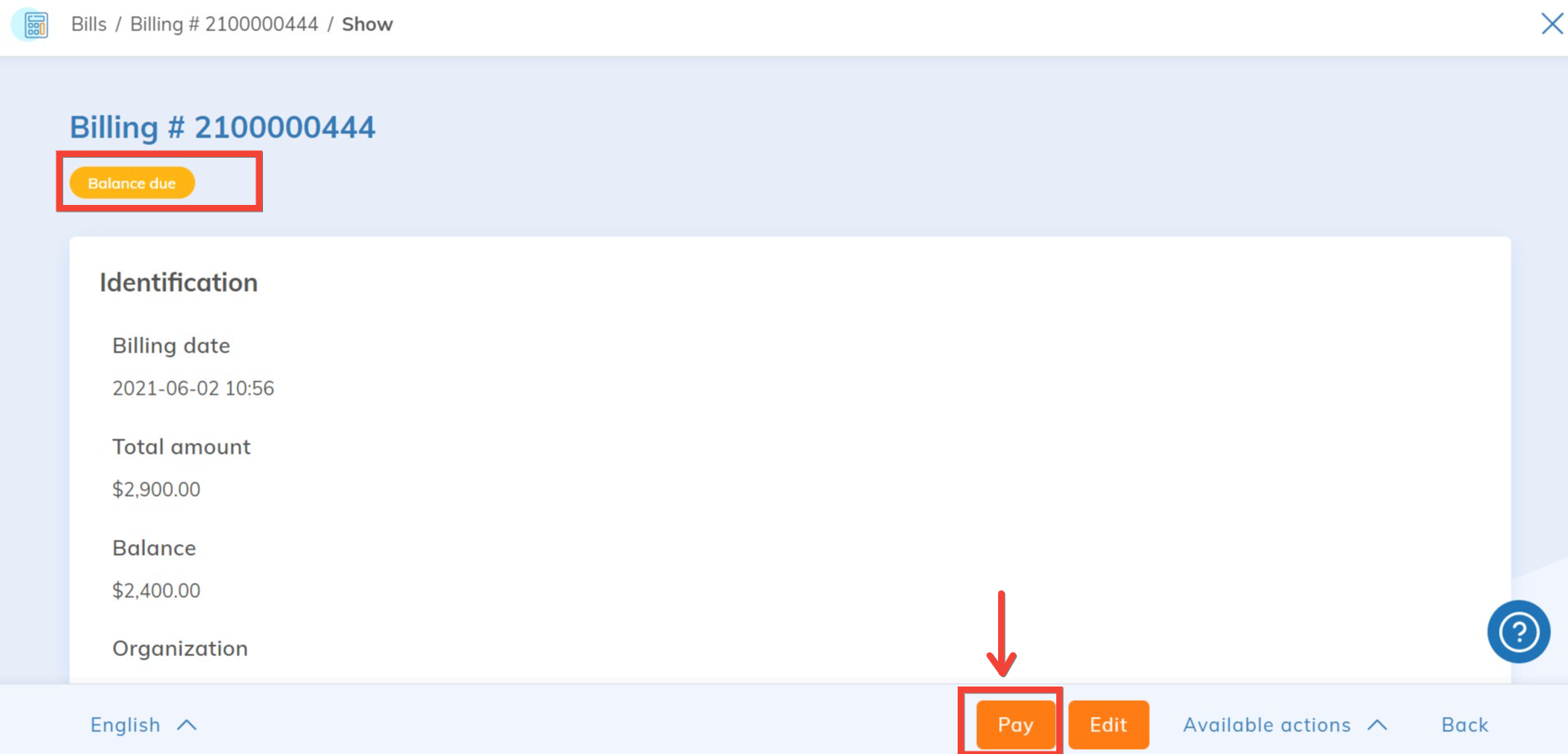
Choose the appropriate payment method. Click Update membership if it relates to a membership, or Update registration for an event registration. The transaction status will change to Paid.
Note on Manually Created Invoices
Manually created invoices cannot be paid using the transaction process described above. It is only possible to change their status from "Balance Due" to "Paid" or "Canceled." Go to the invoice in question, click "Edit," and select the desired status from the drop-down list under "Identification." For more details on manual invoices, see this article.
Process a pending donation
Donations paid by check, bank transfer or cash cannot be validated directly in the accounting section. To process a pending donation, access the transaction using the path described here.