
A template is an email layout you reuse from one campaign to the next. It saves you time and ensures all your sends reflect your organization's brand.
In this article:
Find templates
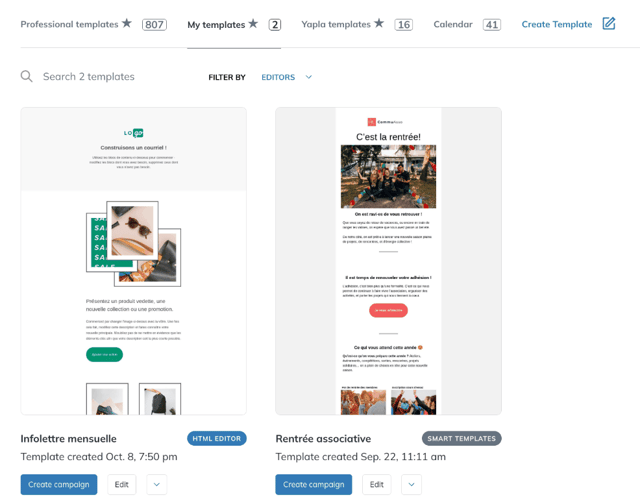
Go to Campaigns > Email Templates. Templates are organized in tabs:
- Professional templates: several hundred ready-to-use designs. Use the Usage, Industry, Seasonal and Editors filters to narrow the list.
- My templates: templates created or saved by your organization.
- Yapla templates: designs created by Yapla for the needs of associations.
- Calendar: seasonal designs (holidays, back to school, end of year, etc.).
Under each template, click Create campaign to start a new campaign from it.
Professional templates: available with the Yapla Newsletters Growth plan.
Create a custom template
To keep full control over structure and content:
- Under Campaigns > Email Templates, click Create Template. The email editor opens.
- Build your layout by dragging content blocks (image, title, paragraph, button, etc.) from the right-hand panel.
- Click Save, then Close.
- The template appears in the My templates tab. To give it a meaningful name, open the arrow to the right of Edit and choose Rename.
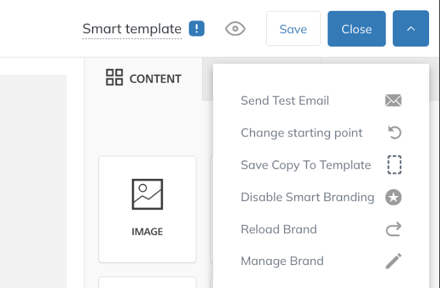
A successful campaign can also become a template: in the campaign editor, open the arrow in the top right and choose Save Copy To Template.
For more design tips, watch the Webinar | Newsletters: email design and content basics webinar.
Manage your templates
In the My templates tab, the arrow to the right of Edit gives access to Preview, Rename, Duplicate and Delete.
To apply another template to a campaign in progress, open the campaign and click Change template, or, from the editor, open the arrow in the top right and choose Change starting point.
Changing the template replaces the current content of the campaign.
Use smart templates
Smart templates automatically include your logo and your text, link and button colours. Your newsletters stay consistent with your brand without any manual formatting.
1. Set up your brand
- Go to Settings > Brand Kit, then open the Smart templates tab.
- Choose your logo and the colours of headlines, paragraphs, links and buttons.
- Click Publish.
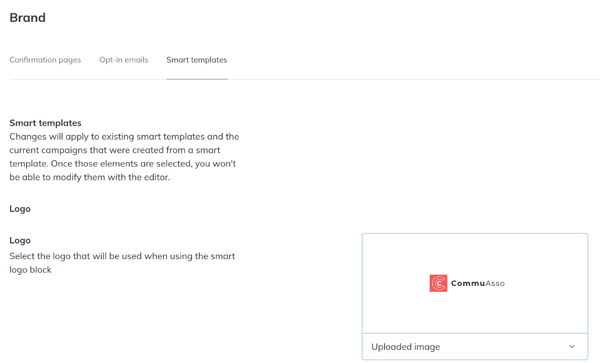
Brand kit changes apply to existing smart templates and to campaigns already created from a smart template.
2. Choose a smart template
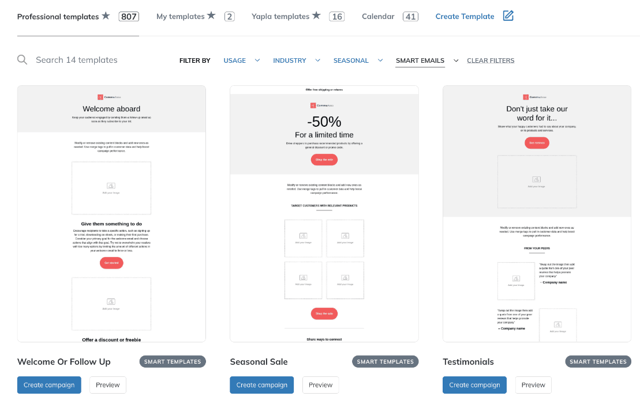
Under Campaigns > Email Templates > Professional templates, open the Editors filter and select Smart Emails. The templates shown are labelled Smart templates and already include your logo and colours. Click Create campaign under the template you want.
3. Edit brand elements in a campaign
In a smart template, brand-related elements (logo, link and button colours) follow the brand kit: changing them directly in the editor won't be kept. Edit the content and sections instead.
If you need to customize these elements for a specific campaign, open the arrow in the top right of the editor and choose Disable Smart Branding.
If you turn smart branding back on, your changes will be replaced by the brand kit settings.