
A newsletter doesn't display the same way in every email app or on every screen. Before each send, preview your campaign, send yourself a test and go through the checklist below.
Preview the campaign
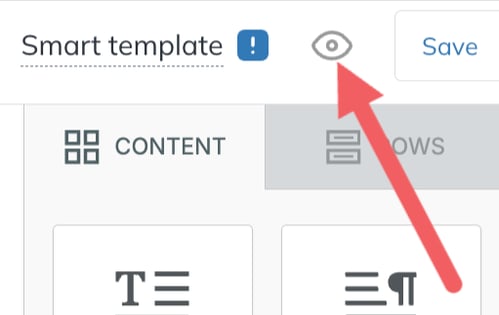
In the email editor, click the eye icon at the top right to display the email in its desktop or mobile version. On the campaign page, the desktop and phone icons above the preview also let you switch between versions.
Send yourself a test email
From the campaign page, click Send test email at the top right. From the editor, open the arrow at the top right and choose Send test email.

Open the test on a computer and on a phone, ideally in several email apps (Gmail, Outlook, etc.). After each change, send yourself a new test.
Pre-send checklist
Display
- The email displays correctly in its desktop and mobile versions.
- Images display and have alt text. Avoid images that contain text: use title and paragraph blocks instead, which adapt better to all screens and load faster.
- Special characters and accents display correctly.
Links
- All links and buttons work and lead to the right page.
Footer
- The unsubscribe link (
[UNSUBSCRIBE]tag) is present. - Your organization's postal address (
[CLIENTS.ADDRESS]tag) is present.
Campaign details
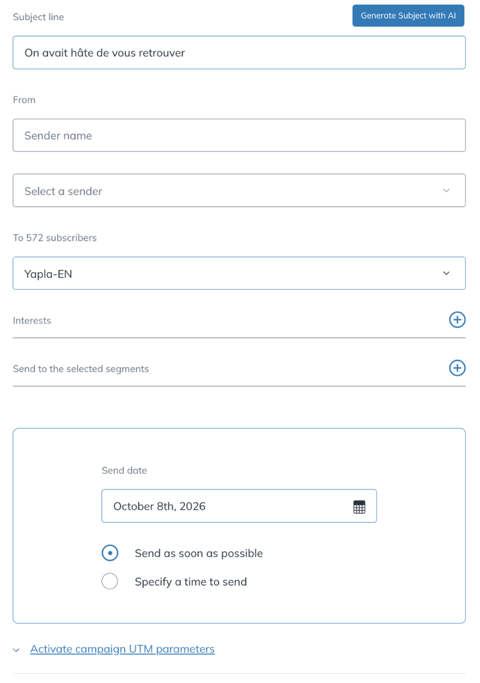
- Subject line: clear, catchy and error-free.
- From: the sender name and address are recognizable to your recipients.
- Recipients: the right list is selected, along with interests or segments if applicable.
Schedule and send the campaign
On the campaign page, under Send date:
- Send as soon as possible: the campaign goes out as soon as you click Send campaign.
- Specify a time to send: choose the date and time. A campaign can be scheduled up to the end of the following calendar year.
Once all the checks are done, click Send campaign.