
Depending on the amount of your memberships, you may want to offer your members the option to pay in multiple installments by credit card instead of a single payment. Yapla allows you to pay memberships in multiple installments for amounts exceeding $20.
Note that installment payments are only available under cash accounting and is not available on rates including sales tax.
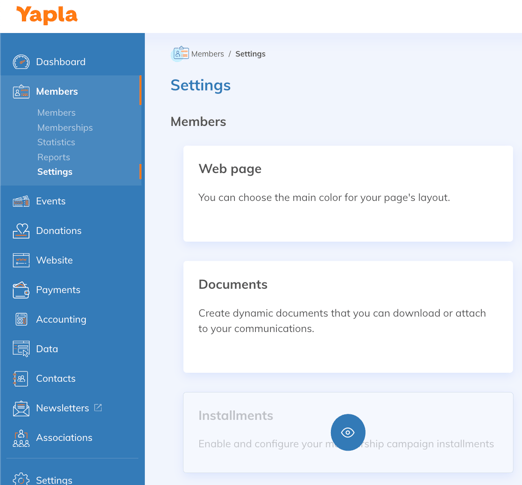
Enabling Installment PaymentsUnder Members > Settings, click on the Installment tile. From there, you can enable installment payments.
You can also disable or customize installment payments for each membership type individually by going to Settings > Membership Types > Select the desired membership > Installment Payments.
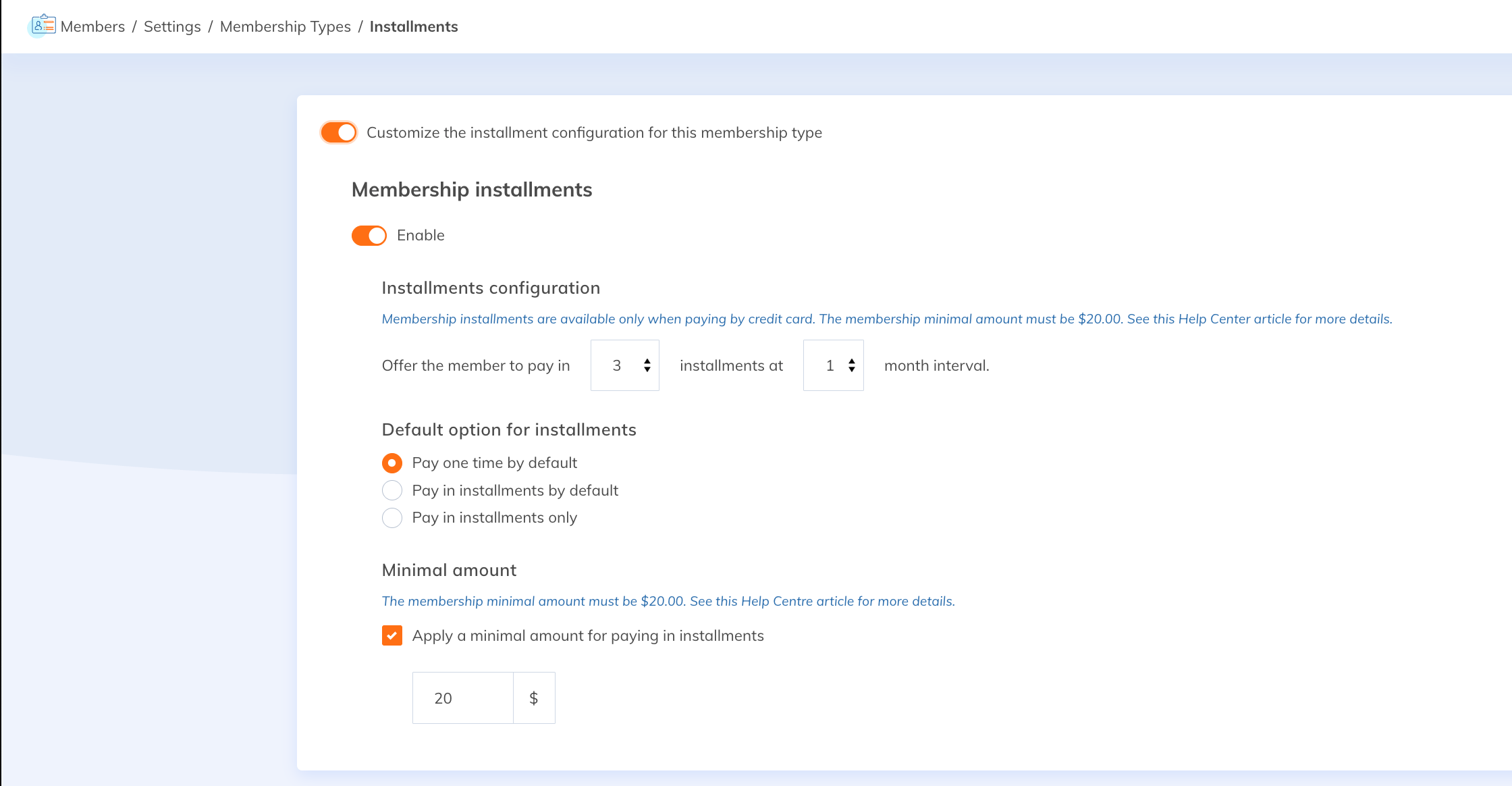
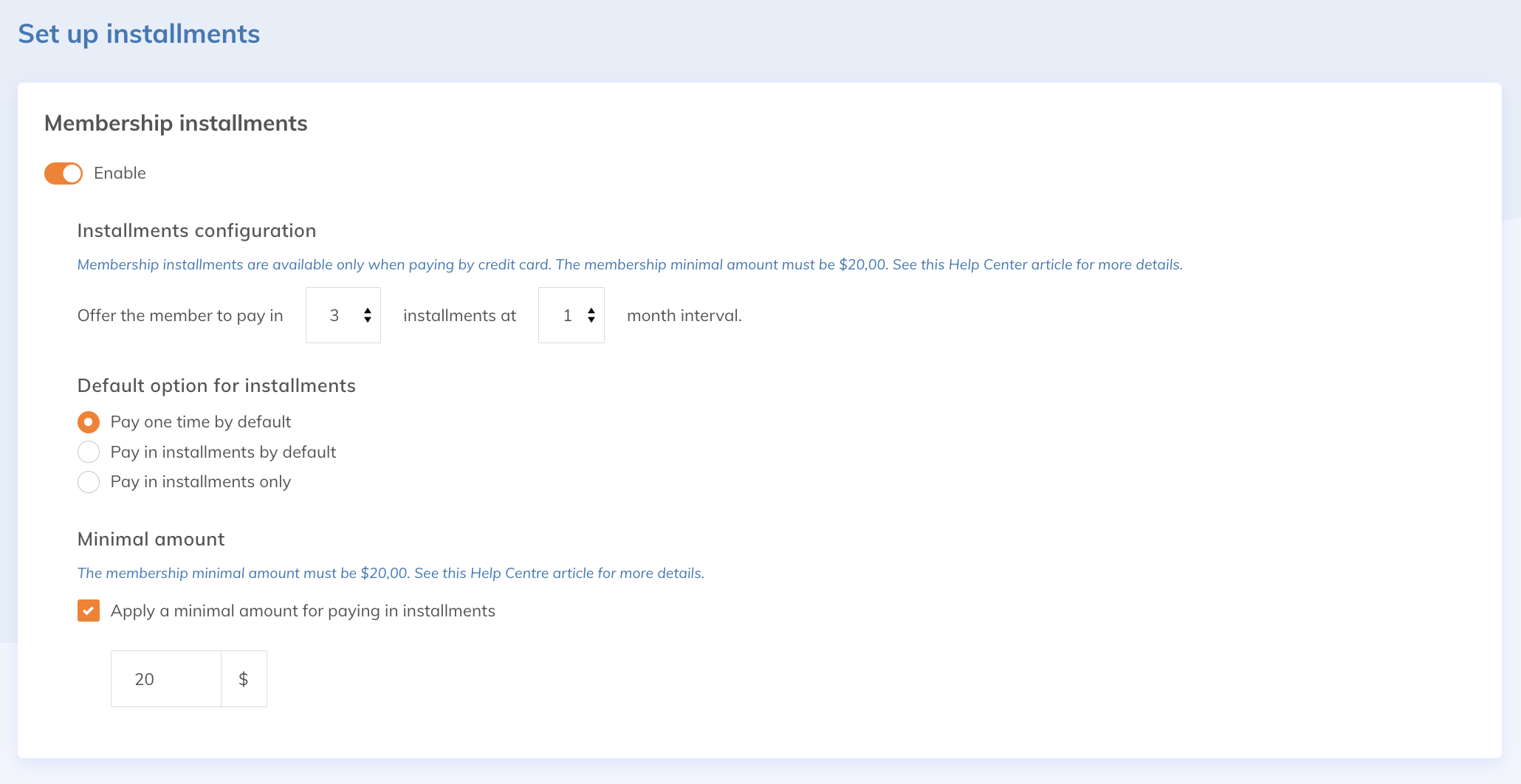
Payments are made by default in 3 installments, with a one-month interval between each payment.
Starting from the Plus plan, you can decide on the number of installments and the frequency between them. However, note that all payments must be made within a year following the purchase.
Also starting from the Plus plan, you can choose the default option during payment: single payment or installment payment. It is also possible to offer only an installment payment or set a minimum amount from which the option is available to the member.
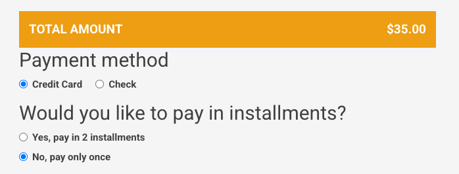
On your website, at the payment step, your members can choose to pay for their membership in a single payment or in installments.
If installment payment is selected, the user will be able to view the list of upcoming payments and their dates.
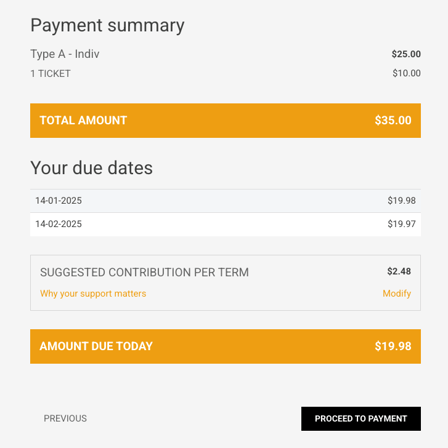
The first payment will be made immediately. Subsequent payments will be scheduled for the mentioned dates and processed automatically.
Operation in YaplaThe membership will have the "validated" status upon the first payment. However, the invoice will remain in the "Balance Due" status until all payments are made. In the membership details, you can view the remaining balance and the dates of upcoming payments.
Important: If membership expires before scheduled payments are complete, charges will continue until payment is complete.
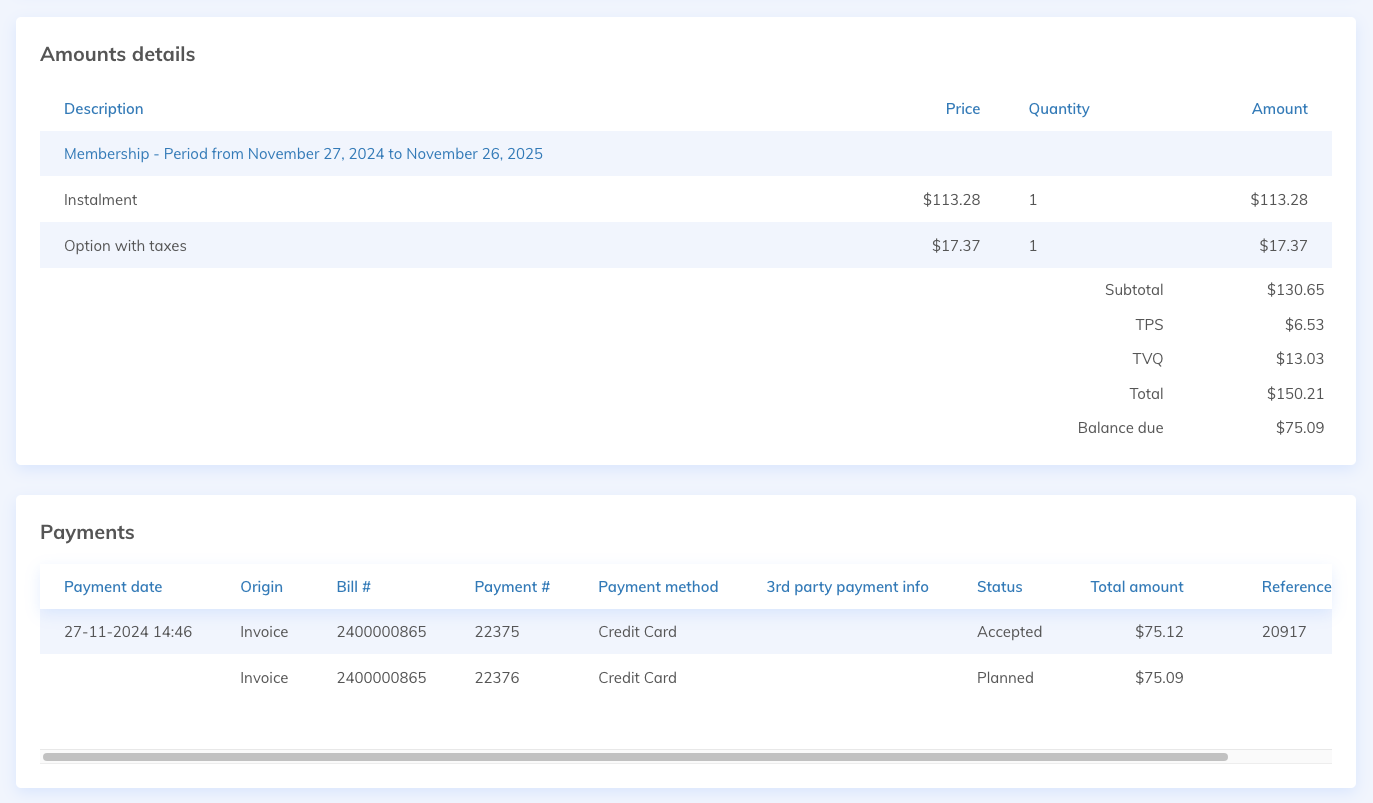
In Case of Payment Failure
In the event of a payment error, please note that an automatic communication will be sent to the affected user. This communication cannot be disabled and is not customizable. Here is what it contains:
Payment Failure
Invoice: [Invoice #]
Transaction: [Transaction #]
Name:
The scheduled payment of [amount] due on [date] has failed. This may be due to several reasons (insufficient funds, expired card, etc.).
Please contact our team as soon as possible to resolve the situation.
To reach us: [your association's email]
Thank you
To track failed payments, go to Payments > Payments and in the Payment Status field, select "Failed" — all failed payments will then be displayed.
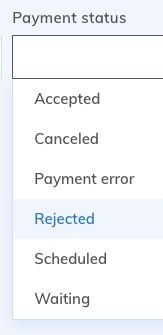
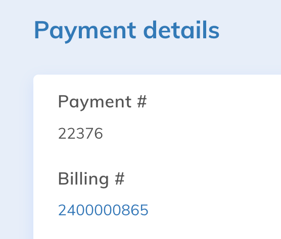
Select the rejected payment, then click on the invoice number.
In the Payments section at the bottom, click on the gear icon next to the rejected payment to retry the payment or choose an alternative payment method. If you choose to pay differently and make a new payment by bank card, this new card will be registered and used for future payments, if applicable.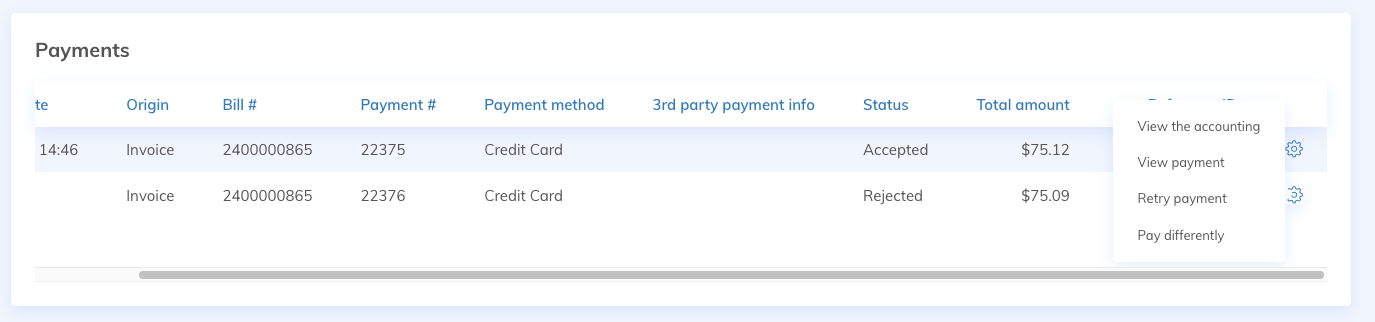
Frequently Asked Questions
Can I enable installment payment after memberships have opened?
Yes, you can enable or disable the option at any time. This will only affect new registrations. Existing registrations will not be affected.
Can I enable installment payment with accrual accounting?
Installment payment is only available for cash accounting.
Can I enable installment payment for specific memberships only?
By default, installment payment applies to all memberships. However, starting from the Plus plan, you can customize the behavior for each membership via the Installment Payments submenu in the membership settings.
Is installment payment processed automatically?
Installment payment is processed automatically. You do not need to follow up with your members.
Can payment information be modified between two installments?
Payment information can only be modified following a payment error. However, only an administrator can make this change.
Is installment payment available for events?
No, installment payment is not available for event-related payments.