
Available with all plans, including the Free plan.
A single page (monopage) is a simple web page that Yapla creates automatically for each membership campaign, donation campaign or event. It lets people register or pay without you needing a website. It is useful if you do not have a Yapla website yet, or if you have an external website and want to send your visitors to donate, join or register.
In this article
- What a single page looks like
- Find and customize a single page
- Share a single page
- Change the address of your single pages
- Frequently asked questions
What a single page looks like
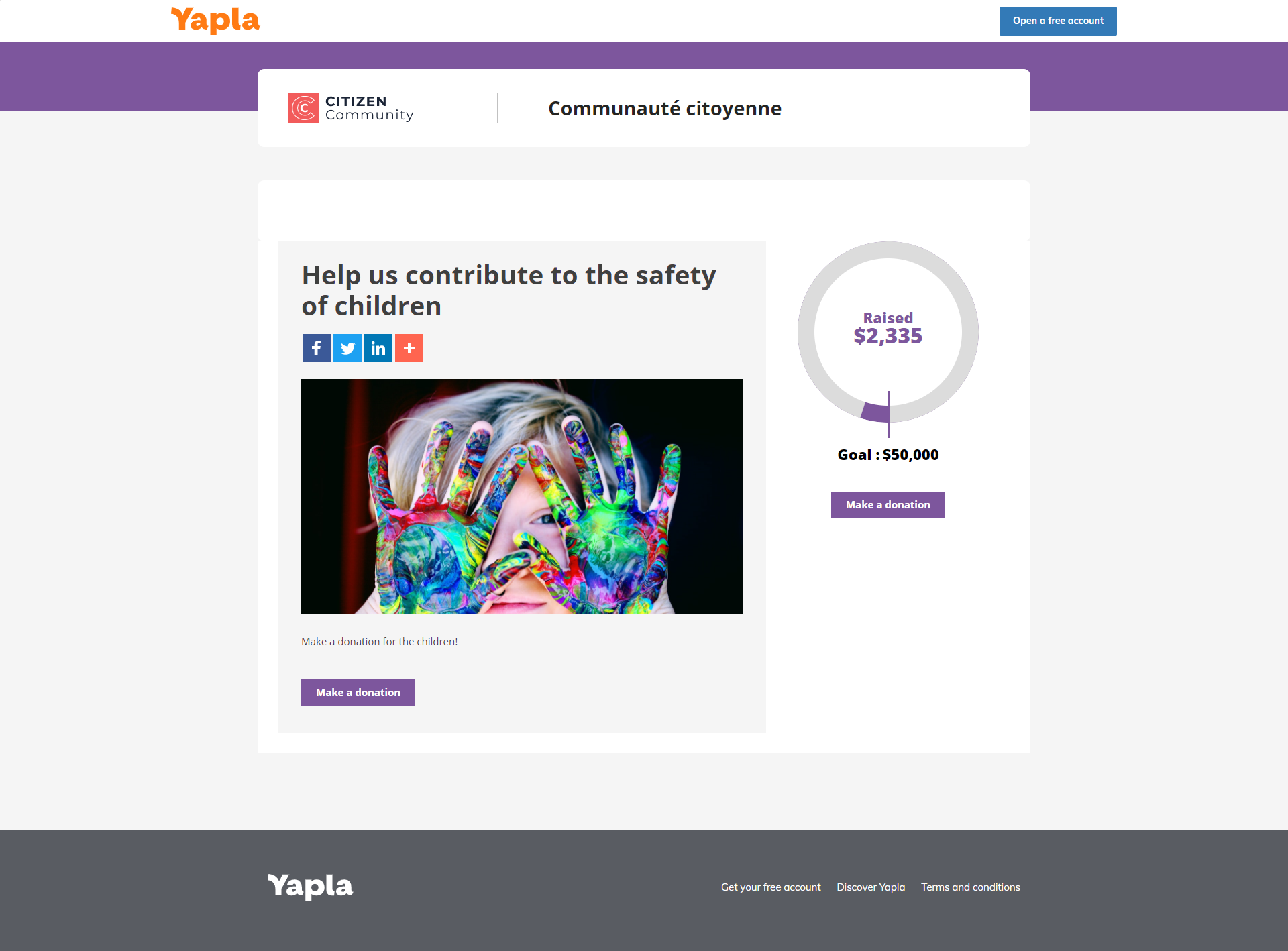
A single page includes a header, the campaign or event, then a footer. Visitors find the description and the button to register or pay.
Find and customize a single page
Yapla offers the single page at the second-to-last step of creating a campaign or an event. You then find it in the Web Page tile:
- Members > Settings > Web Page
- Events > Events > your event > Web Page
- Donations > Campaigns > your campaign > Web Page
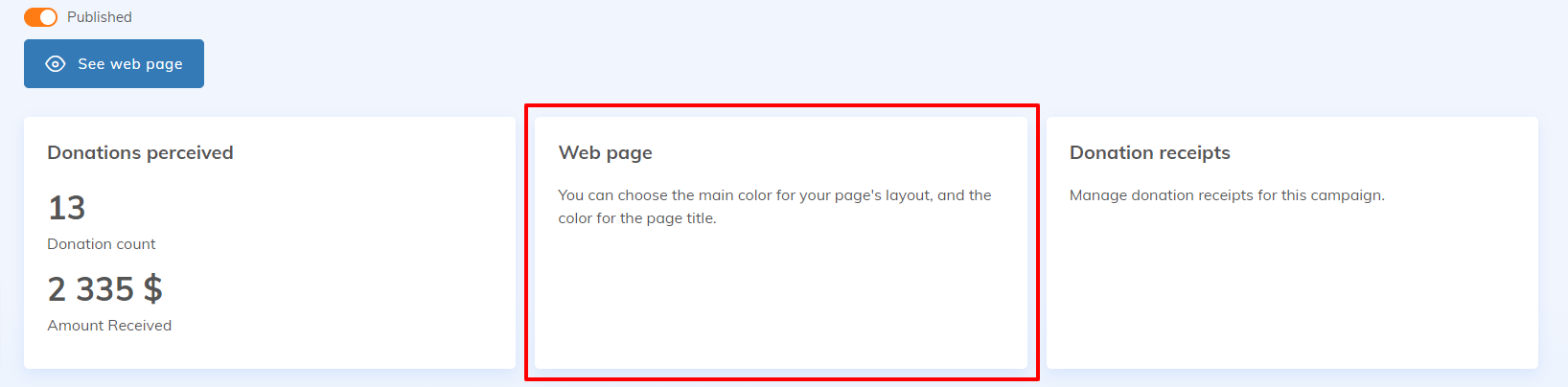
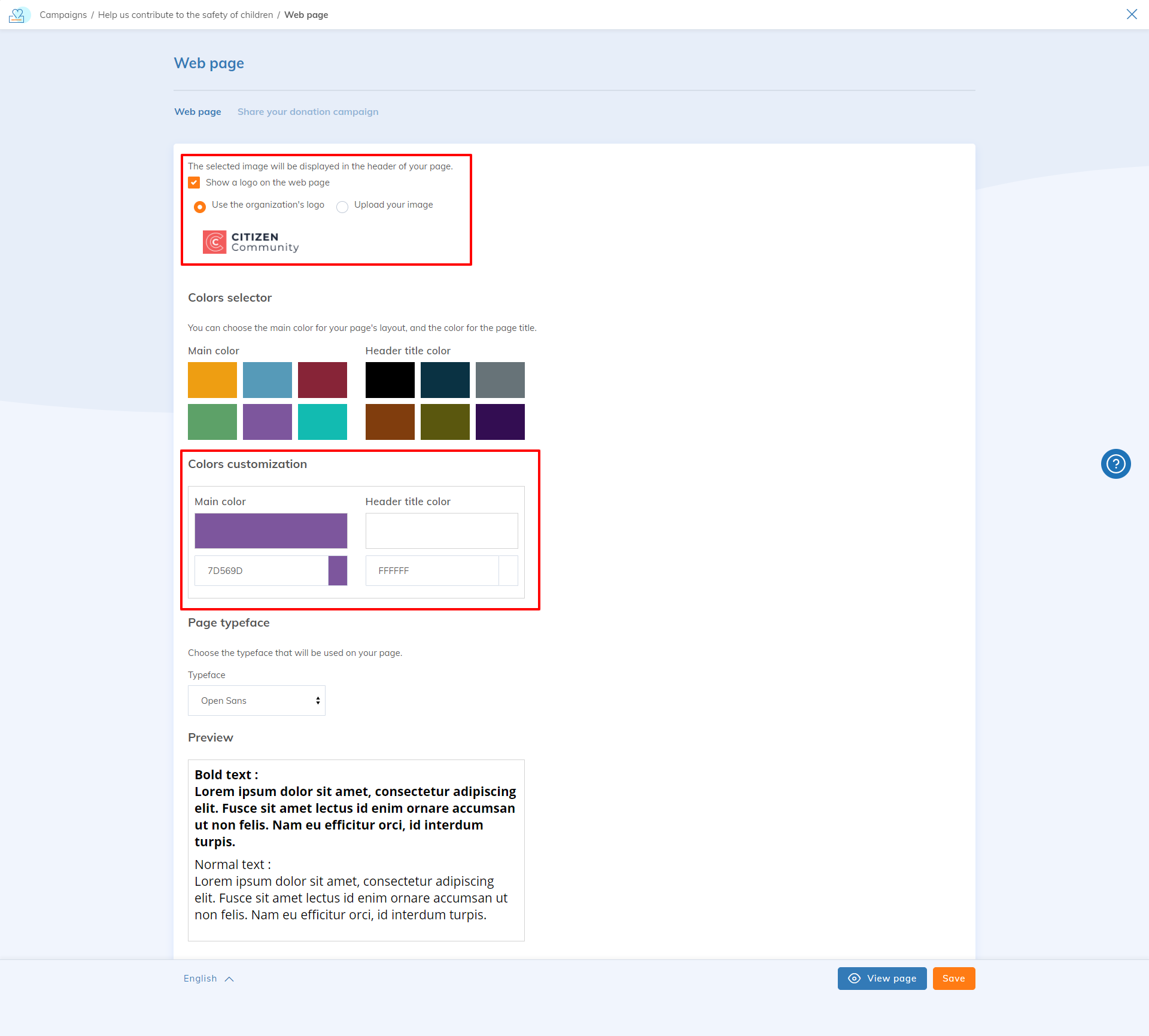
In the Web Page tile, you can:
- display a logo or not: your organization's logo in Yapla or a new one;
- change the main colour and the font. The colour applies to the top banner and to the main elements of the page, for example the amount raised, the thermometer and the Donate button.
Click View Page to preview it.
Share a single page
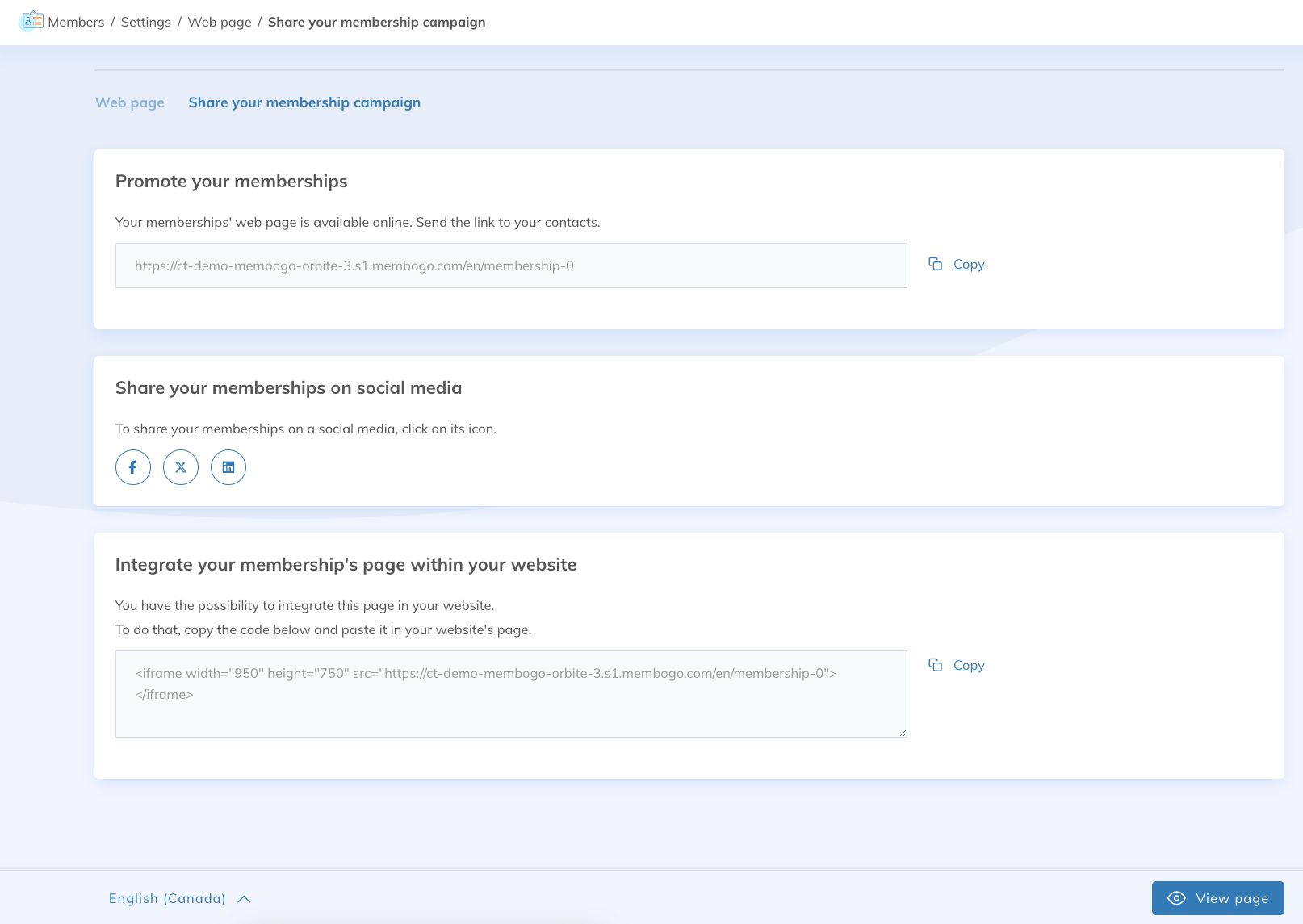
In the Sharing tab of your membership campaign, donation campaign or event, you have three options:
- Promote: copy the link to the single page to add it to a button on a website, in a newsletter, an email or any other communication.
- Share on social networks: Yapla takes you to the selected network. Log in with your organization's account and post the link.
- Embed the page in your website: Yapla provides HTML code that displays the single page in an iFrame on an external website. This option is not recommended (see the FAQ) and does not apply to websites built with Yapla Websites.
Change the address of your single pages
The address of your single pages starts with your account's diffusion domain name, for example my-organization. This name is shared by all your single pages: memberships, donations and events. Changing it therefore changes the address of all your single pages at once.
No redirect is set up. As soon as you save the new name, the old addresses stop working. Links already shared then lead to an error page: buttons on your website, social media posts, newsletters and emails, QR codes and iFrames. Replace them all with the new links, found in the Sharing tab of each campaign or event.
To change the diffusion domain name:
- Go to Settings > Your organization.
- Open the Diffusion domain tab.
- In the Diffusion domain section, edit the Domain name field.
- Click Save.
This name does not change the address of your Yapla website. The website's subdomain is changed separately, in the website settings. See Domain name and subdomain of your website.
Frequently asked questions
What is the difference between a single page and a Yapla Websites site?
Single pages are free but offer little customization, and display a Yapla banner at the top of the page. With the Essentials plan and higher, Yapla Websites lets you create a complete website that reflects your organization:
- several custom pages: home, news, blog, about;
- a fully customizable structure, look and content, with no Yapla banner;
- several events or donation campaigns on the same page;
- a member area and members-only pages.
Why is embedding with an iFrame not recommended?
iFrames can be unstable: browser incompatibilities, security restrictions that block content, conflicts with the host website's styles and scripts. Their content adapts poorly to mobile devices and can slow down loading. For sensitive actions such as a payment, use a button that opens the single page instead.